From 31 March 2022 ACC will discontinue the use of the ACC Java applet to submit invoice files . The ACC portal must be used for all invoice submissions.
In order to facilitate eBilling with ACC, you will need to configure or add some information to your database.
Please refer to the online manual for additional information.
- Help – SPM Help (Integrated)
The information in this document pertains specifically to what is required to enable ACC eBilling. The terminology 'Classic' refers to the original Incisive application with the Mode buttons at the bottom of the screen; 'Integrated' refers to the new 'look' Incisive application with the Menu bars on the left hand side.
You will need the permissions to gain access to these areas of the program. If you do not have sufficient rights, please contact the SPM Administrator in your practice (Classic) or the System Administrator (Integrated) and have them add or update this information.
Contracts
ACC Contract information is stored against the party of billing. This can either be against a 3rd Party Schedule (Bulk Billing) or the Third Party (Invoicing). Therefore, for each ACC Contract, you will need to have a separate entry in the your address file or list of contacts.
3rd Party Account Entry
Setup – Contacts – Invoicing /Reports
If you do not already have a suitable entry, add a new 3rd party. Alternatively edit an existing entry.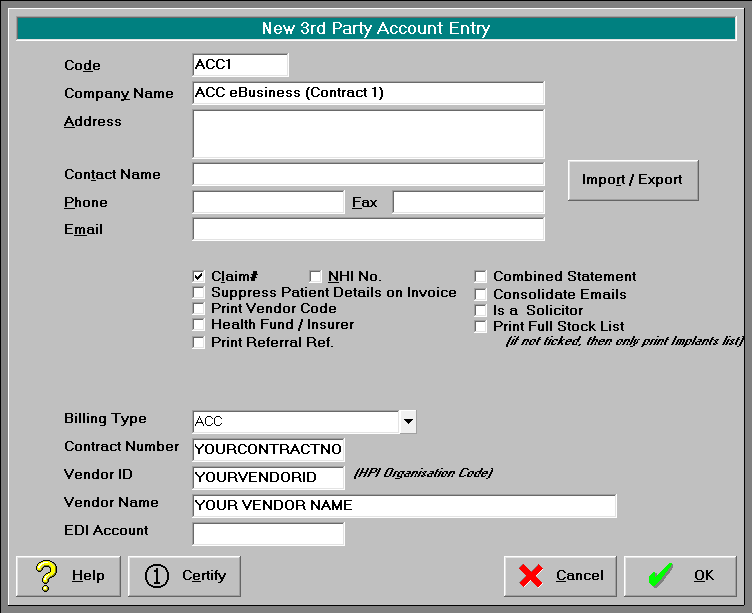
The critical fields that need to be correctly completed on this screen are:
Claim # | Tick |
Contract Number | Your Contract number as supplied by ACC |
Vendor ID | Your Vendor ID as supplied by ACC |
Vendor Name | You Vendor Name as per the contract (as supplied by ACC) |
EDI Account | If you need to send ARTP's via Healthlink to this party, enter 'acceartp' |

Import / Export
Set this party of billing to Export XML file to ACC.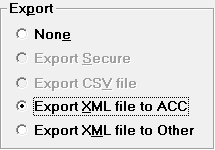
Please note that charges for services provided against a 3rd Party Invoice will require a Purchase number (supplied by ACC) to be entered. This is recorded against the Claim number in the Patient – Claims tab.
3rd Party Schedule
Setup – Contacts – Third Party Schedules
The 3rd Party Schedule option is normally used for the ACC Clinical Services Contracts. However, its usage may be dependent on the number of transactions being claimed. If your numbers are minimal, raising individual invoices (3rd Party Invoices) may be more applicable. Claims submitted via a Bulk Bill Schedule do not require a Purchase Order.
If you are bulk billing ACC, you will need to have a 3rd party Schedule entered for each Contract. Where you have different doctors / providers with different contracts, you will need to have a separate schedule for each contract holder.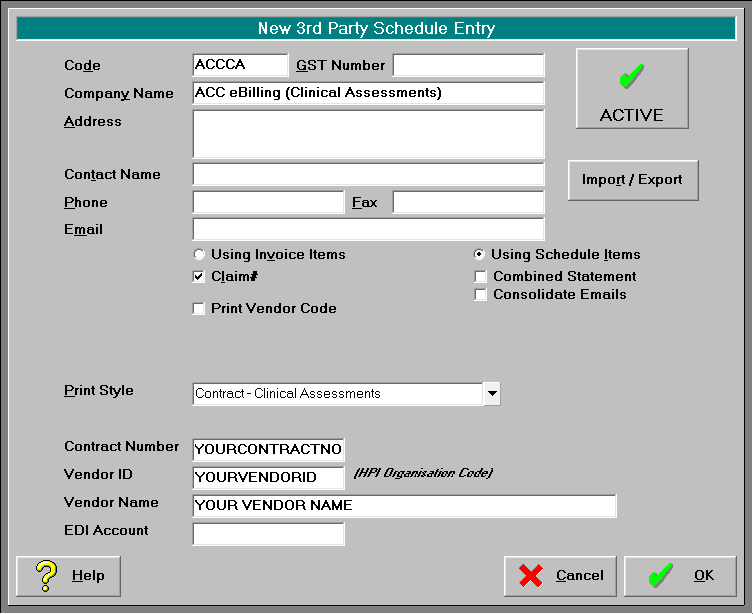
The information that needs to be on this screen is largely identical to the 3rd Party Account entry with the following exceptions:
GST Number | Where the contract is held by a different business entity other than the doctor, enter the GST number of the Contract Holder. |
Using Invoice Items | If you have your claim items set up as Invoice items, select this option; or |
Using Schedule Items | If you have your claim items set up in Setup – Claims – 3rd Party Schedule Claim Items (shared between all providers) select this option. |
Print Style | Select the most applicable print style for your schedule, normally 'Contract – Clinical Assessments' but other styles can be selected if you prefer a different style. |
Provider Details
Information that pertains to the doctor or provider needs to be entered into the database. ACC have recently been merging records for practitioners and organisations. If you are registered with the Ministry of Health's Healthcare Practitioner Index (HPI) ACC may start using this for your claim related interactions with ACC. If this is the case, you should receive a letter regarding 'ACC record merge confirmation'. If you have not received notification from ACC, you will need to continue using the Provider ID that they originally assigned you.
Provider ID / HPI Provider
Setup – Provider – Config 2.
Select Edit to check / amend the details.
Record the Provider ID or the HPI depending on which Provider Single Identifier ACC have advised.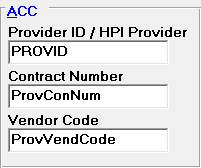
The Vendor Code can also be entered here. However the Contract Number is not needed in this area as these details will be taken from the 3rd Party configuration. Leave the Contract Number field blank if you have a number of different contracts with ACC.
Health Practitioner Index
Setup – Provider – Config 1 (Integrated)
You will also need to ensure that the HPI is entered in the dedicated field in the database, as this is used for other functions than ACC eBilling.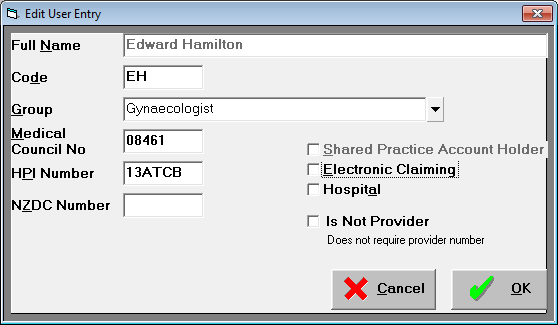
Transactions
You must use Invoice Codes or 3rd Party Schedule Codes when entering ACC Claims for eBilling. This is so that the correct information can be transmitted in the claim. ACC have a Service Item Code (Alias Code) that needs to be assigned to each Code that you enter in the database. Note that there is a four character limit for this code because of a limitation in the ACC system.
Example: a CS100 (Simple Assessment (Initial) has an alias code of CS10
To enter a new Invoice Code
Setup – Financial – Charges – Invoice Items - New (Integrated)
The Code can be your own code; however the Item# field (against the relevant Billing type) is where you need to enter the Service Item Code (Alias Code).
Without a valid Service Item Code, the ACC system will reject the claim when you try and upload it.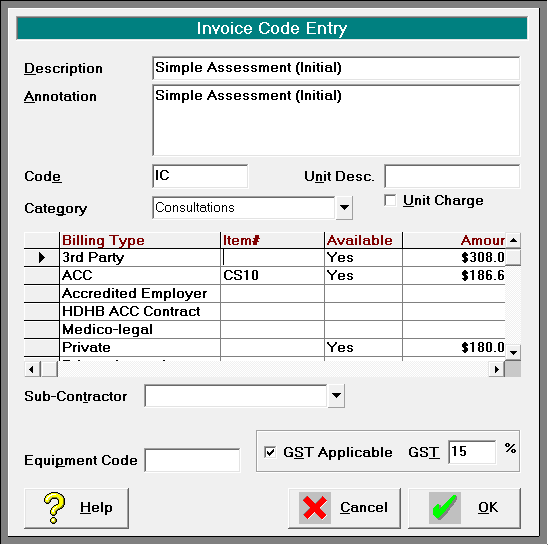
To enter a new Schedule Code
Setup – Financial – Charges –Schedules – Third Party Schedule Claim Items
As with the Invoice Code entry, the code you enter in the code field can be anything you like, i.e. CS100. The Claim that is submitted to ACC will draw the Service Item Code from the Item # field, so ensure that you use the ACC Service Item Code (Alias Code).
Without a valid Service Item Code, the ACC system will reject the claim when you try and upload it.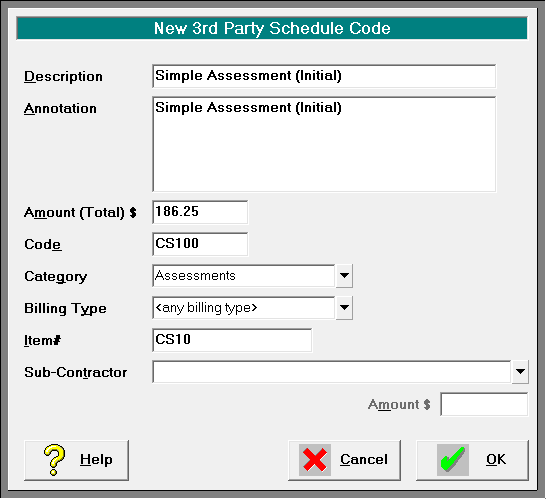
Additional Information
Date of Birth
The date of birth is a required field for any claims submitted electronically to ACC. You will be unable to enter a 3rd Party Schedule Claim if this information is missing. The OK button will be dimmed on the New 3rd Party Schedule data entry screen.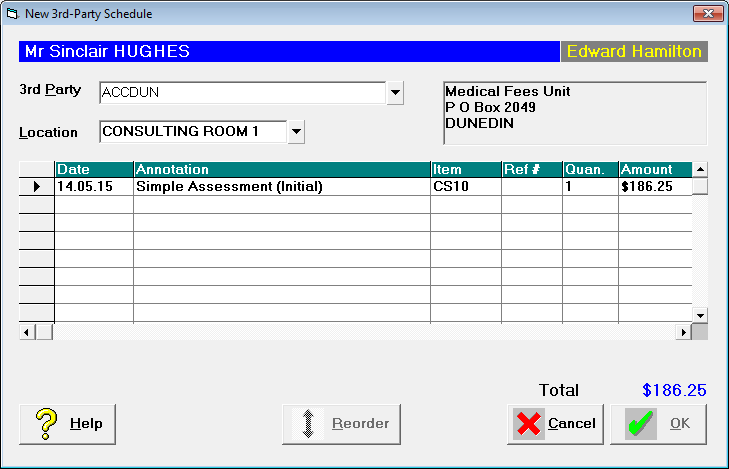
The Continue button will be dimmed for a third party invoice. DOB missing displays in red.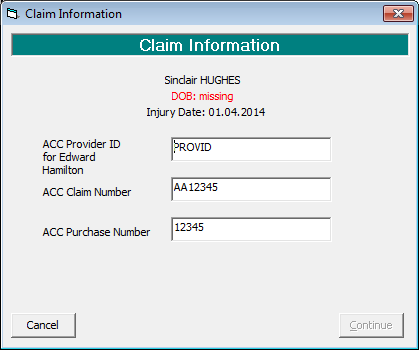
Purchase Number
Where ACC have issued a Purchase Order number for the procedure, this needs to be entered on the ACC Registration screen (Patient – Claims tab). This number will be submitted on claims entered by way of a Third Party Invoice.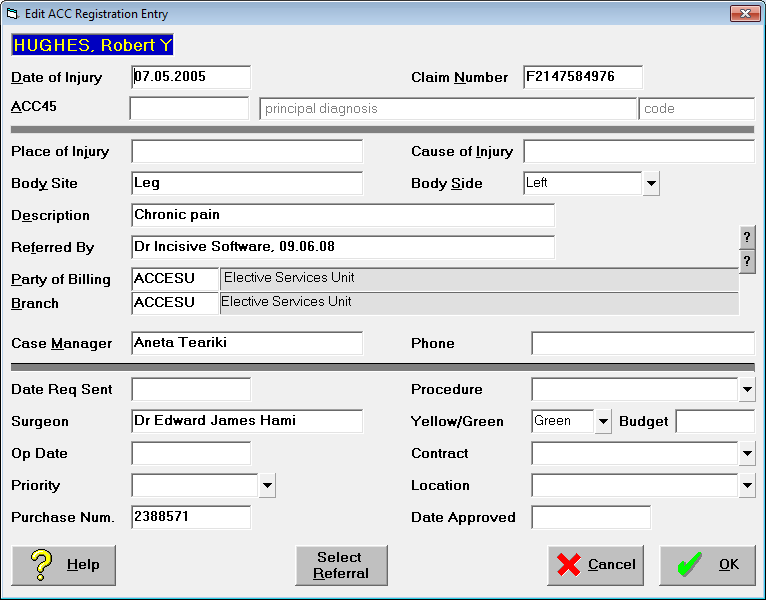
Entering charges for (treatment) services provided
3rd Party Schedule Entries
Ensure that you use your function key - F8 to drop in the code. The Item Number should appear in the Item number column. If this does not appear, the code has not been set up correctly. Please refer to the above instructions to correct.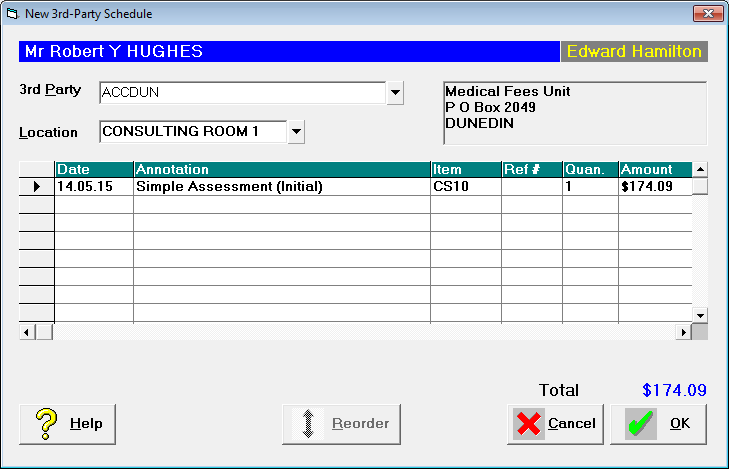
Unlike Third Party Invoices, Third party schedule claims are added to the schedule. The claims are therefore not submitted individually but in bulk. A schedule can contain multiple claims for different patients.
Processing your Schedule
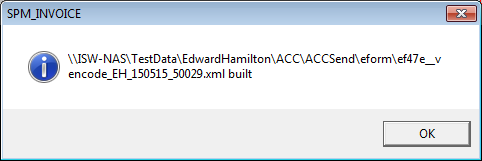
The schedule is advanced via Office – Schedules in the same way as you would process an ordinary (paper based) schedule however the last stage of processing the schedule will indicate that the xml file has been built (created).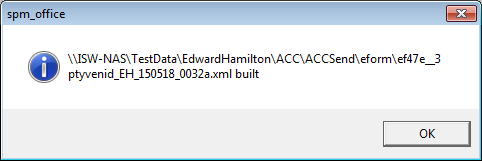
3rd Party Invoices
Again, you will need to use your F8 codes to drop in the service item. The code should appear in the Item column.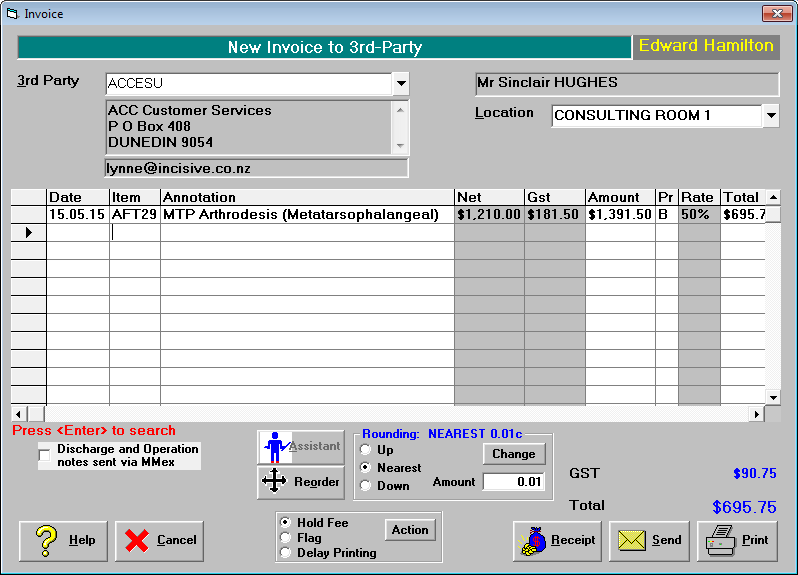
On selecting 'Print' the Claim Information will display.
Ensure you have the correct ACC Claim Number and ACC Purchase Number recorded. If you do not, cancel the Claim to return to the previous screen.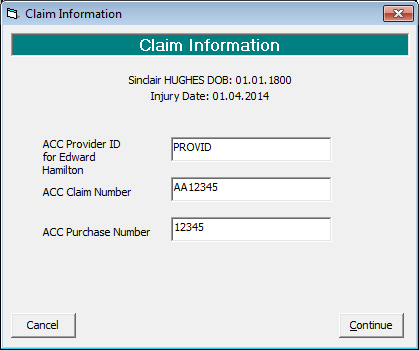
Select 'Continue'
The XML file for the invoice will be submitted to ACC