If a third party is set to use Schedule Items - see THIRD PARTY SCHEDULE then amounts to claim are entered here. These codes are used by all Providers. The amounts claimed by each Provider should therefore be the same. They can be used to setup amounts claimed under contract, such as the Clinical Services Contract, where there are a standard set of charges.
As these can be used by all providers, it is imperative that when prices change, all claims are entered up to the date of change before the prices are altered.
It is therefore recommended that only the System Administrator has access to this area to avoid the altering of charges that will affect everyone.
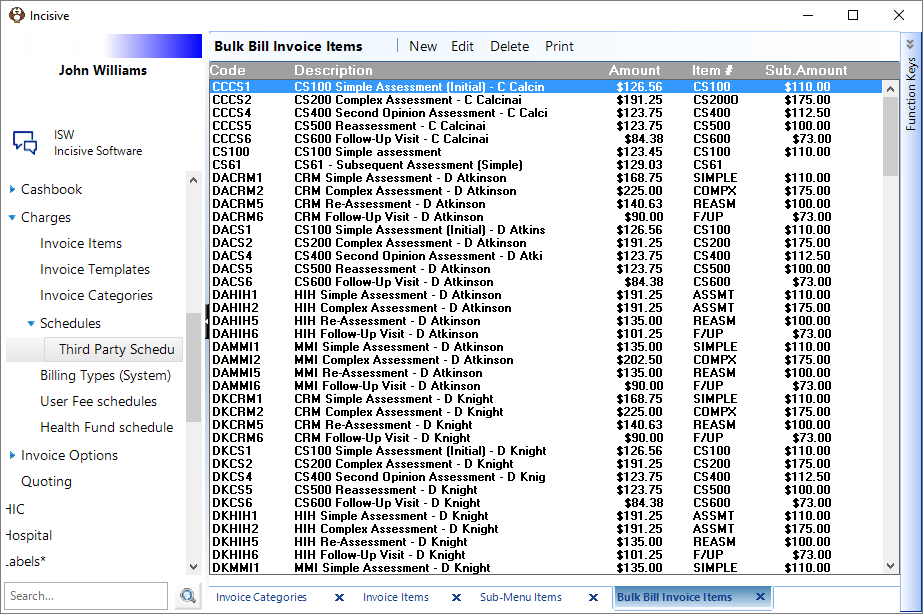
New Third Party Schedule Item
Select 'New'.
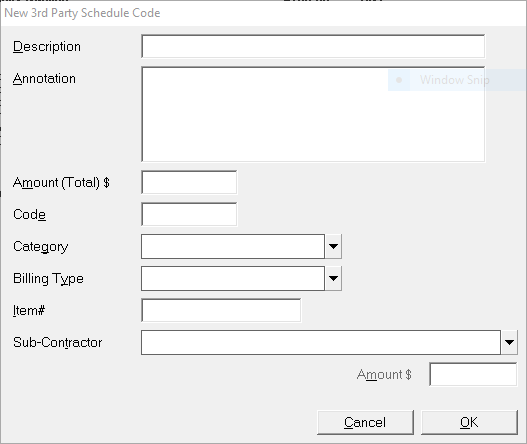
- Complete the details as applicable.
- Select 'OK' to save the new Third Party Schedule Item / Code.
Description | Enter a description to assist with the selection of the correct code. |
Annotation | Enter the annotation. This is what will appear on the schedule. |
Amount (Total) $ | Enter the amount to be claimed, inclusive of GST. |
Code | Enter a Code for this claim item. |
Category | Select a Category from the drop down list. These are the same as the Categories used for invoicing. |
Billing Type | Select a Billing Type from the drop down list, or select <any billingtype>. |
Item # | Enter an Item number. This may be the same as the Code, or it may be different. It is the Item # that will be printed on the schedule or submitted electronically to ACC.The data entered in the Item # field populates the <service_item_code> segment of the XML file when the schedule is exported to ACC. |
Sub-Contractor | If there is a sub-contractor involved, select the appropriate sub-contractor from the drop down list. |
Amount | Enter the amount to be paid to the sub-contractor, or leave this field blank. |
Edit
This allows existing Third Party Schedules to be amended as needed, i,e. if the price to claim (or pay to a sub-contractor) changes.
Delete
Only codes that have not been used can be deleted. If you try to delete a code that has been used, the following message will display.
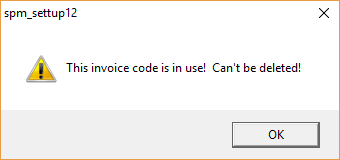
If you are unable to delete a code because it has been used and the code is no longer required, edit the code and prefix the code with a Z to drop it to the bottom of the list.
Allows a list of codes to be printed, together with the amount to claim and be paid to sub-contractors (if any).
On This Page:
How Do I...
- ACC invoicing
- ACC Online portal configuration
- Submitting invoices & schedules to ACC portal
- Resending invoices not delivered to ACC
- ACC Non-Core Invoicing
- Delete ACC Invoice after claim has been uploaded
- Add a New Transaction Au
- Add a New Transaction NZ
- Quick Invoicing
- Invoicing the Patient
- Invoice to 3rd Party
- Invoice a Solicitor
- Change Referral for an Invoice
- Make invoice codes from Medicare
- Adding Assistants or Alternate Providers
- Print Balance for Invoice
- Billing Types
- Advanced Invoicing Options
- Hospital Invoicing Au
- Hospital Invoicing NZ
- Tutorial - Invoicing
- GST Rounding adjustment