At this stage you need to understand the concept of screen focus. At any given time the computer is waiting for your "instructions" at the current screen focus which may be on any of the above controls.
Evidence that a data entry field has the focus is the presence of a cursor (blinking vertical line) in the field.
When a button has the focus it has a (subtle) dotted line around it.

Incidentally, a button can be activated a third way (after mouse; key combination) - if it has the focus - by pressing the Enter key.
It's not a commonly used method, but the focus can be moved from place to place on the screen by pressing the Tab key, and back from where it came with the Shift-Tab key combination.
The focus can be moved anywhere by clicking on the desired place with the mouse – and within a text entry box the cursor can be repositioned with the mouse.
Sometimes it is not apparent where the focus is. Even if you hate using the mouse, remember that if the keyboard doesn't seem to be doing what you expect, it is probably because the focus is not where you think. Use the mouse to place the focus where you want it.
The options within an overlay window may be divided into subgroups within separate frames. If there is more than one frame within a window, each frame has a name and that name has an underscored character. For example "y" in "Display" or "F" in "From" in the example below.
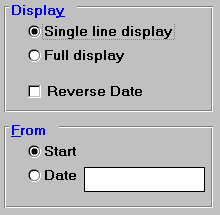
The keyboard method of getting to a particular frame or individual field is to hold down the Alt key and press the underscored letter. Remember an underscored letter in any screen always means that the Alt key + the letter will take you there. Often the underscored letter alone will achieve the same result.