ePressing a command button on a Tab causes a window to overlay part of the current screen.
The window may contain any or all of the following "controls":
Data Entry Fields
No escape for mouse addicts here – you have to type, then press the Enter key to move to the next field or, if the box has several lines, the next line.
Drop-Down Lists
These provide a list of possible choices for selection.
- You can select a choice with the mouse or use the up and down arrows and press Enter when the correct choice is highlighted.
- Alternatively, as soon as you have typed enough letters (often only one) to uniquely identify your choice, the choice will be highlighted and you can simply press Enter.
u 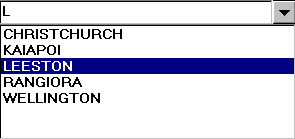
Radio Buttons
A group of "Radio" buttons allows a "one only" selection:
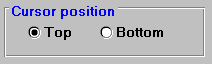
- Click on the desired button with the Mouse.
- Press Alt + underscored letter (if available)
- Use the arrow keys when the button group has the focus (see Screen focus).
Check boxes
If there are multiple check boxes, they are not mutually exclusive, as are radio buttons. A tick (or cross) appears when an item is selected.
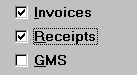
Select with one of the following methods:
- Click on a box with the mouse.
- Press Alt + underscored letter (if available).
- Press the space bar when the box has the focus. These boxes are "toggle", or on/off switches, that is, the mouse or the spacebar are used in the same way to erase a tick.