Marking Results as received
If you are using HL7 change the view of your Lab Mail so that you can see the list of Tests Ordered. You can do this by going into Setup > Operator > Settings, select 'Edit' and make sure the 'Show Structured Lab Results' box is ticked. 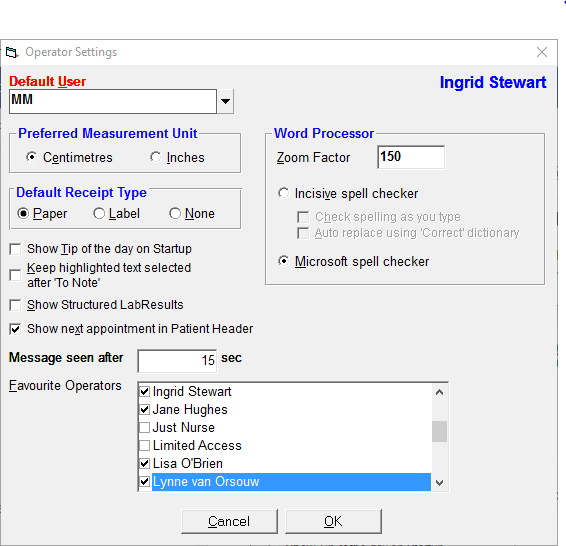
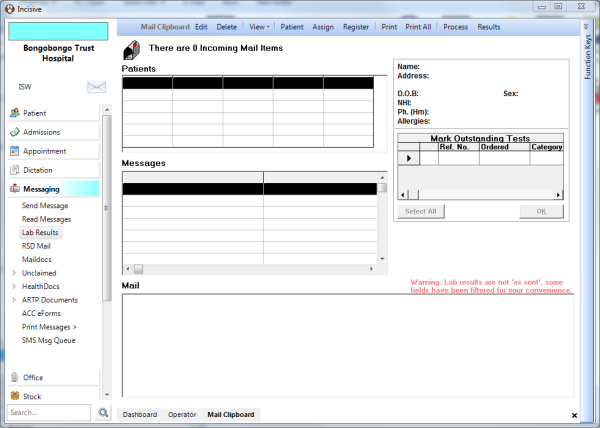
When you go into Messaging > Lab Mail the layout should have changed to like the screen below and you can view your Outstanding Tests Order for each patient on the right.
When you receive the results for the Patient you can either tick each result individually on the right and press 'OK' or if you have received all the outstanding Tests for that particular patient just press the 'Select All' button and then press 'OK'.