The Appointment Settings for a Provider will determine how the Appointment Book is displayed and how Appointments are made.
The tab displays the current settings.
To change (Appointment) Provider Settings
- Select 'Edit'.
- Check options on and off as applicable.
- Save by selecting 'OK'.
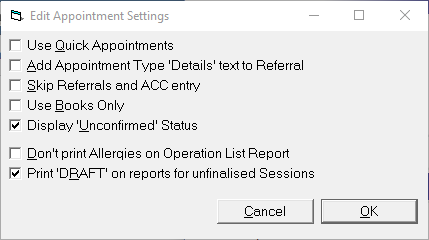
Use Quick Appointments | If this option is checked, when entering appointments a single screen is presented. The Patient Registration screen is bypassed. Enabling Quick Appointments will disable the options of 'Add Appointment Type 'Details' text to Referral' and 'Skip Referrals and ACC entry' as both these options bring up more than one screen to complete an appointment. If you are using resources, this option should not be enabled. |
Add Appointment Type 'Details' text to Referral | Providing 'Quick Appointments' and 'Skip Referrals and ACC entry' are not checked on, checking this option will transfer the text of the Appointment Type (plus the Appointment Details text) to the newly created Referral (Description). If this option is not enabled, then only the Appointment Details text will be transferred to the newly created Referral (Description). Existing Referral Descriptions are not effected. It is only new referrals that will be populated with this text. |
Skip Referrals and ACC entry | If this option is checked on, both the Referral screen and ACC screen are bypassed when making an appointment. The Patient Registration screen appears, followed by the screen to make the appointment (Appointment Time, Appointment Type etc.). If the Appointemnt Type requires a Resource to be selected or confirmed, this screen will also display before the final confirmation screen to make the appointment. |
Use Books Only | Enabling this option will mean the Appointments 'tab' will not be displayed. In some situations this is desirable, i.e. for hospitals where each theatre is a 'book'. Where the provider is a Specialist, this option would not normally be enabled. |
Display 'Unconfirmed' Status | If this option is checked, the appointment will display on the Appointments tab (or book) with a status of 'U' to indicate that it is unconfirmed. When an appointment is made it automatically has a status of unconfirmed. |
Don't print Allergies on Operation List Report | If this option is checked on then Allergies will not print out on the Operations List. If it is not checked on then the Allergies will print out on the Operation List. |
Print 'DRAFT' on reports for unfinalised Sessions | If this option is enabled then the Operating List (Print - Session - Operating List) will print with the word 'DRAFT' if the session has not been finalised. Once the session has been finalised, any alterations will be marked as revisions, i.e. REV 1. |