Functions
View data provided by patient
Link to existing patient or create a new patient
For an existing patient, if any of the current patient data is different from submitted data (e.g. phone numbers, address etc.), the relevant fields are automatically identified and can selectively update the patient data held in the database.
Allow some text fields to be modified for accuracy of data (e.g. spelling of Cities, omitted post code etc.)
Link patient to an existing GP and Referring Dr from the SPM/PHM database, or add a new one.
Insert emergency contact details into the Other Contacts -> Emergency Contact field.
Allows selection of Health Fund in database to match patient input
Data that is provided by patient that does not match to a data field in SPM/PHM, is appended to the patient's Comments field. (Payor responsibility, card colour, health fund date joined)
A new referral is created, or existing referral selected, to the relevant Provider/User
Claim related data is linked to an existing claim or a new Claim record is created.
Relevant Alerts are enabled where directly indicated by Medical History data (smoker etc.)
Insert Allergy record (and alert) if an allergy is listed by the patient.
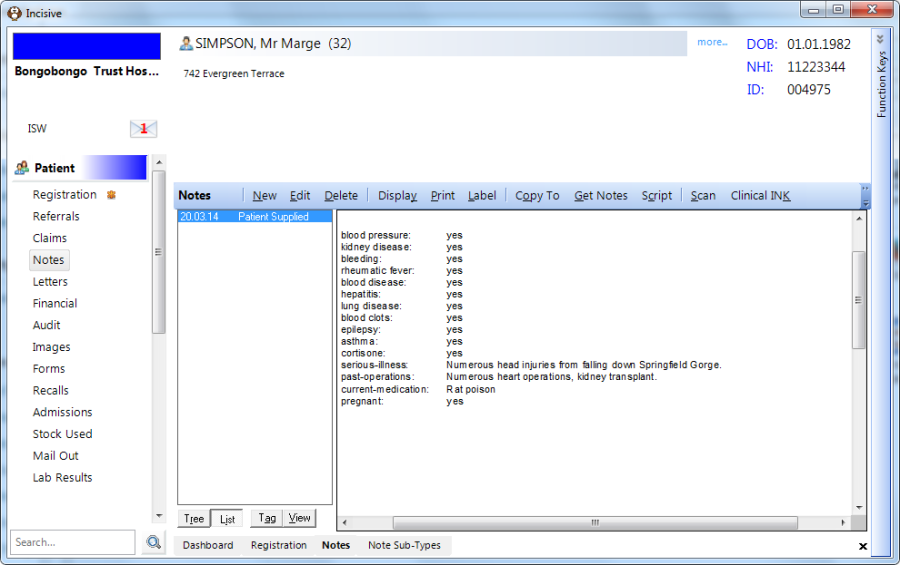
Create new 'Patient Supplied' note with all Medical History data inserted in it. Will be visible in Notes tab as a new, separate type.
The Medical History imported to the 'Patient Supplied' note cannot be edited once in the database.
Workflow
Patient provided information by secretary to access Practice/Hospital website to enter in information
Patient enters and 'Submits' data.
Data is delivered to specified directory on Practice/Hospital's server.
Staff member to be delegated to check for incoming data on a regular (daily) basis.
Data processed (accepted/modified) within PatientImport application.
Processed xml file moved to Archive directory.
Incoming files
List of files received from website
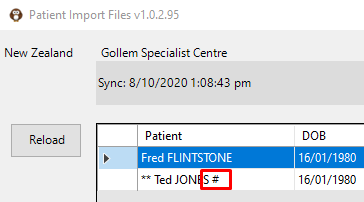
** indicates patient not identified in the database
# indicated there are files attached to the registration form.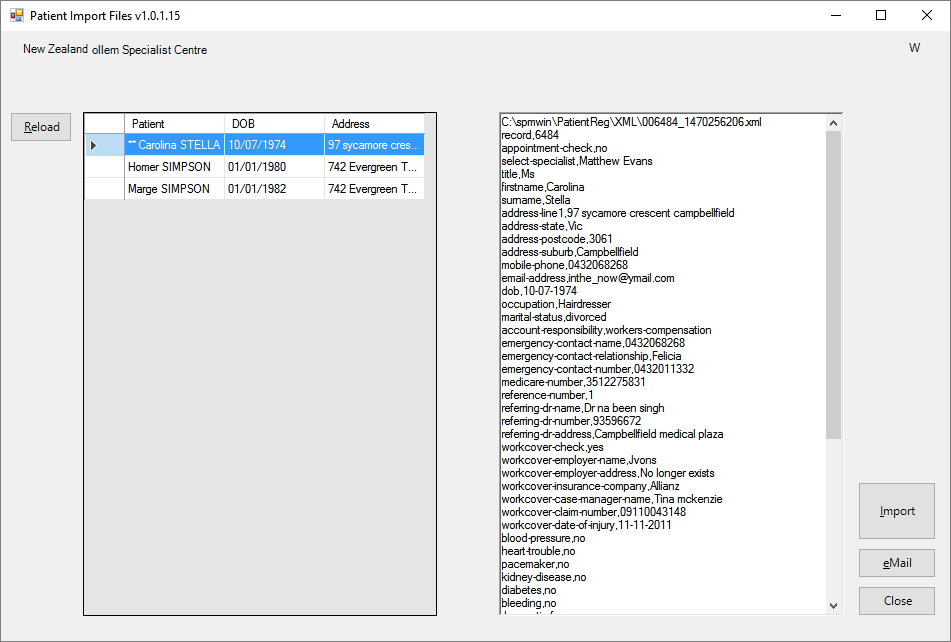
Import | Import the selected patient into the Incisive database |
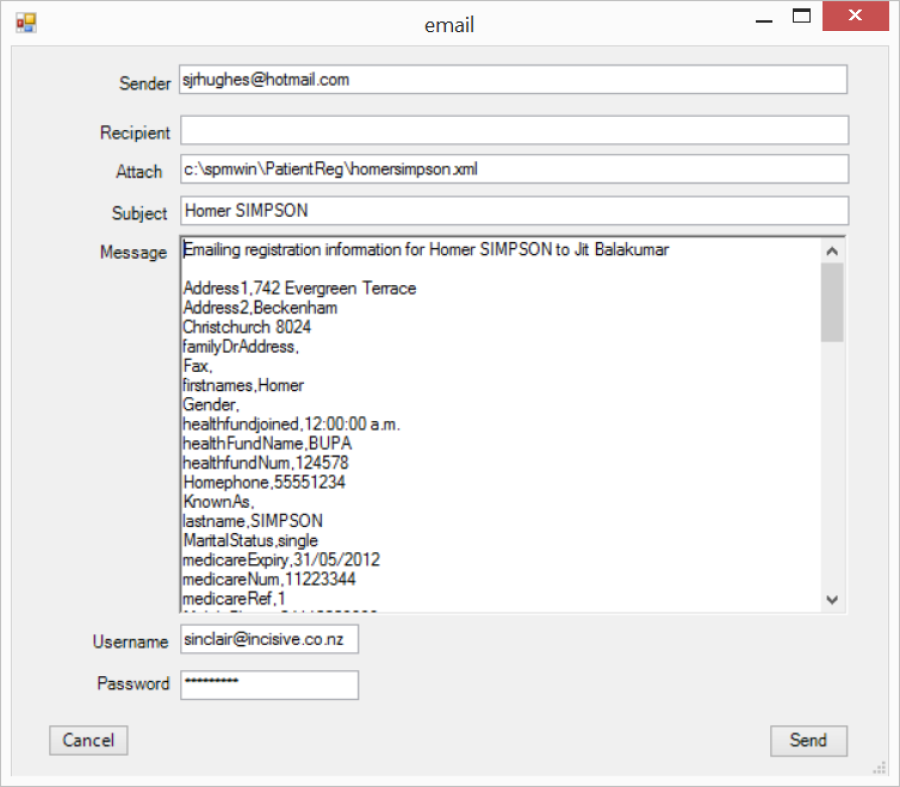
Email the selected xml file to another party and remove the patient from the list. If a patient is listed but the specialist they are referred to is not a Provider (User) in the SPM database you can email the details of the patient registration to another party. The original XML file is also attached. Select the patient in the list and click on the Email button. | |
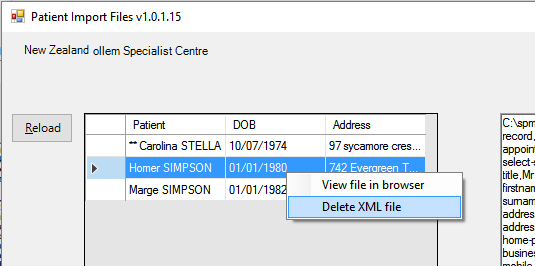
Delete XML File | right-mouse-click for additional functions |
Matching specialists, GP's and Referring Doctors
If the Specialist's name in the Online form does not exactly match the Provider names in SPM/PHM then a selection list will appear for you to choose the correct Provider to link the file to.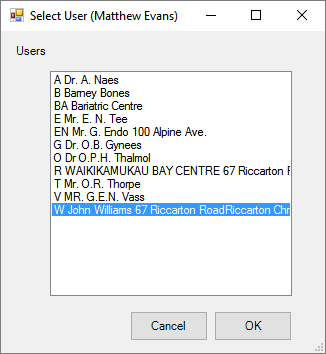
If the GP or Referring Doctor's name does not match an existing record in the SPM/PHM Contacts address book, the Shift-F7 Address Book screen will appear to allow you to manually configure the search for the correct doctor or to add the doctor to the database.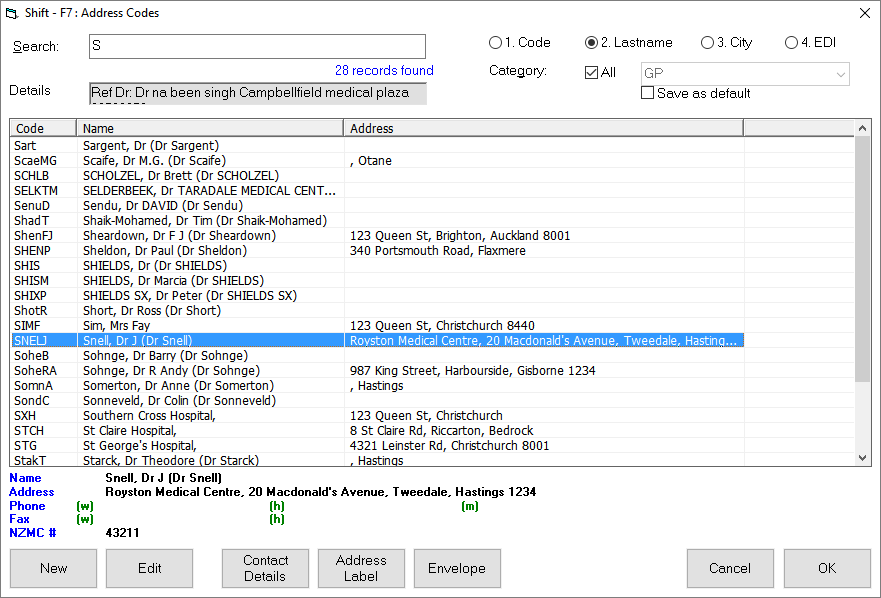
If you are at the main screen and you notice that you have the wrong:
patient,
specialist,
GP, or
Referring Doctor
You can use the options in the top right to make the changes before you import into SPM/PHM

New patient
(imported xml data on the left, SPM data on the right)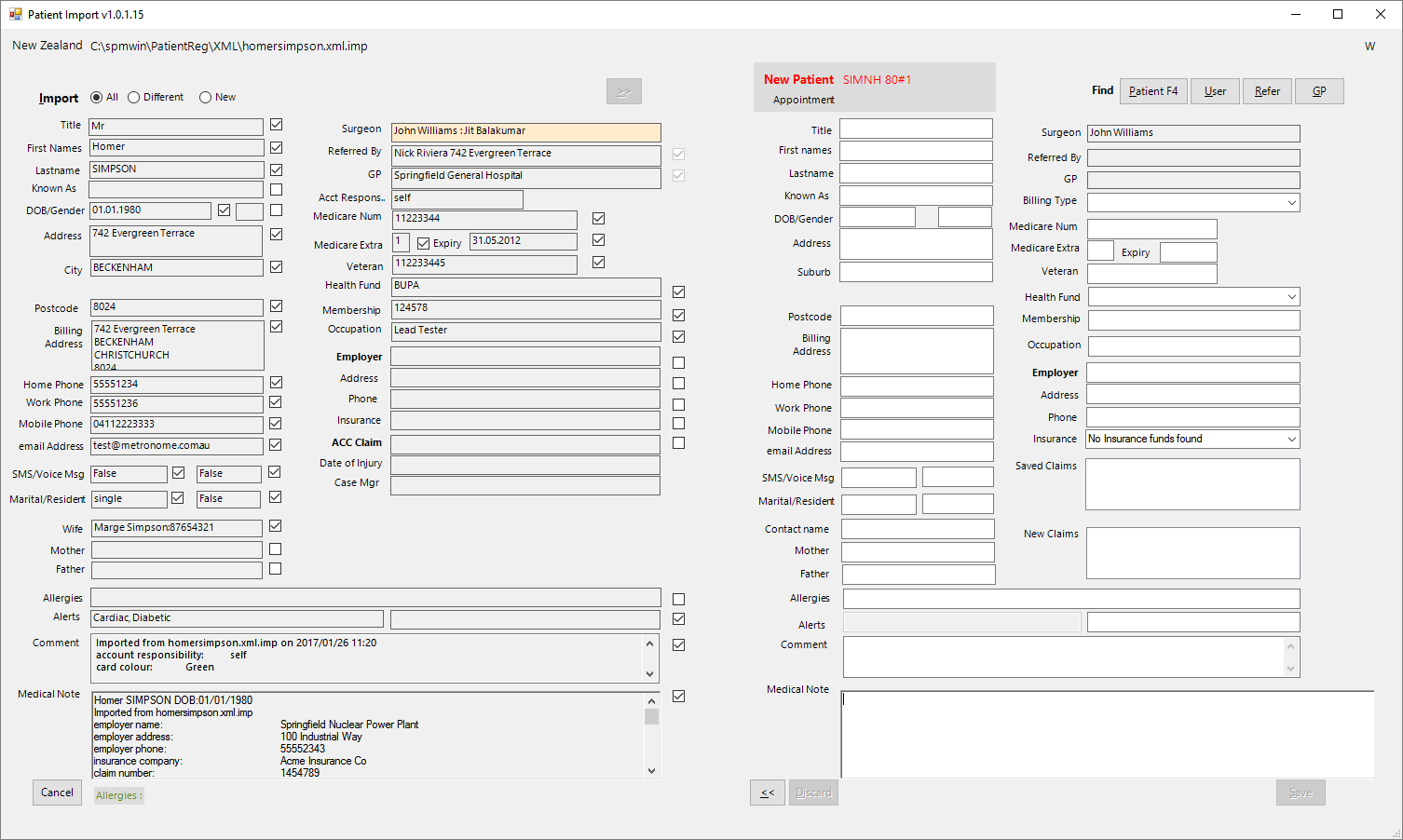
All the fields with data will be used to create a new Patient when the Transfer button is selected. 
Use the Undo button at the bottom of the form to reverse the transfer. 
Automatic data links are created based on the following criteria:
The Referral selected is the most recent, non-expired (if Australia) for the patient & User (allowing for Groups). If there is no recent referral to the User (or Group?) a new referral is created to the User.
The Billing Type selected for the referral comes from the Party in the first instance, if none found looks for the health fund Billing Type
The Appointment selected is the most recent, non-deleted appointment that is linked to the referral
Staff should check:
The User/Provider selected
Referring Dr. and GP
Address & post-code
Existing patient
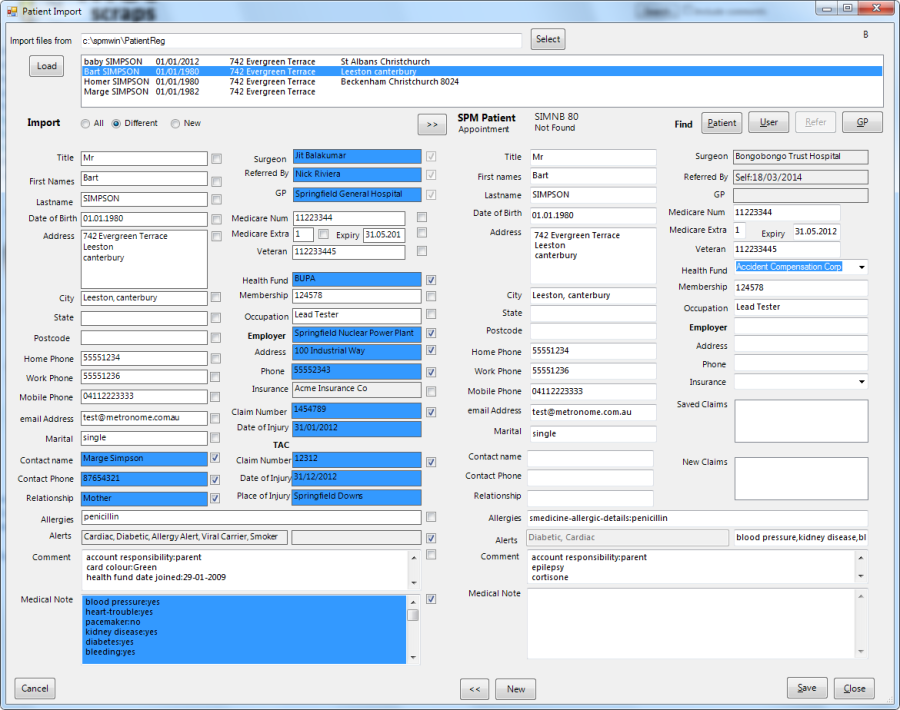
When a file is being imported a check is made to see if the patient already exists in the PHM/SPM database. If the first name, last name and date-of-birth matches with an existing patient then the patient's details are displayed in the right-hand side.
If this is not the same patient use the 'Patient' button to search and choose the correct match or, if the patient does not exist in the database, select the 'New' button to create a new patient in the database.
Where a patient is correctly matched, any new information that differs from the existing information will be displayed in BLUE and the checkbox will be checked on. To update only these fields in the patient's existing record ensure there is a tick in the associated checkbox and then click on the Transfer button at the top of the form. Only the data in the fields with a tick in the associated checkbox will be transferred to the SPM/PHM database.
Use the Undo button at the bottom of the form to reverse the transfer.
Once the data has been transferred to the right-hand side of the form you are able to edit and modify the information to correct addresses etc. as the data is not submitted to the database until the Save button is used.
Check the correct Health Fund or Insurer is selected.
Check that the Referring Dr. and GP are correctly linked. If not, use the Refer or GP buttons to select an existing entry or create a new one. If a Referring Doctor is not specified or matched they are entered as Self-Referred.
Data Transfer
Creates patient & claim (if relevant) in SPM/PHM
A referral is not created automatically because of strict rules around using the referral to claim for Medicare
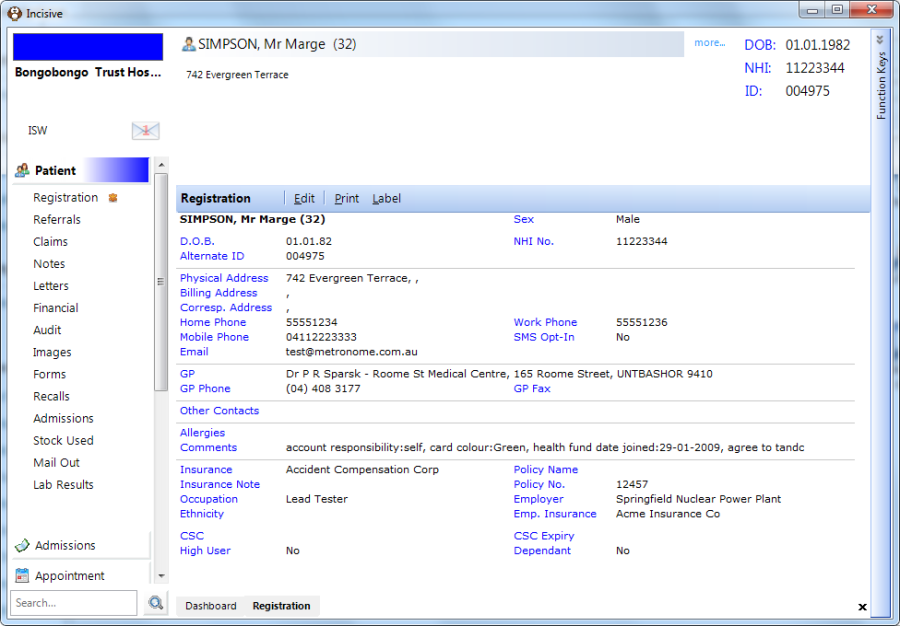
Alerts
If the patient has marked some of the Medical History questions in the online form as Yes these will automatically become Alerts in the patient's file.
Medical History | Alert |
|---|---|
Heart Trouble | Cardiac |
Insertion of Pacemaker | Cardiac |
Diabetes | Diabetic |
HIV Positive | Viral Carrier |
Smoke | Smoker |
Allergies | Allergy Alert |
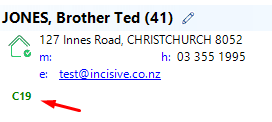
COVID-19 | C19 (green/amber/red) |
The COVID-19 question is optional and can be enabled/disabled in the ViewSettings.txt file in app.data or via the Admin function. The C19 symbol will be coloured red, amber or green. lab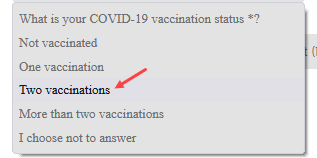
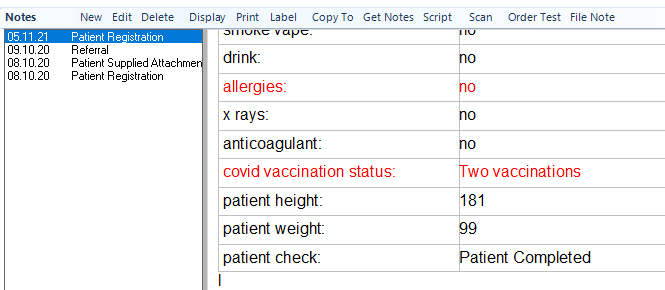
Creates 'Patient Supplied' note from the submitted Medical History
Patient attached files
Patients are able to attach documents or photos to support their consultation with the specialist.
Attaching the files
All registration forms, except the 'Minimal' option, are able to have files attached and imported to their Notes in SPM/PHM.
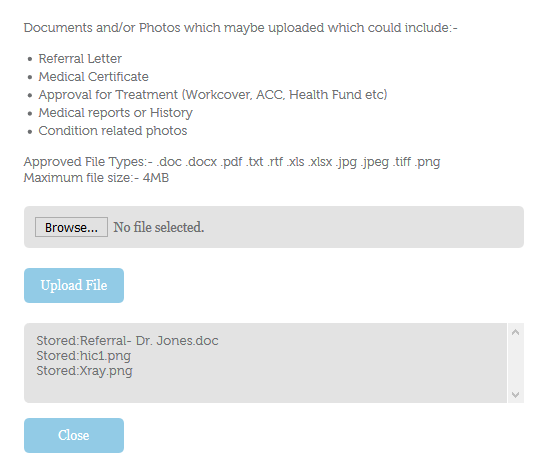
The patient indicates that they want to attach some files
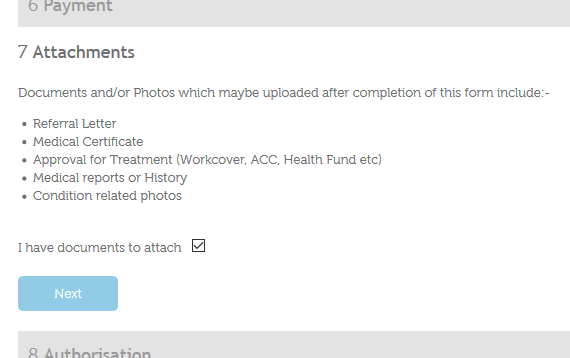
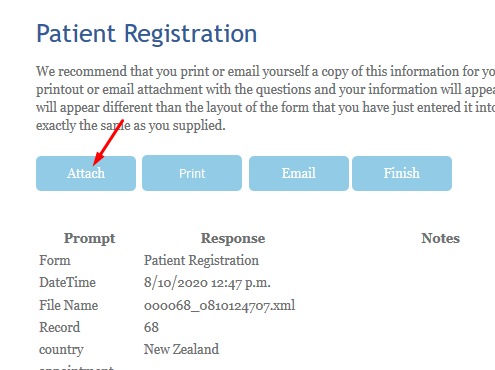
After the registration form and questionnaires are submitted the next page allows them to choose the 'Attach' button.
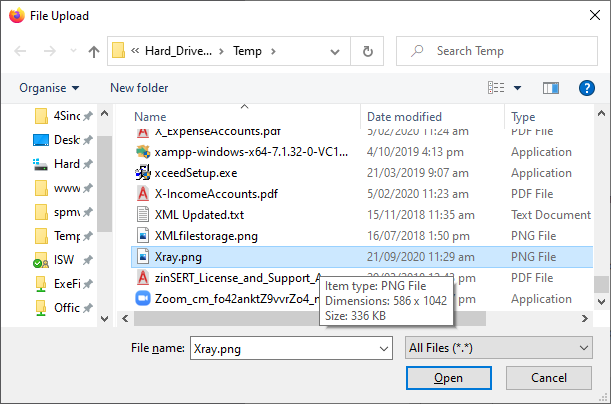
The 'Browse' button allows each file to be chosen.
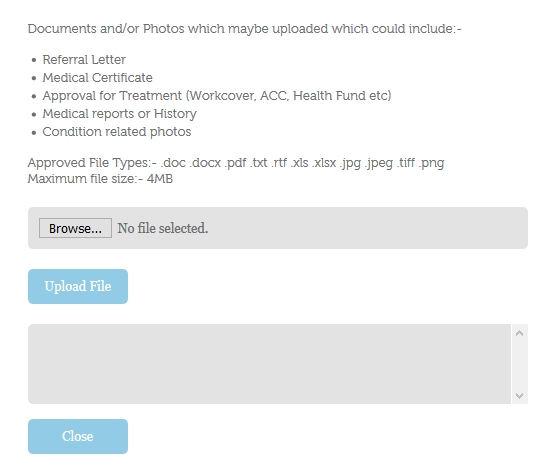
The 'Upload File' button lists the files that are attached and are ready to send.
Importing the files
In the import program, a # appears beside the patient name to indicate that some files have been supplied as well.
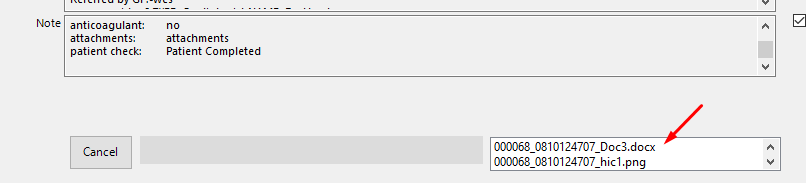
The name of the files are displayed during the import process.
After the patient registration details have been 'Saved', a second screen appears that will display the files and allow you to choose to upload them to the patient's Notes, or not.
Select each file separately and click on 'Upload' if you want them displayed in the patient's Notes.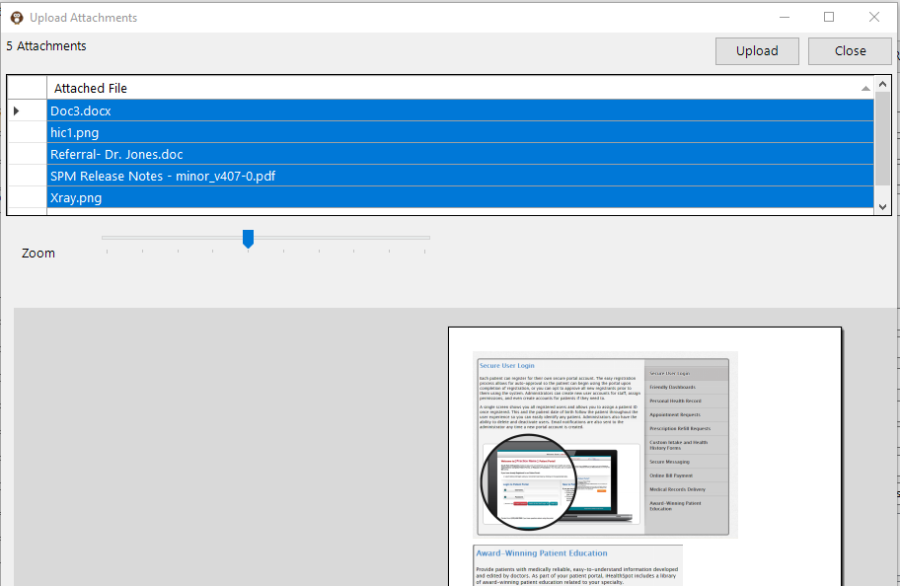
The attached files will appear as 'Patient Suppled Attachment'.
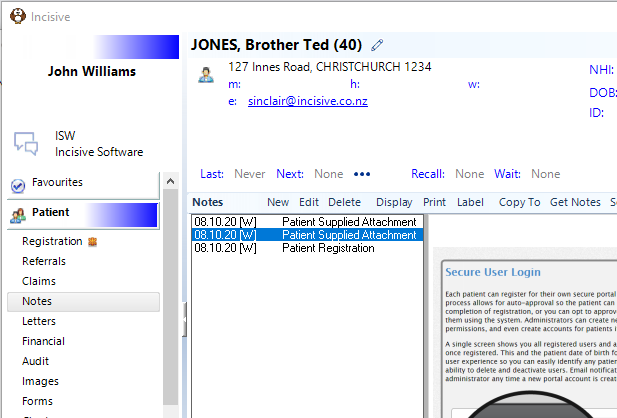
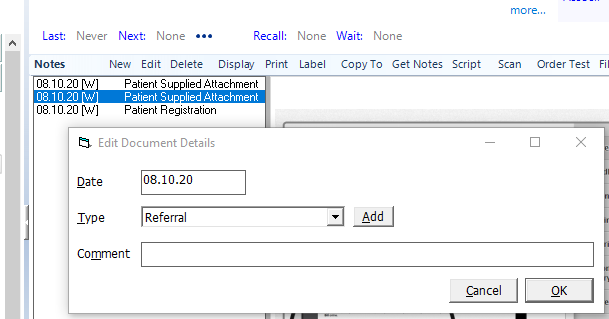
You can Edit the note entry and change the Note Sub-type to better reflect its content.
Overwrite or Append data
If you select the 'Different' option and choose to overwrite some existing data that you have about a patient, some of the fields are handled differently – depending on the type of information.
Data that must be unique will Overwrite existing data
Name, address, marital status, Medicare number etc.
Data that does not need to be unique will Append to existing data.
Comments, Allergies
Data that is recorded for the new episode of care (referral) is created as a new Note
Medical history, medication etc.
Archiving Files
Once the XML file has been imported it is:
renamed with a .imp extension (filename.xml.imp)
moved to an Archive directory
Troubleshooting
A report is available to help track who imported a file and if any changes were made. Contact the Incisive Helpdesk for assistance.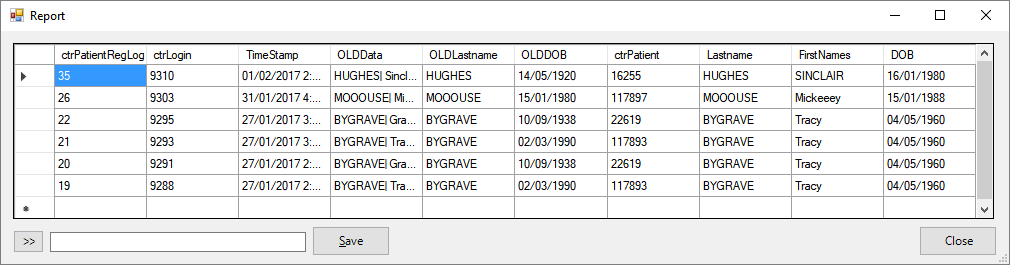
Error logging
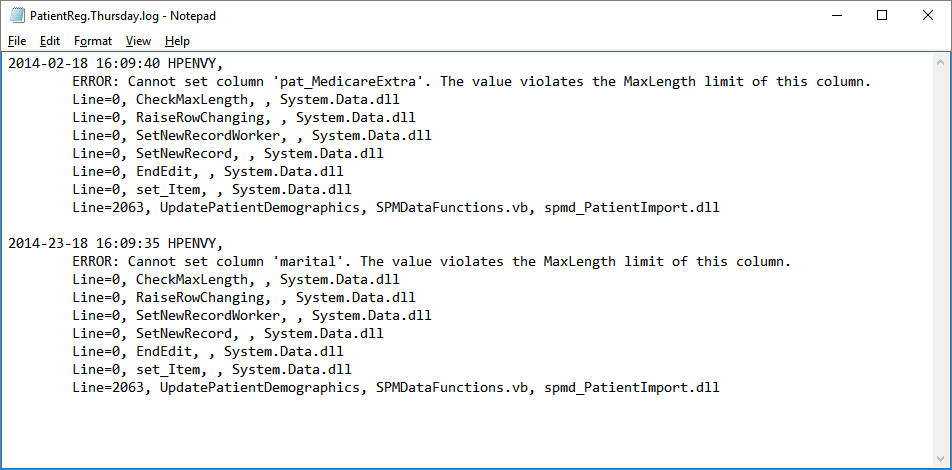
If an error occurs it is reported in a text file that is created in the application directory. The file is called PatientReg.<day>.log
On This Page:
How Do I...
- Import Forms
- Send online form link to patient