A Billing Type is a set of rules and pricing to be applied when charging for services for a patient.
System means that these Billing Types are available for all Providers so caution should be used when allocating permissions to the Roles that are allowed to modify the entries.
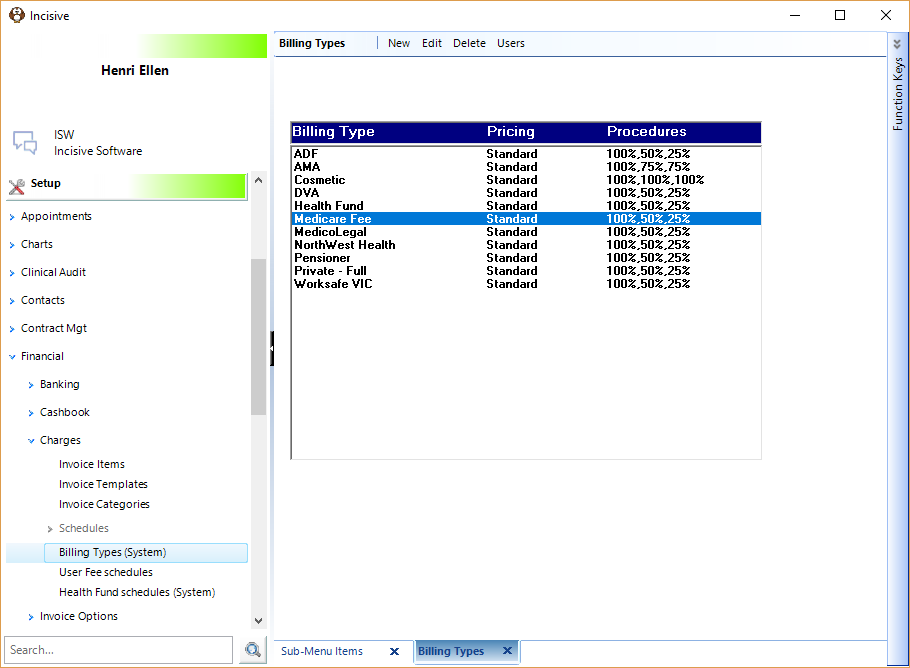
New | Add a new Billing Type |
Edit | Modify an existing Billing Type |
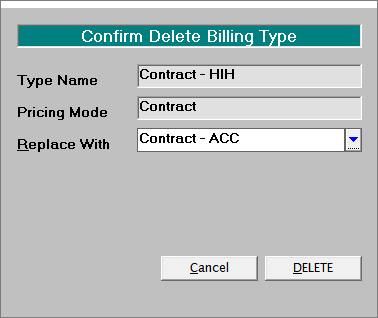
Delete | Delete an existing Billing Type. If there are invoices already produced using the Billing Type you will need to choose another Billing Type to Merge with so that integrity is kept for reporting purposes.
|
Users | Filter the list of Billing Types on a per Provider basis s that they are not shown Billing Types that are not relevant to them. |
Add a Billing Type
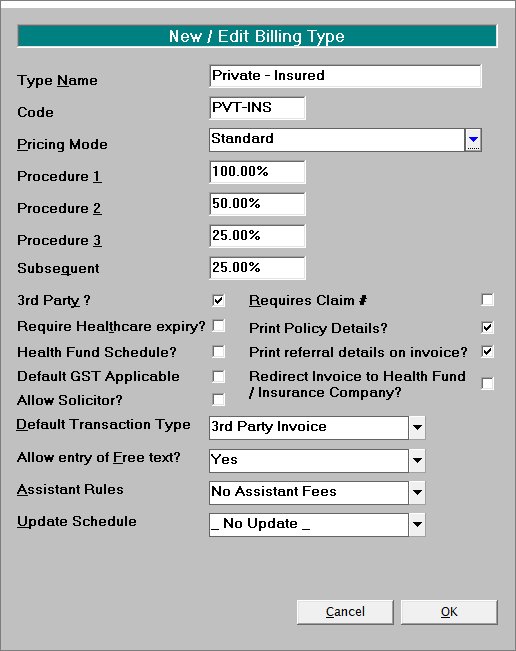
Type Name | The (Billing) Type Name should reflect the pricing or billing method, i.e. Private Insured, Private Self Funded, Affiliated Provider, ACC Contract, Workcover etc. | |
Code | Associate a code with the Billing Type e.g. A code for Private Insured might be PVT-INS This code is displayed in the Patient Header and printed on Operating Lists | |
Pricing Mode | NZ only | Applicable for Inventory Invoicing in New Zealand only. Select from Standard (default selection), Contract, Contract + Implants or Non Core. The Pricing Mode will determine what Stock Items are included for charging on the invoice. Private Billing Types should be set to Standard. |
Procedure 1 | For Multiple Procedure pricing rules. Normally this would be set to 100% for the first 'procedure'. A procedure is determined by the Category the invoice item or code belongs to, being marked as a 'Procedure'. | |
Procedure 2 | Depending on the billing type, the second procedure may be at a lesser percentage than the first, i.e. 50%. | |
Procedure 3 | Depending on the billing type, the third procedure may be at a lesser percentage than the first, or second, i.e. 25%. | |
Subsequent | Depending on the billing type, subsequent procedures (4+) may be at a lesser percentage than the first, i.e. 25%. | |
3rd Party? | If the Billing Type is normally linked for invoicing purposes to a party other than the patient, enable this flag. At the time of entering a referral, a 3rd Party can then be selected. At the time of billing, the selection of a 3rd Party Invoice will default to the party linked to the referral. | |
Requires Claim Number | If the Billing Type is accident or claim related, selection of this option will ensure the 'Claims' screen will automatically follow on from the entry of a new referral (providing this Billing Type is selected). | |
Require Healthcare expiry? | If this option is selected, on entering a new referral the program will check the Healthcare Number Expiry Date to see if it is current. If no expiry date has been entered, or if the Healthcare number has expired, a message will display prompting the operator if they still wish to enter the referral. | |
Print Policy Details? | If you require the patient insurance or health fund details to print on the invoices for this billing type, select this option. For example, a billing type of 'Private Insured' would normally require the insurance / health fund details to print for rebate purposes, 'Private self funded' i.e. not insured, or 'Medico-legal' would not require the details on the invoice. | |
Health Fund Schedule? | If selected, the Billing Type will use prices from the Health Fund Schedule of Fees. | |
Print referral details on invoice? | This option is selected by default to print the referral information on invoices. If you do not want the referral details on invoices for certain types of invoicing (i.e. invoicing other doctors for session fees for room's rental) remove the tick from this option. | |
Default GST Applicable | By default, invoice items / codes are not subject to Goods and Services Tax (GST) in Australia. However, some services, such as Medico Legal Reports and the billing of inpatient services to a Public Hospital, do incur GST. If this option is activated, GST will be added to the invoice items, even though the invoice items themselves may not have been set up as 'GST Applicable'. | |
Redirect Invoice to Health Fund/Insurance Company? | If this flag is activated, on generating a 'Patient Invoice' the invoice will be directed to the Health Fund/ Insurer in the first instance for payment. Subsequent statements will be directed to the patient who is ultimately responsible for the account. This eliminates the need to raise separate invoices, one for the Health Fund / Insurance component and the balance to the patient. | |
Allow Solicitor | Billing Types such as 'Medico-Legal' or 'Work Cover' often involve a solicitor in addition to a3rd Party. If this option is selected, when entering a referral of this billing type, an additional field will allow the solicitor to be selected from the list of 3rd Parties tagged as solicitors. | |
Default Transaction Type | The Default Transaction type will be activated when 'Charge' is selected from Transactions in Patient Mode and in Type Dictation. Select from: 3rd Party Invoice, 3rd Party Schedule, Bulk Bill Medicare, DVA, HIC In Hospital, HIC Out of Hospital, None, Patient Invoice. | |
Allow entry of Free Text | If you want to force the use of invoice codes on invoices and suppress the ability to free hand text onto accounts, set this option to 'No'. If the entry of free text is not allowed, you should ensure that your invoice codes / item numbers are set up in such a way that variable text can be input with the use of prompts within the code, or a selection list appears for the selection of such things as left /right / bilateral etc. | |
Assistant Rules | This is used for the calculation of the assistant fees when quoting. Select from:
| |
Update Schedule | If a Billing Type has a schedule of fees associated with it, select the schedule from the drop down list. Whenever the latest rates are downloaded and imported, the billing type will be automatically updated based on the new fees for all Users / Providers in the practice sharing the same database. Normally, a private billing type would not be linked to an Update Schedule in this area; instead, the individual User/Provider would do this in Setup – Charges – User Fee Schedules. |
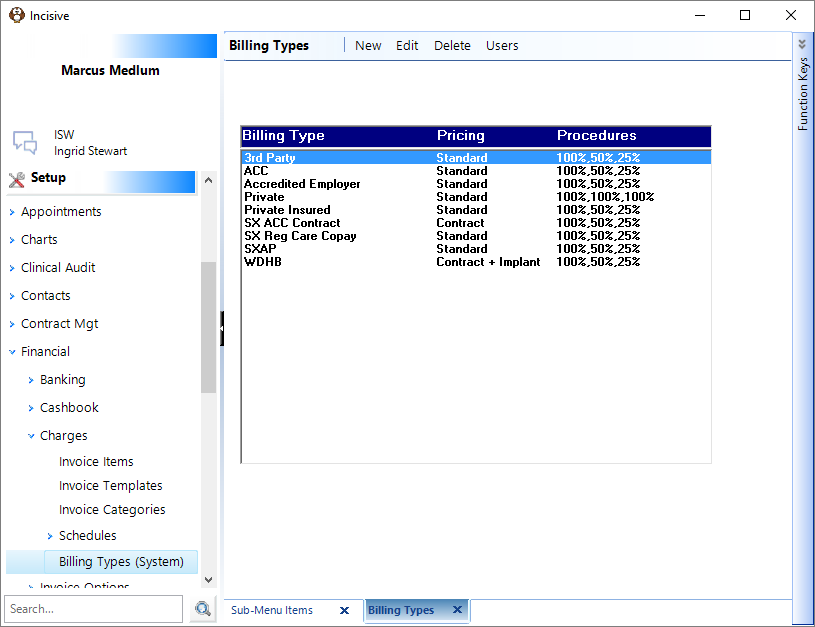
New | Add a new Billing Type |
Edit | Modify an existing Billing Type |
Delete | Delete an existing Billing Type. If there are invoices already produced using the Billing Type you will need to choose another Billing Type to Merge with so that integrity is kept for reporting purposes.
|
Users | Filter the list of Billing Types on a per Provider basis s that they are not shown Billing Types that are not relevant to them. |
Add a Billing Type
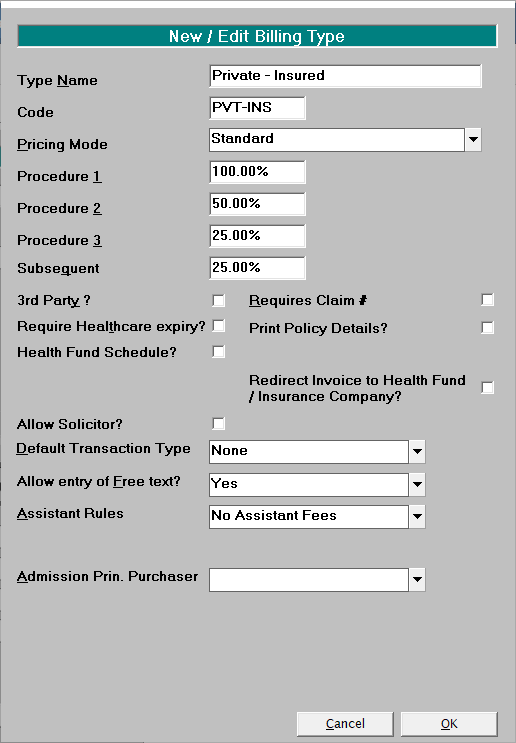
Type Name | The (Billing) Type Name should reflect the pricing or billing method, i.e. Private Insured, Private Self Funded, Affiliated Provider, ACC Contract etc. |
Code | Associate a code with the Billing Type e.g. A code for Private Insured might be PVT-INS This code is displayed in the Patient Header and printed on Operating Lists |
Pricing Mode | Select from Standard (default selection), Contract, Contract + Implants or Non Core. The Pricing Mode will determine what Stock Items are included for charging on the invoice. Private Billing Types should be set to Standard. |
Procedure 1 | For Multiple Procedure pricing rules. Normally this would be set to 100% for the first 'procedure'. A procedure is determined by the Category the invoice item or code belongs to, being marked as a 'Procedure'. |
Procedure 2 | Depending on the billing type, the second procedure may be at a lesser percentage than the first, i.e. 50%. |
Procedure 3 | Depending on the billing type, the third procedure may be at a lesser percentage than the first, or second, i.e. 25%. |
Subsequent | Depending on the billing type, subsequent procedures (4+) may be at a lesser percentage than the first, i.e. 25%. |
3rd Party? | If the Billing Type is normally linked for invoicing purposes to a party other than the patient, enable this flag. At the time of entering a referral, a 3rd Party can then be selected. At the time of billing, the selection of a 3rd Party Invoice will default to the party linked to the referral. |
Requires Claim Number | If the Billing Type is accident or claim related, selection of this option will ensure the 'Claims' screen will automatically follow on from the entry of a new referral (providing this Billing Type is selected). |
Require Healthcare expiry? | If this option is selected, on entering a new referral the program will check the Healthcare Number Expiry Date to see if it is current. If no expiry date has been entered, or if the Healthcare number has expired, a message will display prompting the operator if they still wish to enter the referral. |
Print Policy Details? | If you require the patient insurance or health fund details to print on the invoices for this billing type, select this option. For example, a billing type of 'Private Insured' would normally require the insurance / health fund details to print for rebate purposes, 'Private self funded' i.e. not insured, or 'Medico-legal' would not require the details on the invoice. |
Health Fund Schedule? | If selected, the Billing Type will use prices from the Health Fund Schedule of Fees. |
Redirect Invoice to Health Fund/Insurance Company? | If this flag is activated, on generating a 'Patient Invoice' the invoice will be directed to the Health Fund/ Insurer in the first instance for payment. Subsequent statements will be directed to the patient who is ultimately responsible for the account. This eliminates the need to raise separate invoices, one for the Health Fund / Insurance component and the balance to the patient. |
Allow Solicitor | Billing Types such as 'Medico-Legal' or 'Work Cover' often involve a solicitor in addition to a3rd Party. If this option is selected, when entering a referral of this billing type, an additional field will allow the solicitor to be selected from the list of 3rd Parties tagged as solicitors. |
Default Transaction Type | The Default Transaction type will be activated when 'Charge' is selected from Transactions in Patient Mode and in Type Dictation. Select from: 3rd Party Invoice, 3rd Party Schedule, Bulk Bill Medicare, DVA, HIC In Hospital, HIC Out of Hospital, None, Patient Invoice. |
Allow entry of Free Text | If you want to force the use of invoice codes on invoices and suppress the ability to free hand text onto accounts, set this option to 'No'. If the entry of free text is not allowed, you should ensure that your invoice codes / item numbers are set up in such a way that variable text can be input with the use of prompts within the code, or a selection list appears for the selection of such things as left /right / bilateral etc. |
Assistant Rules | This is used for the calculation of the assistant fees when quoting. Select from:
|
Admission Prin. Purchaser | To be used by hospitals for completion of ADF96 data export. |
Billing Types per Provider
Individual Billing types can be turned on or off as applicable for different Users. By default, each Billing Type is available for all Users.
This allows only the Billing Types that are directly applicable to the Provider to be seen by their staff.
- Select the Billing Type.
- Select 'Users'.
- To disallow a billing type for a single user, double click on the User.
- Select OK to save the changes.
At the time of entering a New Referral, or editing an existing one, any Billing Type that has been disallowed will not be visible when selecting the Billing Type.
For example in a multi disciplinary practice, a Billing Type of Maternity would be turned off for all Providers that were not Obstetricians, or those doctors that did not carry out work in a particular public hospital would have that hospitals Billing Type disallowed.
As some reports are based on Billing Type, eliminating options that are not required from the data entry screen helps to minimize mistakes.
On This Page:
How Do I...
- ACC invoicing
- ACC Online portal configuration
- Submitting invoices & schedules to ACC portal
- Resending invoices not delivered to ACC
- ACC Non-Core Invoicing
- Delete ACC Invoice after claim has been uploaded
- Add a New Transaction Au
- Add a New Transaction NZ
- Quick Invoicing
- Invoicing the Patient
- Invoice to 3rd Party
- Invoice a Solicitor
- Change Referral for an Invoice
- Make invoice codes from Medicare
- Adding Assistants or Alternate Providers
- Print Balance for Invoice
- Billing Types
- Advanced Invoicing Options
- Hospital Invoicing Au
- Hospital Invoicing NZ
- Tutorial - Invoicing
- GST Rounding adjustment