Ctrl + S or click on the spell check icon. 
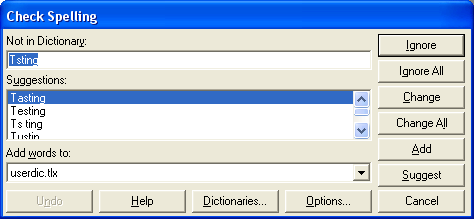
The Check-Spelling Dialog appears if a word requiring your attention is detected. You can use the dialog to specify whether the word should be ignored or replaced.
Add button:
Causes the reported word to be added to the dictionary selected in the Add Words To list. Use the Add button if a correctly spelled word you use often is reported as a misspelling (e.g., your family name). If the word is not used frequently, you may want to select the Ignore or Ignore All buttons instead.
Add words to list:
Indicates which user dictionary words will be added to when you select the Add button. The Add Words To list shows all user dictionaries currently open. You can also add words to user dictionaries via the User Dictionaries Dialog, which is accessible by selecting the Dictionaries button.
Cancel button:
Stops the current spell-checking operation.
Change button:
Causes this and all following occurrences of the reported word to be replaced. If the problem word was edited, the edited word is used as the replacement. Otherwise, the selected suggestion is used as the replacement. If you want only this occurrence of the word to be replaced, use the Change button. If the reported word is one you frequently misspell, you might consider adding it to a user dictionary via the User Dictionaries Dialog. You can display the User Dictionaries dialog by selecting the Dictionaries button.
Change All button:
Causes this and all following occurrences of the reported word to be replaced with the word in the Change To box. If you want only this occurrence of the word to be replaced, use the Change button. If the reported word is one you frequently misspell, you might consider adding the misspelling and the correction to a user dictionary via the User Dictionaries Dialog. You can display the User Dictionaries dialog by selecting the Dictionaries button.
Consider Changing box:
Contains a word which may be misspelled or otherwise incorrect, and is presented with a candidate replacement word. You can change the word by selecting the Change button, or skip it by selecting the Ignore button. Note that the label of this box changes to "Not in dictionary" when a misspelled word is detected.
Dictionaries button:
Causes the User Dictionaries Dialog to be displayed. You can use the User Dictionaries dialog to edit the contents of user dictionaries.
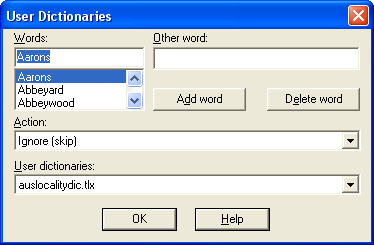
The User Dictionaries Dialog allows you to edit the contents of a user dictionary. The contents of user dictionaries are saved in disk files.
Action list:
Used to select an action which is associated with words in the dictionary. The action tells the spelling checker what to do when it finds a word in the dictionary.
The following actions can be selected:
Auto change (use case of checked word):
This action allows you to automatically replace one word with another. For example, if you often type "recieve" instead of "receive", you might enter the word "recieve" with "receive" as the other word and "Auto change (use case of checked word)" as the action. The spelling checker will automatically correct "recieve" wherever it appears. If "recieve" was capitalized ("Recieve") the spelling checker would automatically replace it with "Receive". Note that the replacement is made automatically only if the "Auto Change" option is enabled (see the Options dialog for information on the Auto Change option).
Auto change (use case of other word):
This action allows you to automatically replace one word with another, always with the same case pattern as the other word. This action is useful for automatically expanding abbreviations. For example, you could enter the word "TBD" with "to be determined" as the other word and "Auto change (use case of other word)" as the action. The spelling checker will automatically replace "TBD" with "to be determined" wherever it appears. Note that the replacement is made automatically only if the "Auto Change" option is enabled (see the Options dialog for information on the Auto Change option).
Conditionally change (use case of checked word):
This action allows you to optionally replace one word with another. For example, if you often type "recieve" instead of "receive", you might enter the word "recieve" with "receive" as the other word and "Conditionally change (use case of checked word)" as the action. The spelling checker will ask if you want to replace "recieve" with "receive". If "recieve" was capitalized ("Recieve") the spelling checker would ask if you wanted to replace it with "Receive".
Conditionally change (use case of other word):
This action allows you to optionally replace one word with another, always with the same case pattern as the other word. This action is useful for optionally expanding abbreviations. For example, you could enter the word "TBD" with "to be determined" as the other word and "Conditionally change (use case of other word)" as the action. The spelling checker will ask if you want to replace "TBD" with "to be determined".
Exclude (treat as misspelled):
This action tells the spelling checker that the word is misspelled, even if it is listed in another dictionary. Words marked with this action will never be offered as suggestions for misspelled words, and they will be reported as misspellings when they are encountered by the spelling checker.
Ignore (skip):
This action tells the spelling checker that the word is spelled correctly, and so can be skipped over. This is the most common action.
Add Word button: 
Causes the word entered in the edit area of the Words list to be added to the currently selected dictionary. The currently selected action and other word are associated with the word. You can use the Add Word button to change the action or other word associated with a word. Note that the Add Word button is enabled only when a new word is typed in the edit area of the Words list. The words you add may contain virtually any character, but only words which contain embedded periods should have trailing periods (e.g., U.S.A. is OK, but USA. is not). Also, don't enter possessive word forms (e.g., enter Mary, not Mary's).
Close button:
Closes the Dictionaries dialog.
Delete Word button: 
Causes the word appearing in the edit area of the Words list to be removed from the currently selected dictionary. The associated action and other word are also removed.
User Dictionaries list:
Contains the list of open dictionary files. When you select a file from the list, its contents are displayed in the Words list.
Other Word box:
Contains an alternate word associated with the currently selected word. The other word is used in the "Auto change" and "Conditionally change" actions to supply a replacement word. You can enter more than one word in the Other Word box, but the total length should be limited to 63 characters.
Words list:
Contains the list of words in the currently selected user dictionary.
Ignore button: 
Causes this occurrence of a misspelled word to be skipped. If the same misspelled word appears later, it will be reported.
Ignore All button: 
Causes this and all further occurrences of a misspelled word to be skipped. You might use this button if the word reported as a misspelling is actually spelled correctly. If the word is one you use frequently, you may wish to ignore it permanently by selecting the Add button.
Problem box:
Contains the misspelled word. The label of this box changes with the type of problem detected. Not in dictionary indicates that a misspelled word was detected; the word is considered misspelled because it could not be located in any open dictionaries. Consider changing indicates a word was encountered which was marked with a conditional-change action in a user dictionary. Capitalization indicates the word is spelled correctly but needs to be capitalized.
Options button: 
Causes the Options dialog to be displayed. You can use the Options dialog to set spelling-checker options.
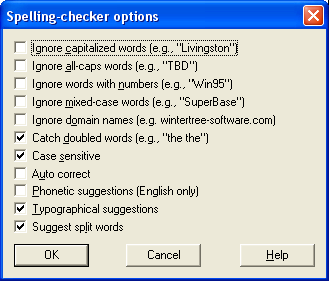
You can use the Options Dialog to specify various spelling-checker options. These options affect the way the spelling checker operates.
Ignore Capitalized Words:
When enabled, any words beginning with a capital letter are ignored (i.e., are skipped over without being checked). You might enable this option if the text being checked contains many proper names.
Ignore All-Caps Words:
When enabled, any words containing all capital letters are ignored (i.e., are skipped without being checked). You might enable this option if the text being checked contains many acronyms.
Ignore Words with Numbers:
When enabled, any words containing embedded digits are ignored (i.e., are skipped without being checked). Examples of such words include "Win95" and "Q4." You might enable this option if the text being checked contains many code-words or other symbols containing digits.
Ignore Words with Mixed Case:
When enabled, any words containing an unusual mixture of upper- and lower-case letters are ignored (i.e., are skipped without being checked). Examples of such words include "MicroHouse" and "CapsLock." You might enable this option if the text being checked contains many variable names or other symbols which use case changes to distinguish words.
Ignore Domain Names:
When enabled, any words that appear to be Internet domain names (such as wintertree-software.com) are ignored (i.e., are skipped without being checked).
Catch Doubled Words: When enabled, any word appearing twice in a row is reported via the Check-Spelling Dialog.
Case Sensitive:
When enabled, a distinction is made between capitalized and non-capitalized words. For example, "canada" is considered different from "Canada", so "canada" would be reported as a misspelling. When the option is disabled, "canada" and "Canada" are considered identical. Note that the performance of the spelling checker will be reduced if this option is disabled.
Auto Correct:
When enabled, words marked with "Auto Change" actions will automatically be changed to their specified replacements. When disabled, you will be prompted before the words are changed.
Phonetic Suggestions:
When enabled, suggestions are made on the basis of phonetic (sounds-like) similarity to the misspelled word. This option tends to improve suggestions for badly misspelled words. Enabling this option will increase the time required to locate suggestions. Note that either this option or the Typographical Suggestions option must be enabled or no suggestions will be offered.
Typographical Suggestions:
When enabled, suggestions are made on the basis of typographical (looks-like) similarity to the misspelled word. This option is appropriate for people who are generally good spellers. Note that either this option or the Phonetic Suggestions option must be enabled or no suggestions will be offered.
Suggest Split Words:
When enabled, two separate words will be suggested as a replacement for a misspelling containing two joined words. For example, "is the" would be suggested as a replacement for "isthe".
OK button:
Closes the Options Dialog, and saves any changes made to the option settings.
Cancel button:
Closes the Options Dialog, and discards any changes made to the option settings.
Suggest button: 
Search more thoroughly for suggested replacements for the current misspelled word. Each time you press the Suggest button, a "deeper" search is made. The Suggest button is disabled once all possible suggestions have been located.
Suggestions list: Contains a list of suggested replacements for the word reported as misspelled. Subsequent presses of the Suggest button may yield more suggestions. The word selected in the Suggestions list will be used as the replacement when the Change or Change All buttons are pressed, unless the word in the problem box was edited.