In certain circumstances the pricing of certain stock or service items need to be calculated according to some pre-defined rules that relate to the customer.
This most commonly occurs when a contract is entered in to provide a certain range of operations for a purchasing entity such as a Health insurer or Government run hospitals.
The variable prices can be either:
- a fixed value that is manually entered, or
a calculated value based on the margin specified above (or at) the Cost of the Item
We recommend that the Margin option is the preferred Pricing Type for your stock or service items as this provides you with a high degree of flexibility to easily adjust your pricing at a later stage.
$ Price or $GST INC pricing types can be used but the prices will have to be manually entered or imported.
Don't manually alter variable prices for Margin calculated items as these will be overwritten when the recalculate function is run in Setup > Stock > Price Margins > System margins
When a new Billing Type is added and is configured to use its own Stepped-Margin prices, the new pricing records for the stock items are automatically populated.
If an item has been recently changed to use the Margin pricing type, you need to force the calculation from Setup > Stock > Price Margins > Edit
A function is available in SPMconfig and Setup > Stock > Price Margins > Categories, to allow you to choose which categories can be subject to Variable Pricing for a Billing Type.
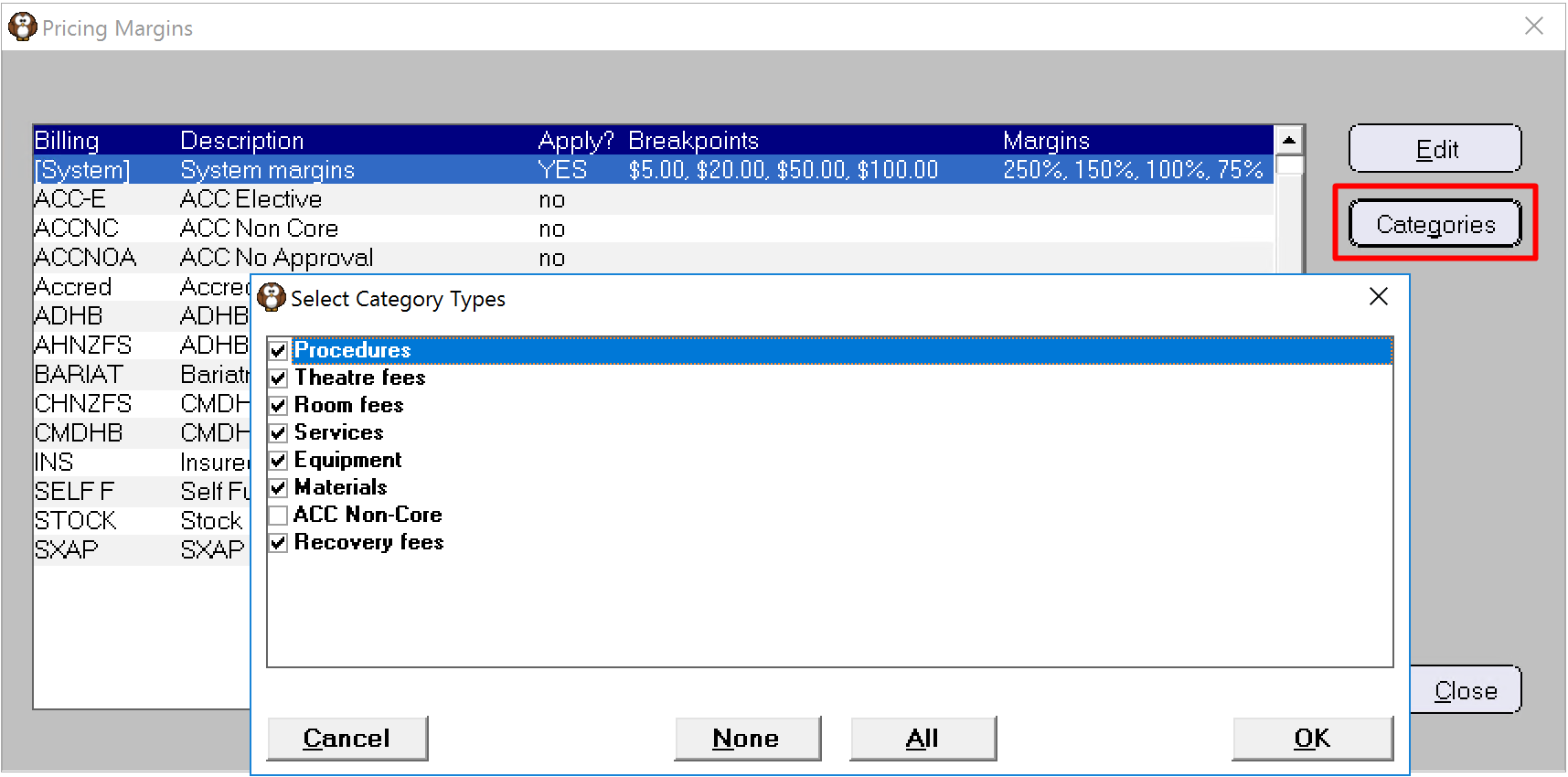
This function allows you to set ALL the Items for an Inventory Category to use Variable Pricing. The alternative is to edit each stock Item and activate the Pricing button.
It does NOT recalculate the pricing for the Category. To recalculate you will need to use the Recalculate function in Setup > Price Margins > System Margins or Billing Type Margins.
When a new Billing Type is added and is configured to use its own Stepped-Margin prices, the pricing records for the stock items are not populated.
A query needs to be run over the stock items to populate them with the correct prices. Once this has been done it does not need to be done again as the records will correctly update thereafter.
See also: Training: Variable Pricing of procedures or stock
The default pricing for a new Billing Type will be the margin set for the SYSTEM 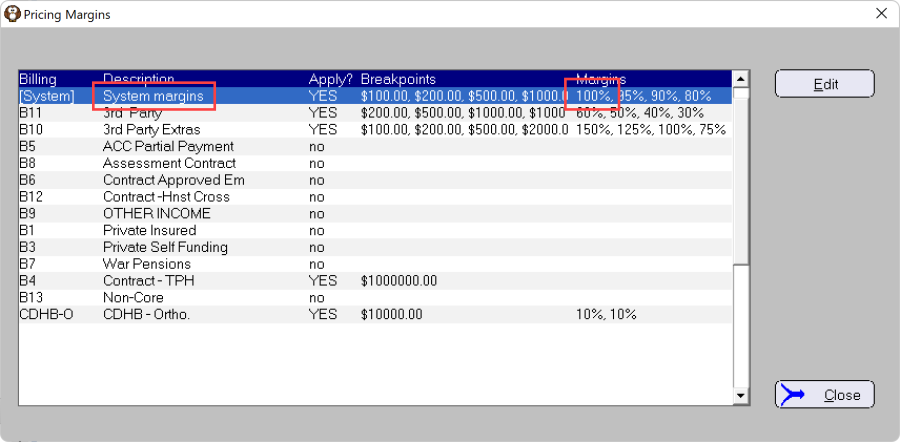
The following item is set to use MARGIN pricing and the initial margin is set at 100%, as shown in the above SYSTEM entry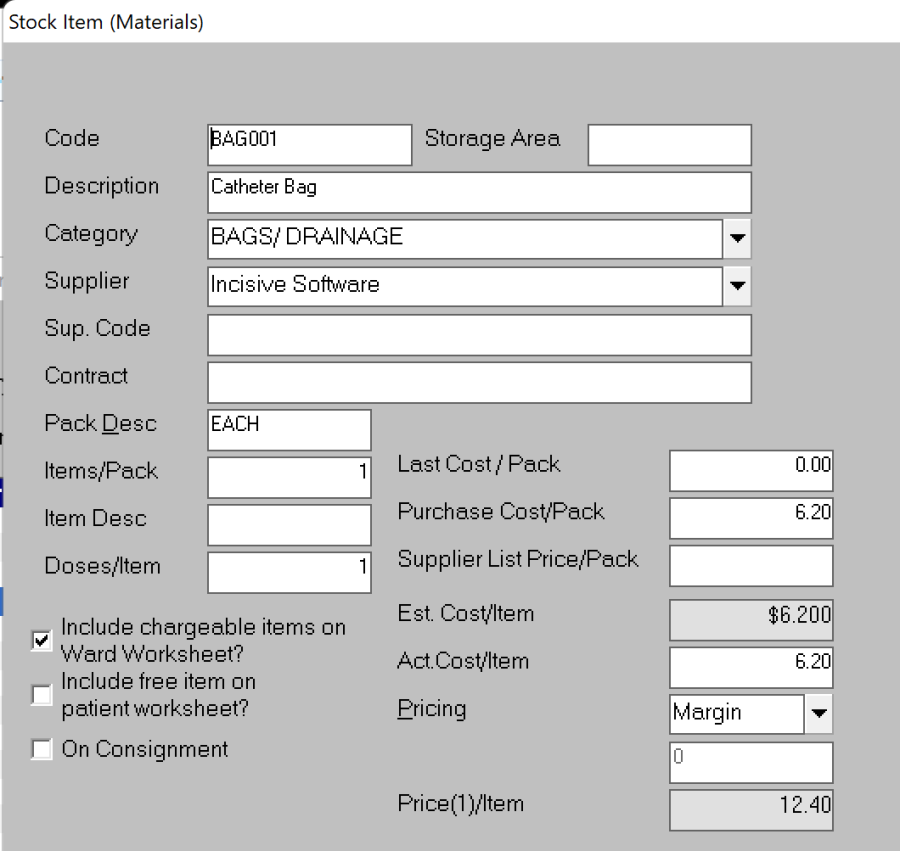
The Pricing button will not show any pricing for the different Billing Type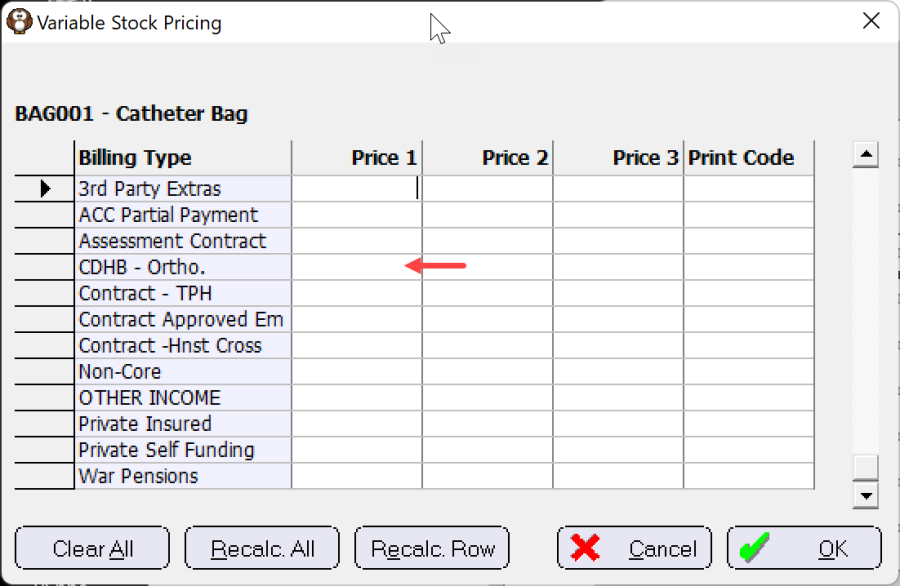
It is always worthwhile to ensure a backup of the database has been completed prior to these changes being made as there is no roll-back mechanism.
- Create a new Billing Type in Setup > Financial > Charges > Billing Type
- Configure the Billing Type to use margin calculations for the various price steps
Setup > Stock > Price Margins > Edit the Billing Type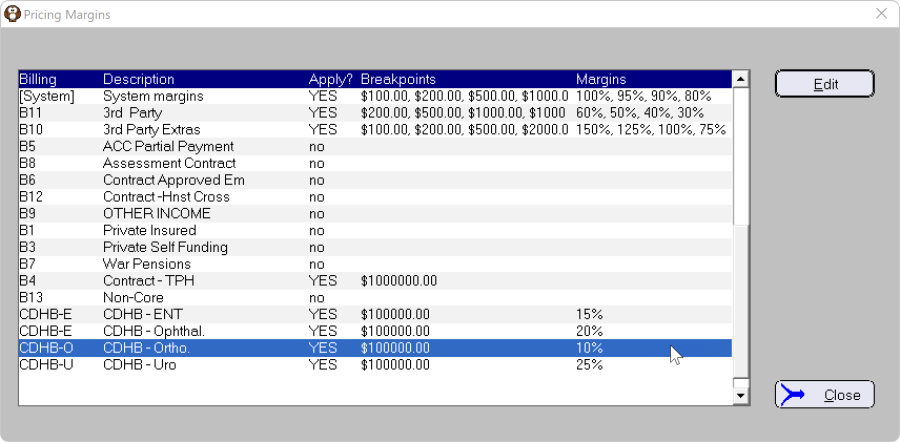
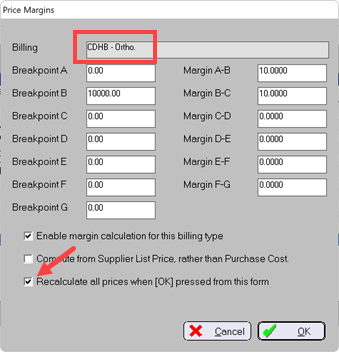
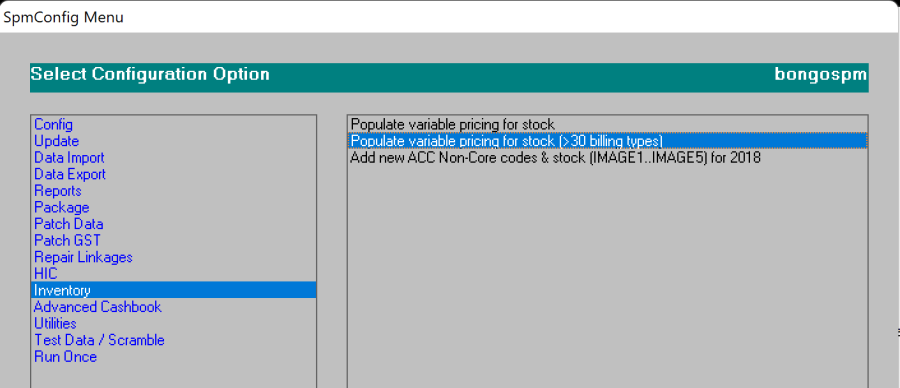
Make sure the Enable Margin Calculation and also the Recalculate options are checked ON. - In SPMconfig go to Inventory > Populate Variable Pricing for Stock (either options)
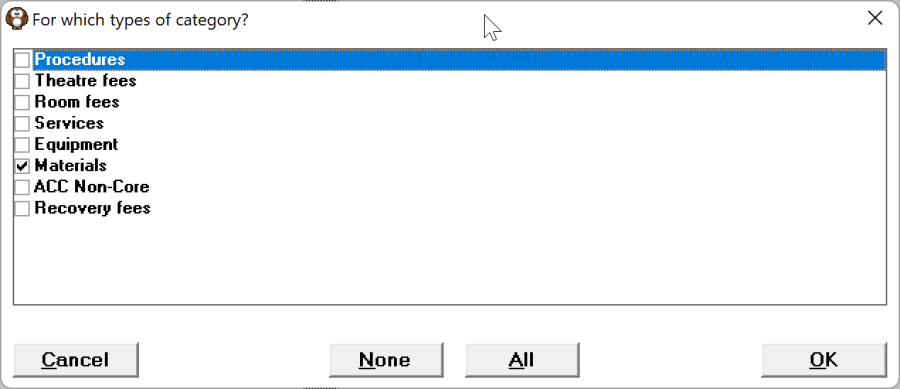
- Choose the Categories relevant for the Billing Type e.g. If the pricing is just for Implants then just update that Category
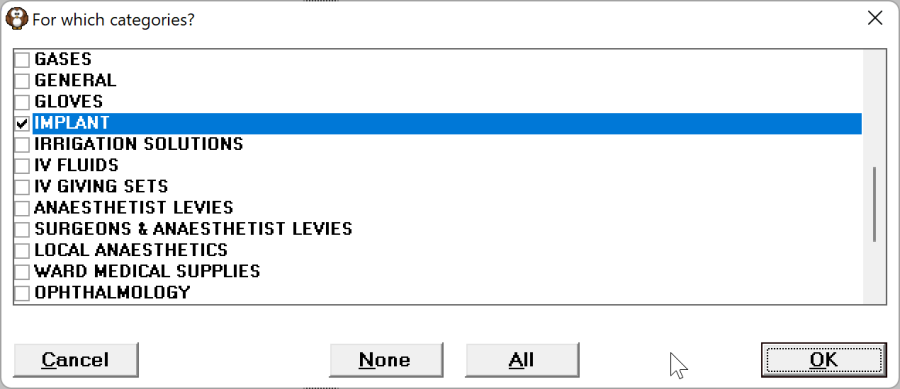
- When it is complete a message will appear informing you to run the Recalculate option again.
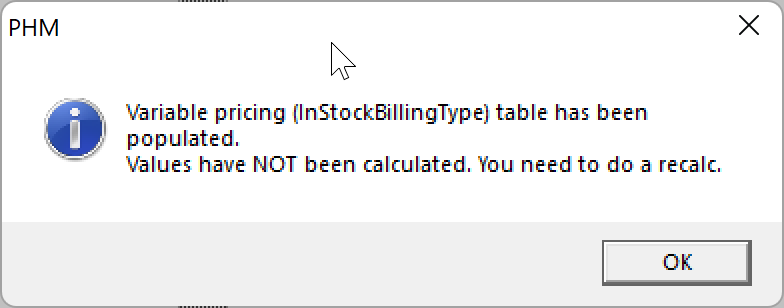
- Choose the Categories relevant for the Billing Type e.g. If the pricing is just for Implants then just update that Category
- Go to Setup > Stock > Price Margins and Edit the Billing Type again, then click OK to force the recalculation of the prices
- Check that it has occurred by editing a stock item in a Category that was updated and use the Pricing button.
The margin calculated price will appear.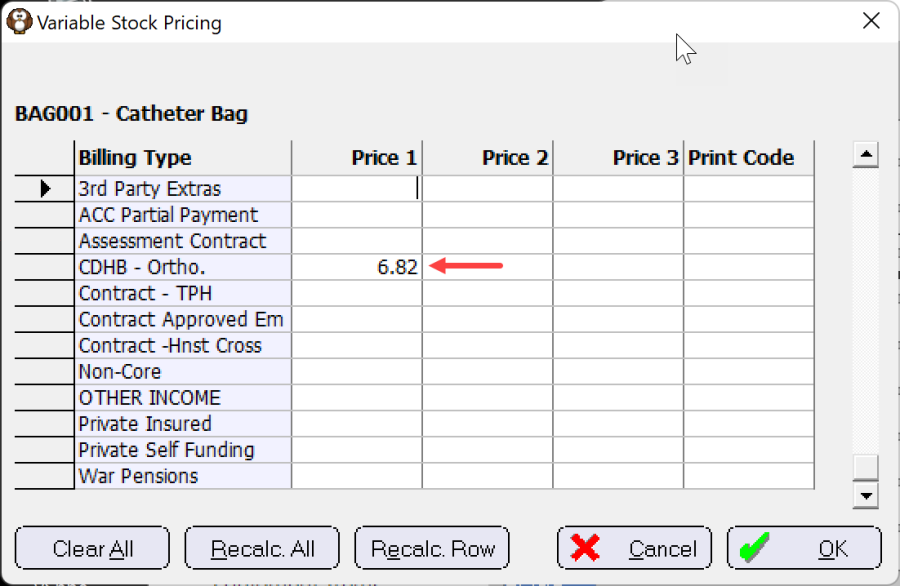
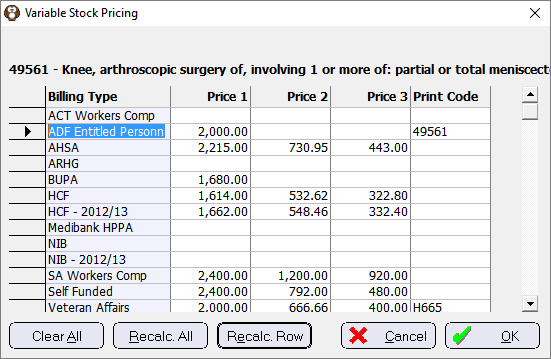
You can recalculate the price for just one item by using the 'Recalc. All' or 'Recalc. Row' buttons.
'Pricing' button options on the Item Master
Billing Type | Name of the Billing Type |
Price 1 | If Price field is $Price you manually enter the value for the item for ALL the Billing Types |
Price 2 | The Price for the second procedure based on the Multiple Procedure mark-down value |
Price 3 | The Price for the third and all subsequent procedures based on the Multiple Procedure mark-down value |
Print Code | The code that will also be printed on the invoice for the Item. |
Clear All | Clears ALL values from ALL fields. Use this option to stop using Variable Pricing for the Item and revert to the Price fields on the Item edit screen. |
Recalc Row | Recalculate the Margin values for the selected row only (manually entered values will not change). |
Recalc All | Recalculate the Margin values for ALL the rows (manually entered values will not change). Note, this only changes the price for this Item. If the prices for all Items need to be updated this needs to be done through Setup > Stock > Price Margins > Edit |
If you are using Variable Pricing for specific Billing Types, the Prices for all items WILL NOT automatically change when the cost of an Item is updated or if you change the Dose/Item value. The prices will only be recalculated if the 'Recalculate all Prices on OK' option is checked ON in Setup > Stock > Price Margins and you Edit the SYSTEM Type then click the OK button.
This process should be done regularly to ensure the correct values are charged for the respective Billing Types used.
If a Billing Type does not have the 'Enable Margin Calculation' checked ON, it will default to use the 'System Margins', the prices WILL be automatically updated when the cost of the Item is changed.
Example of Before & After 'Recalculate Prices' option is used:
Before | After |
|
|
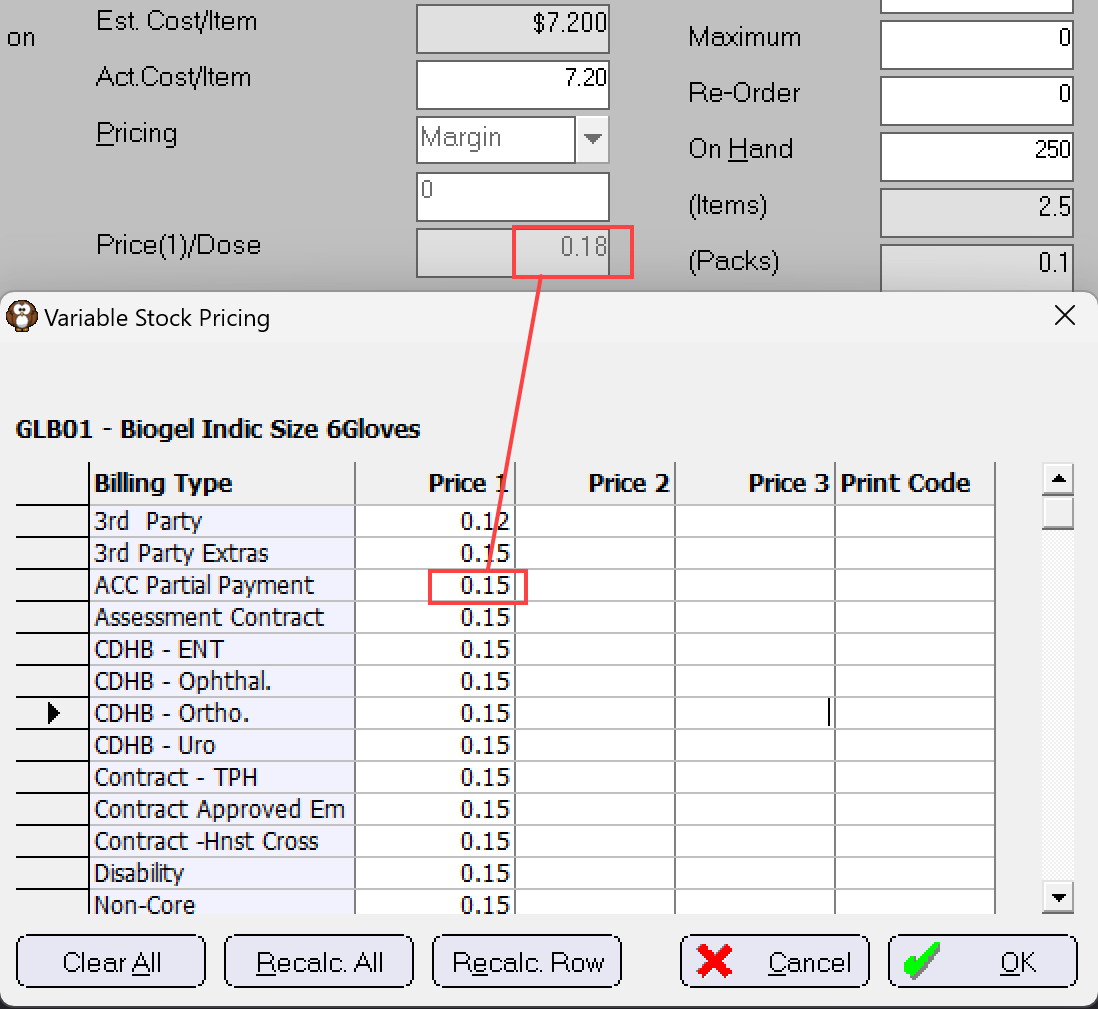
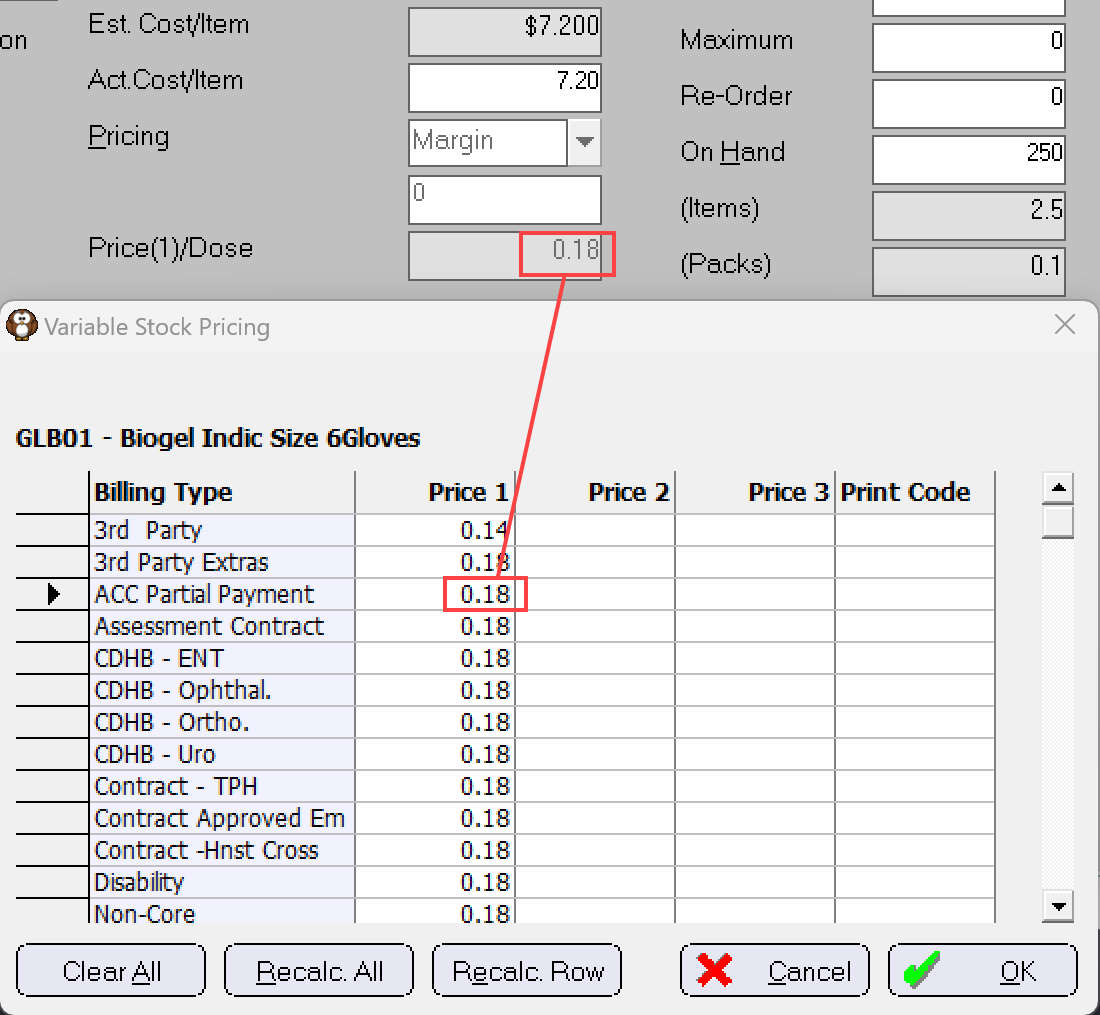
Use the Stock Pricing report to view how you have configured the pricing and packs of the stock & service items
Scenarios
Variable Pricing can be used in a number of different scenarios
- Procedures
The same Procedure Item can be used with differing Prices for each Billing Type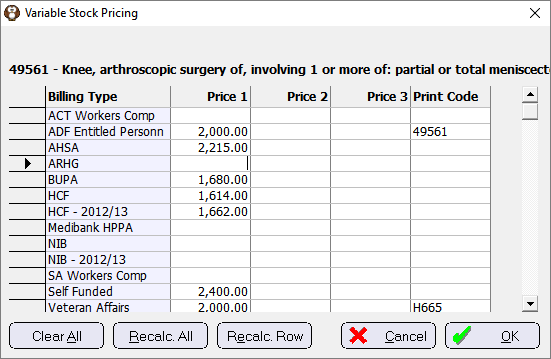
- Services
Some funders will limit the amount they will pay for theatre or accommodation charges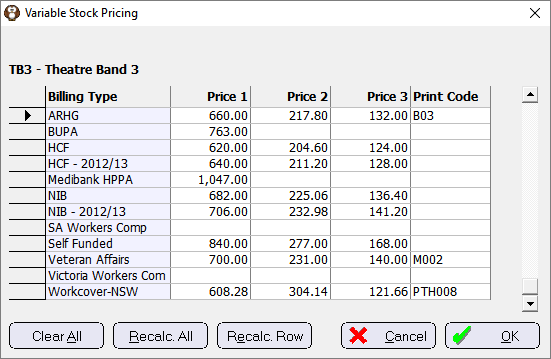
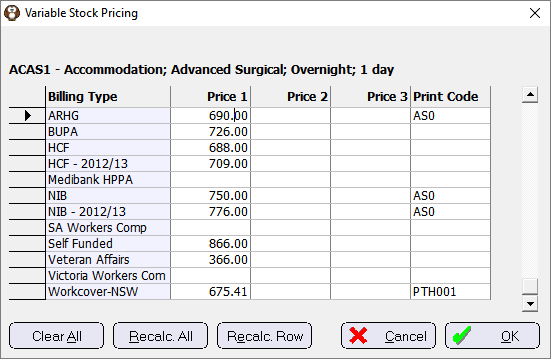
Stock
Medical Supplies can have different markups for each Billing Type or could alternatively be charged at Cost, which is common for DHB contracts.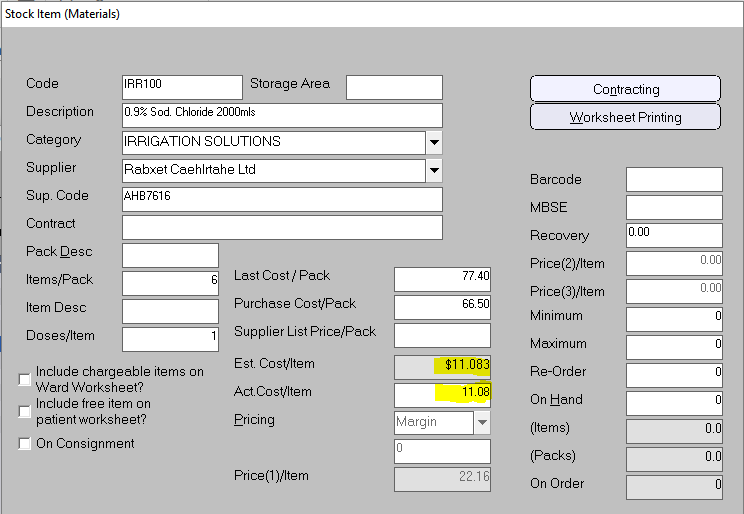
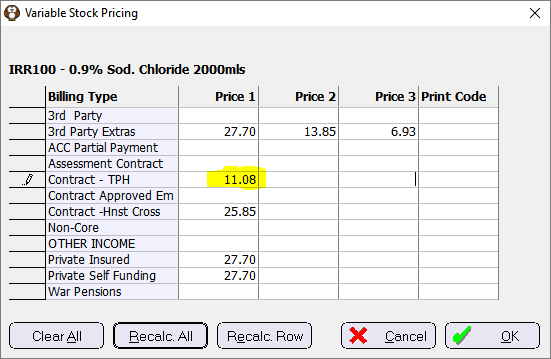
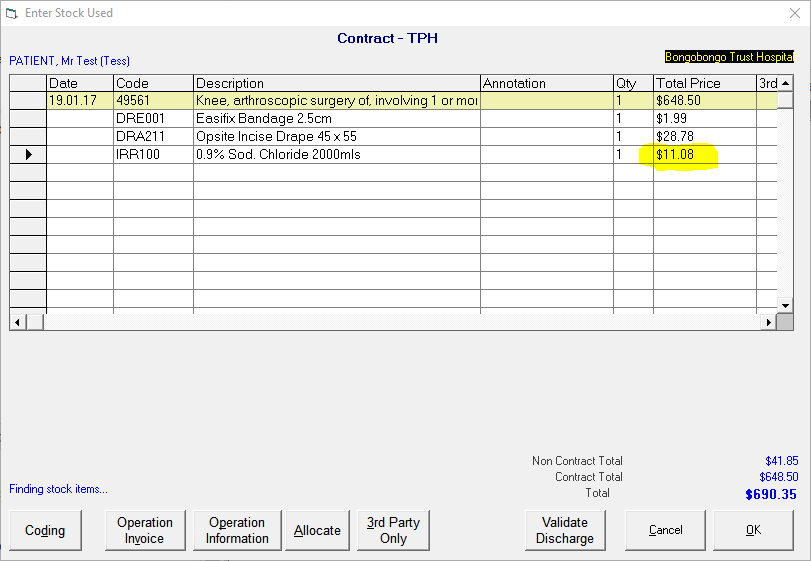
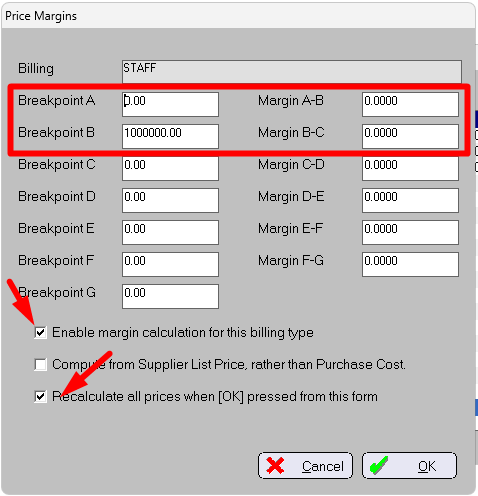
Charging items at Cost requires the Pricing type to be set to Margin and also the relevant Billing Type in Setup > Stock > Price Margins must have all the Margins set to zero.
- Prostheses
The Billing Type could be used to determine how the prostheses are charged for when invoicing.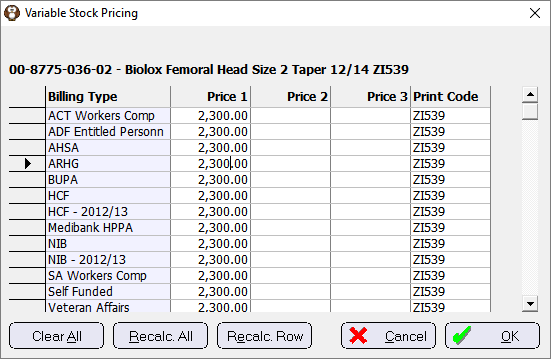
Multiple Procedures
If the procedure (or other stock or services) have agreed price variations for the second or subsequent item charged, the percentage mark-down specified in the Setup > Financial > Charges > Billing Types will be adhered to.
The mark-down values will be displayed in the Price 2 and Price 3 columns 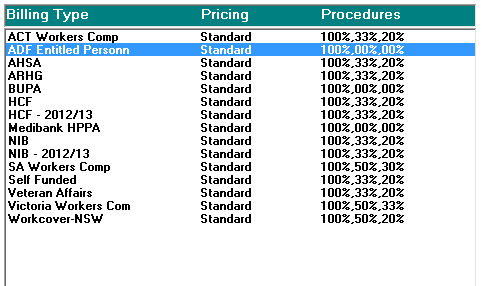
Recalculate All or Recalculate Row
The Recalculate options can will use both the Price Margin percentage values and also Multiple Procedure percentage values.
The prices are calculated using BOTH the Price Margin AND the Multiple Procedure percentages relevant to the Billing Type.