Getting started
- Make sure you have selected the Provider (our doctor - use F2 if necessary).
- Select Dictation Mode
- Select Type
- You will see a list of patients from the Appointment bookings for the selected date. If the correct date is not selected either:
- User the left and right arrows situated beside the (blue) date; or:
- Select 'Display' and change the date.
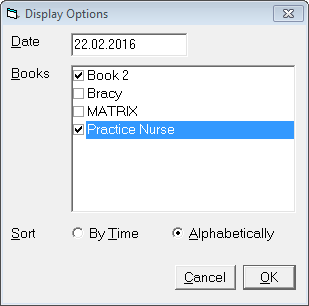
- Once you have the correct list of patients displayed in the middle section of the screen, highlight the patient you require
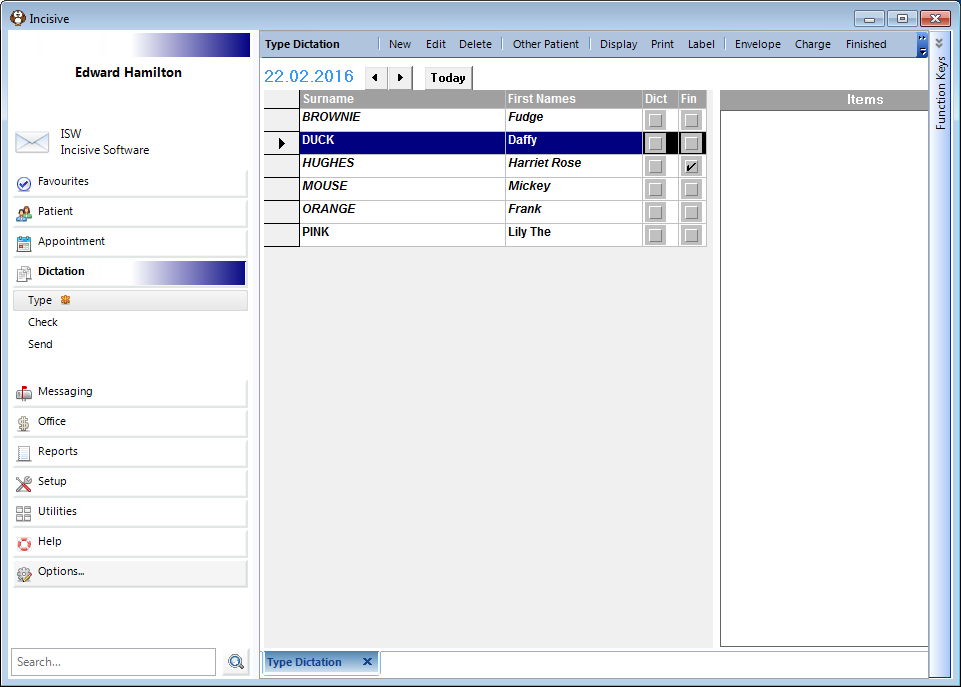
- Select New
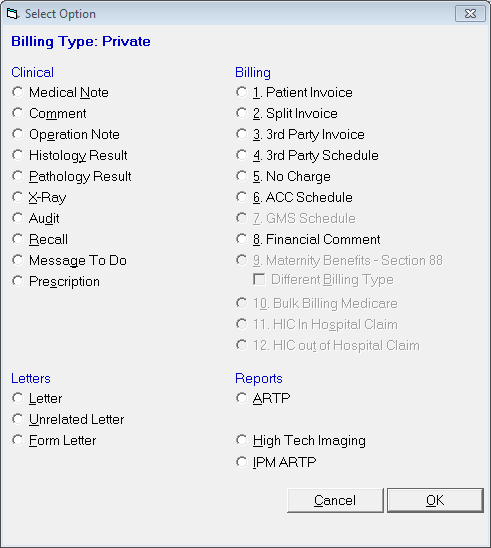
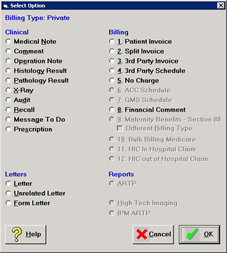
- Select the appropriate type from the list of options (remember, Operation Reports go under Operation Notes and consult letters go under Letter).
What to do when the patient you have dictation for is not listed.
- Either:
- Select the date of the clinic or operating list that the patient was booked in, or;
- if the patient did not have a recent appointment (i.e. the doctor is dictating about some results or tests that were performed) select 'Other Patient' from the menu bar

The 'Patient Selection' screen will display.
- Select you patient in the usual way
- The patients name will be listed in the section annotated 'Patient(s) not on the day list
- Continue typing as per the instructions above
How to type patient letters
- From the 'Select Option' screen, select 'Letter'.
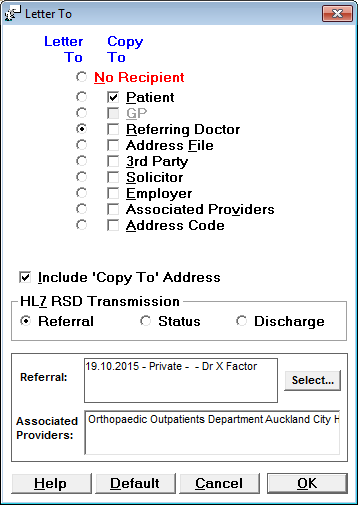
The 'Letter To' screen will display.
- Select who the letter is to be addressed to (Letter To column) and who is to receive copies (Copy To column).
NOTE: The Referral information displays at the bottom of this screen to assist you. The most recent referral will be selected by default. If this is not the correct referral, use 'Select' to select another referral (for this provider).
If the Referring Doctor and the GP (family doctor) are the same, you will not be able to select both the Letter to and Copy to options. The 'Copy To – GP' option will be dimmed.
- The selections made from this screen will head up the letter automatically with:
- Date
- Addressee
- "Dear (Salutation)"
- Once you have made the correct selections for the letter you are currently typing, select 'OK'. The word processing screen will display.
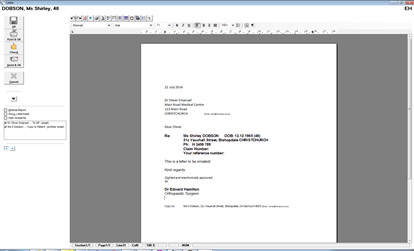
- Position your cursor below 'Dear' and above any copy to text and start typing.
NOTE: Remember to use your 'F8' quick codes or letter templates. These can be created to single words, paragraphs of an entire letter. - Once you have finished typing your letter, spell check the letter (Ctrl + S or mouse click on the ABC icon)
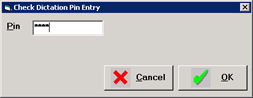
- For those secretaries that have been authorized to use the practice "Check Dictation PIN" you can mark the letter as checked by either pressing F11,or clicking on the Check Dictation icon located at the top of the screen, after you have finished typing. This step is necessary to be able to send documents electronically
- Type in the dictation PIN and press 'Enter' or select 'OK'
- You will return to the 'Type Dictation' screen, the item you have just typed will be listed in the right hand column
- Either continue typing additional items for the highlighted patient; or select a different patient from the list
Spell Check
To spell check the typing, either click on the icon or Ctrl S.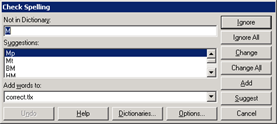
How to type Operation Reports
- From the 'Select Option' screen select 'Operation Note'.
- A 'New Operation Note' screen will appear with a blank document for you to type the Operation report.
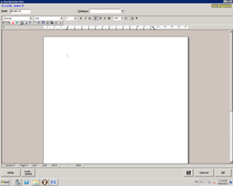
- You may select a 'Subtype' from the drop down list.
- Click onto the body of the word processing screen and press F8 to bring up a list of operation templates.
HINT: All operation templates start with 'O' so by typing this before pressing F8, you will only see the list of operation templates. If you know the full code for the template, by typing this and pressing F8, the template will drop straight in. If this does not work in your practice, discuss this with your Practice Manager - If any 'pick list' choices have been included in the template, you will be prompted to make these. Type the number of your selection and press Enter
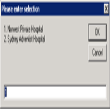
- Once all the selections have been made, the text of the template, complete with selected choices will appear on the screen.
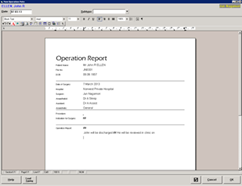
- Continue typing the sections of the operation report as per the dictation
- Additional text (anything from a single word to an entire paragraph) template desk can be dropped in as required. You have the option of pressing F8 and searching through all your saved text templates or you can type the first letter of the code and then press F8 to see only those
HINT: keep all your F8 codes sorted by starting letter templates with the letter L, use P for paragraph and w for words) - Spell check your document
- If a file copy of the operation report is required, select the 'Print' icon or press Ctrl+P. A screen similar to the one below will appear
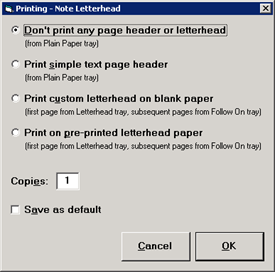
- Select the 'Don't print any page header or letterhead' option, followed by 'OK'. The operation report should print out on plain A4 paper from the appropriate tray
- After printing, you will return to the typing screen. If you have been issued with a Dictation Pin Number, press F11 (or click on the 'Check Dictation icon / Black tick)
- The Operation Note will be marked as 'checked' and saved and you will see it in the list of items on the right hand side of the Type Dictation screen as well as the left hand side where it will be italicized.