This option allows you to:
- save to the patients file:
- Email as received, or
- Attachments and Email message as separate Notes entries, or
- Attachments but not the email message/cover page
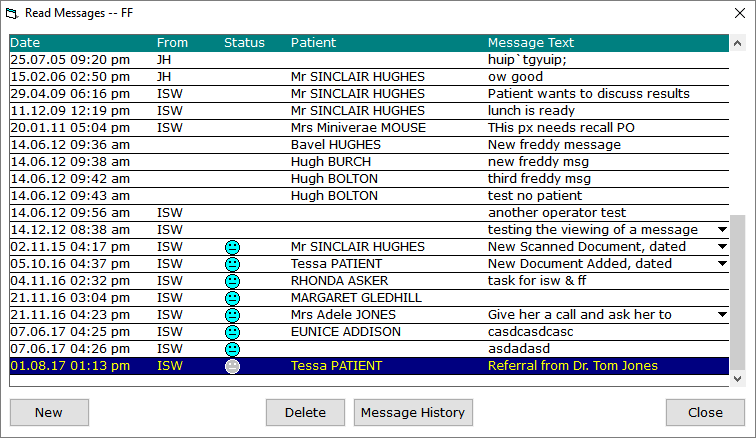
- notify staff or clinicians that an email has arrived that they should view
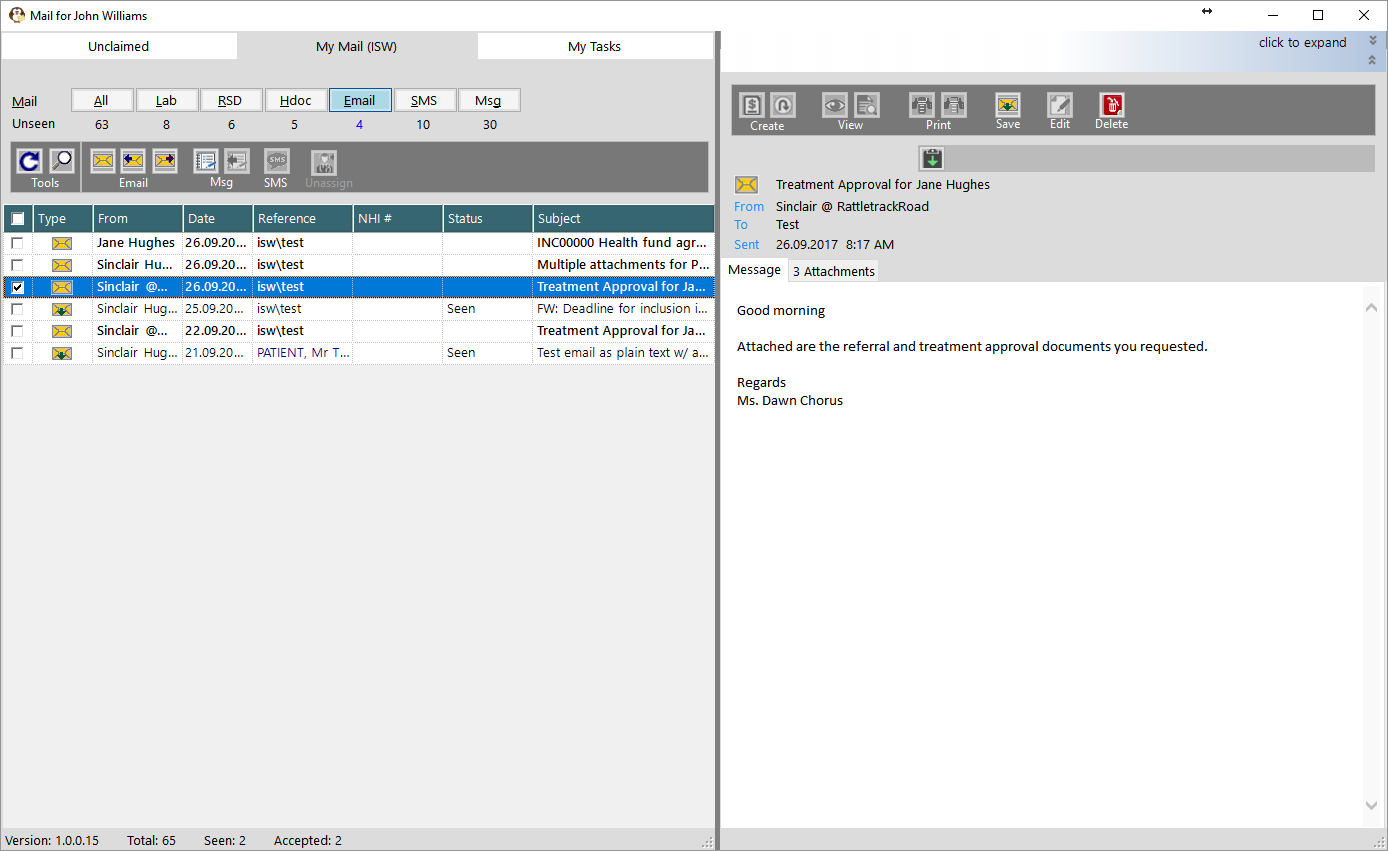
In My Mail, select the email you want to attach and check that the contents do not look malicious.
Click on the Save button and select the patient.
If the email is a new referral you can create a new patient from this option and then attach the email to their record
Enter in the Note Type that you want to see it displayed as in the patient's Notes and also any notification details.
The <default> option will appear as 'Email' in the Notes
The selections available in the Type field can be added to or modified in Setup > Selection Lists > Scanned Document
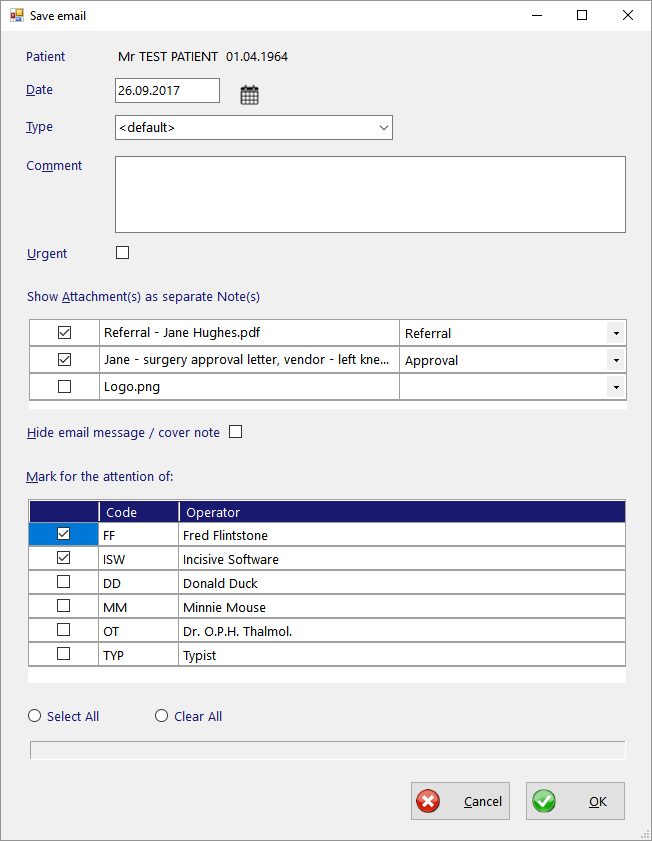
Select the attachments that you want displayed as separate Note types in the patient's records. Choose the appropriate note Type from the selection list.
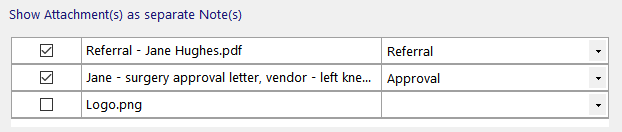
All the attached files will be saved and will have hyperlinks in the original email.
The two selected attachments will appear as separate Notes entries - one as a Referral, the other as an Approval
Choose whether you want the actual email to appear as a Note entry

The 'Hide' email' option will automatically be checked ON if all the attachments are selected to appear as separate Note entries.
If there are no attachments the option will be disabled.- The icon in the Message List will change to indicate it has been saved to a patient and the patient's name will appear in the Reference column.

You can check to see that the email (and attached files) is now attached to the patient's Notes
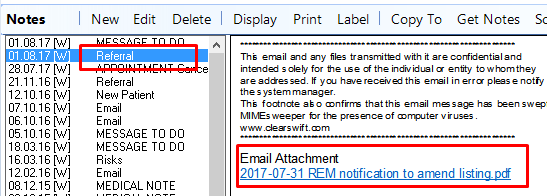
and a Message To Do will also appear if a notification was appended.
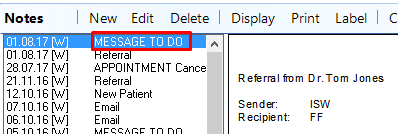
and an internal message (F10) was sent to the recipient's of the notification.