If the User is not configured for a 'Quick Appointment' or if the Appointment Type chosen has Resources associated with it, it is necessary to either select a referral from any existing entries, or add a new referral.
- If the appointment is for an Existing Patient with an existing referral for this doctor, select the correct referral.
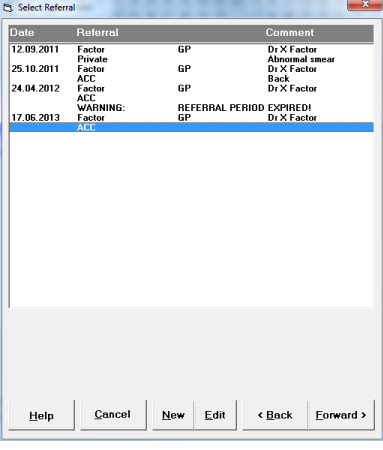
- Select Forward.
- If the patient has been seen before, but the Appointment is for a New Referral, Select 'New'. The New Referral screen will display
- If the patient is a new patient, or is an existing patient with no referral to the selected doctor or user then the New Referral screen will appear automatically.
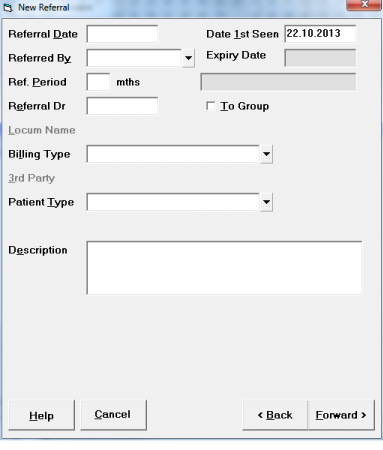
- The date would normally be the date the patient is first seen for the referral and will default to the appointment date. If you want the date to be the date of the referral, change the date.
- Select from the list the category who referred the patient.
- For anything other than GP or Self Referred, select the Referring Dr or type in the GP Locum's name.
- Select the Billing type from the list.
- If the Billing type selected above was to a 3rd Party, select the 3rd Party from the list available. More 3rd Parties can be added via Set-up – Contacts - Correspondence – 3rd Party Billing and Schedules.
- Type in a Description for the referral if required.
- Type in an ICD-9 code for the referral if required.
- Select Forward.
Expired Referrals
- When booking an appointment for a patient who does not have a valid referral for that appointment, please create a new referral.
- If the referring doctor is unknown, choose 'Self-Referral' in the 'Referred By' field.
- When the patient arrives for their appointment, edit this referral rather than creating a new referral.
By following these steps the appointment will be linked to the referral and all the associated information will be available.