To speed up the process of producing an invoice, you are able to nominate default types of invoices for each Billing Type.
For example, the following Billing Types might use the defaults:
- Workcover > 3rd Party Invoice
- Self-funded > Patient Invoice
The 'Charge' button, which activates the quick invoicing function, is available from three locations.
Patient > Financial > Charge

Dictation > Type > Charge

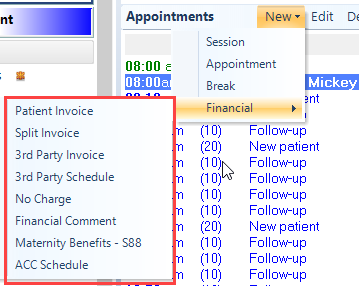
Appointments > New > Financial
Configuring the Billing Type
Each Billing type can (optionally) be linked to one transaction type. This can be overridden at the time of entering a transaction by utilizing the full range of options rather than selecting 'Charge'.
- Go to Setup > Financial > Charges > Billing Types and edit the selected Billing Type.

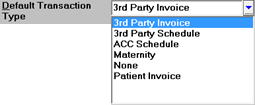
- From the list in the Default Transaction Type field, select the type of invoice to use as the default.
- Click OK to save
Using the 'Quick Invoice' option.
From either :
- Patient > Financial, or;
- Dictation > Type
click on the 'Charge' button.
Continue with the transaction.
If no 'Default Transaction Type' has been selected for the Billing Type, nothing will happen when you click on the 'Charge' button. Instead, select New, and select an alternative transaction type.