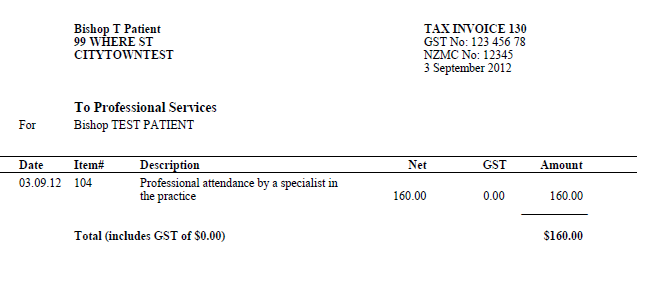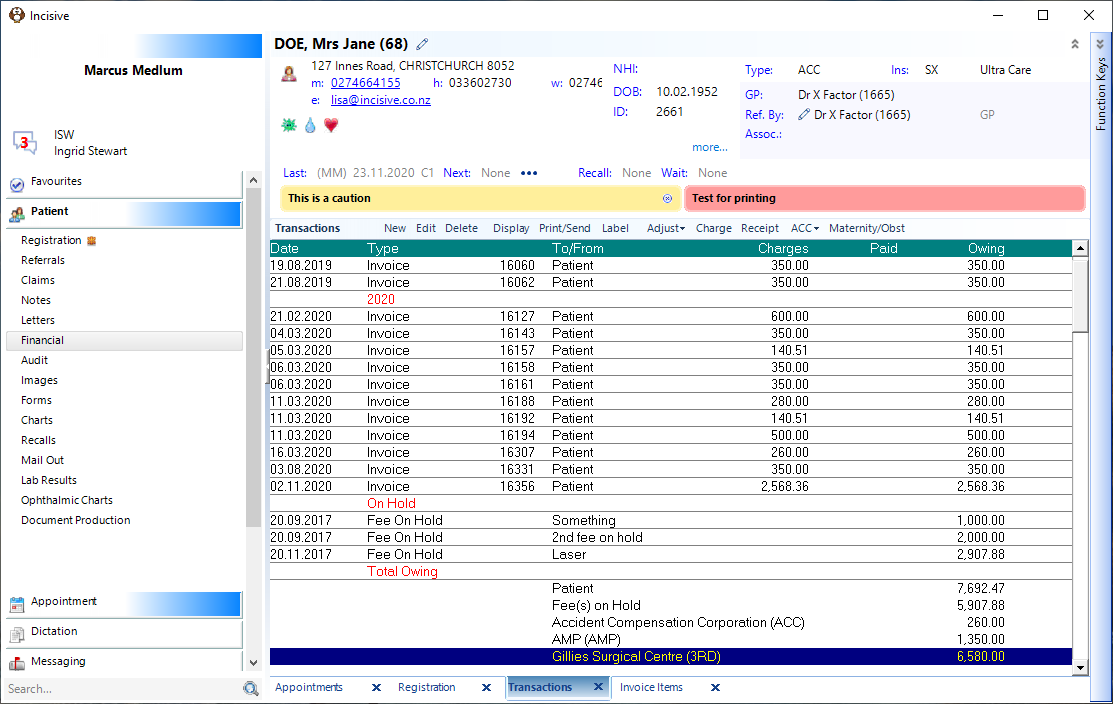
- Go to Patient > Financials > New
- Check the 'Billing Type' is correct (if not, check the 'Change Billing Type' option and you will be prompted to select an alternative Billing Type)
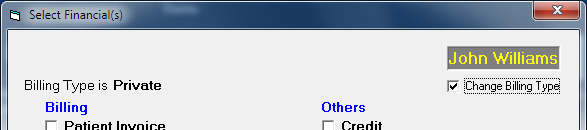
- Select 'Patient Invoice' from the options.
- Start entering the first Item.
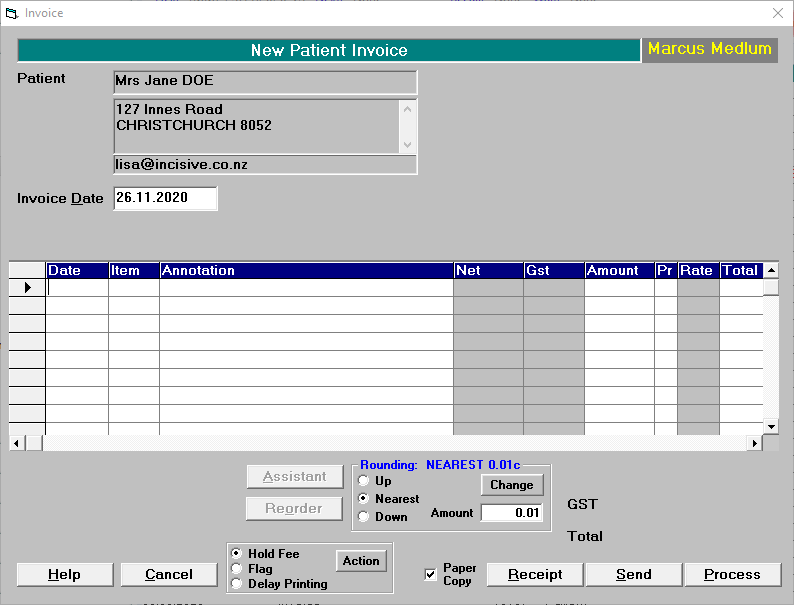
- Date of Service Press Enter to automatically insert today's date, or type in the date that the service was provided.
Item Type in the partial or full code for the fee item you want to use, then press the F8 (Quick-codes) function key. This will automatically insert the correct annotation text and the fee. Items are created in Setup > Financial > Charges > Invoice Items.
Alternatively, manually type in the item, annotation & fee. The manual method is not recommended as it not possible to include free-hand items into reports that group by Item type e.g. Sales Analysis
Annotation If the text associated with the Item has not already been entered, type it in. Note that the text does not wrap onto sequential lines.
Net Type in the value of the fee (GST exclusive). If the User The GST will be calculated (if applicable) and the total charge inserted into the 'Amount' column.
Pr Allows you to enter pre-defined step-down rates for multiple entries e.g. 1st procedure at 100%, 2nd procedure at 50%, 3rd & subsequent procedures at 25%. The step-downs are entered as A, B, or C (A = 100%, B = 50%, C = 25%)
Total Total charge calculated, including the step-down rate.
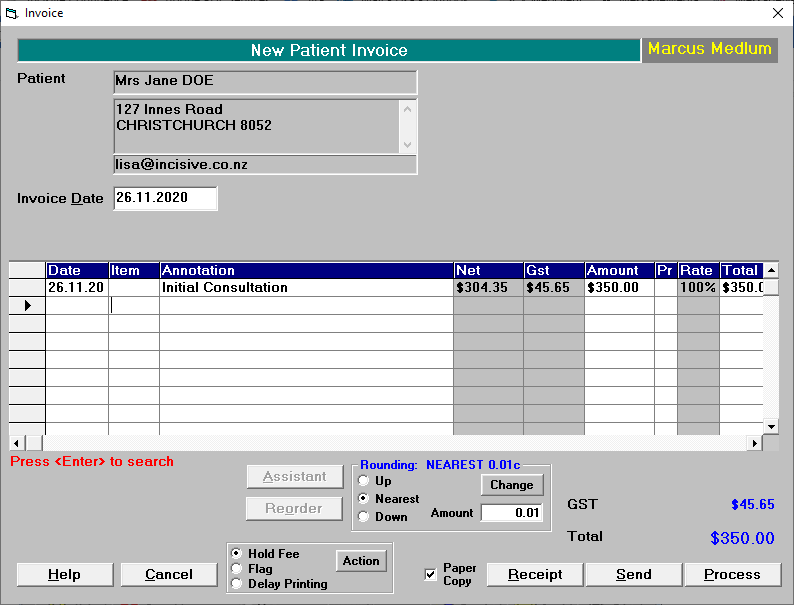
Continue entering additional Items to the invoice
When complete, select either:
- Print to print the invoice
- Send to email the invoice to the patient
- Receipt to receive payment of the invoice