On the Patient Selection form (F4), select the 'New Patient' button.  The Patient Registration screen will appear.
Fill in the known details about the patient. 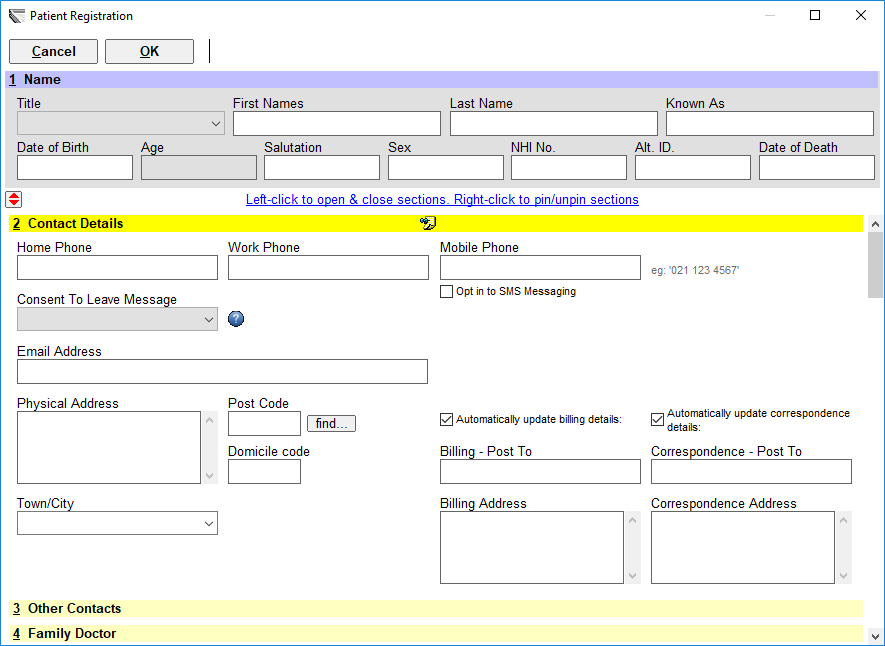
The minimum amount of data required to register a patient is:
- Lastname, and;
- Gender
Complete as much as possible of the 'Contact Details'. 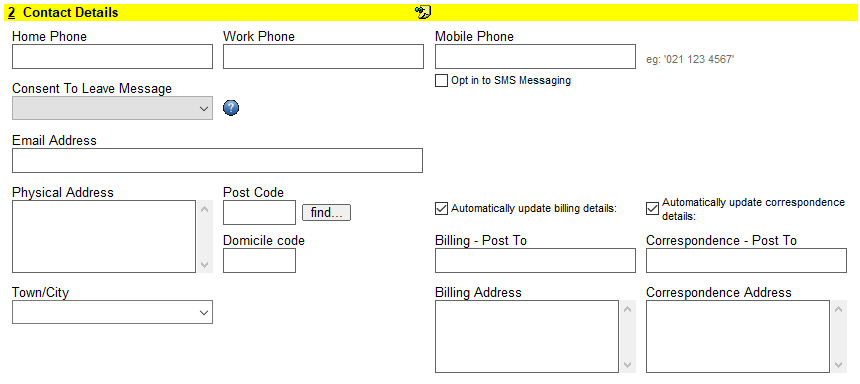
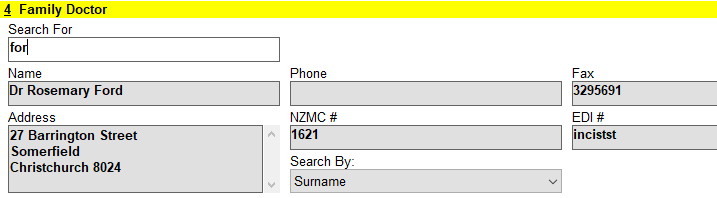
Enter the patient's GP in the 'Family Doctor' section.
In the 'Family Doctor' field you can search for the doctor by their Code or Surname (depending on which method is selected in the drop down menu).  Type either part (or all) of the code or surname
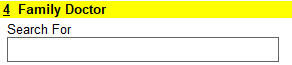 Press Enter to start the search.
If you type more than three characters and what you type identifies a unique doctor (based on the code or surname), then the doctor's name and code will automatically appear on screen and the cursor will move to the allergies field; or if what you have typed does not result in an exact match or is less than three characters, then a pop up box will appear with a list of doctors to select from. 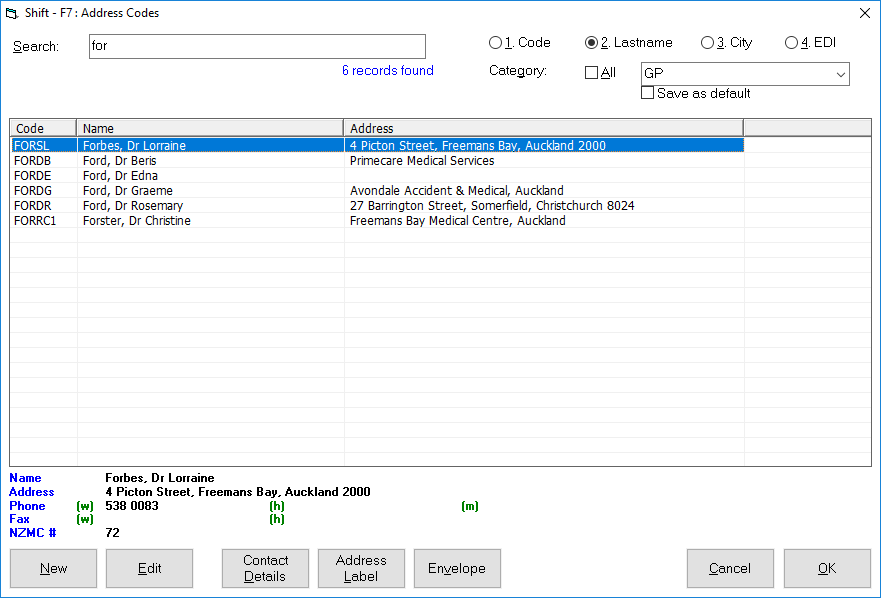
Select a doctor from the list, or if the doctor you require is not listed, Select 'New' and add the doctor. The details for the selected doctor will appear on the Patient Registration screen.
If the patient does not have a Family Doctor, or you do not yet know who the Family Doctor is, then leave this field blank. Remember that you record the Referring Doctor elsewhere!
Insurer or Health Fund details can be important, particularly for billing purposes. 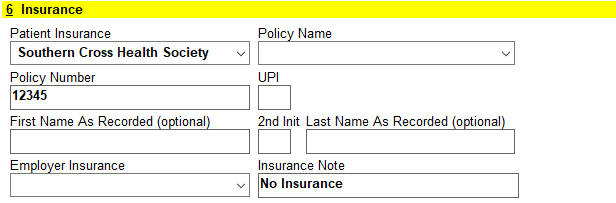
Complete any other sections – especially Allergies. 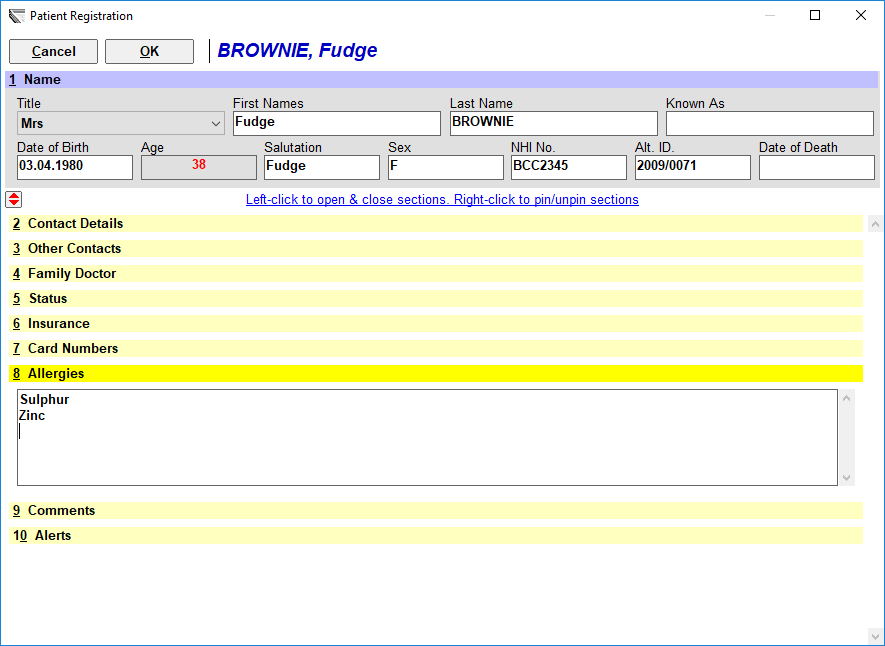
Click OK to save and proceed to the Referral section 