Where a solicitor is involved with the patient's referral and requests reports or other information from the specialist, there is a function in SPM to very easily create an invoice to the patient's solicitor.
Invoicing the solicitor is especially common for patients who have work or accident related conditions.
Configuration
The Billing Type and the Solicitor address file need to be configured.
- Go to _Setup Financial Charges Billing Type_ and edit the relevant Billing Type e.g. Workcover.
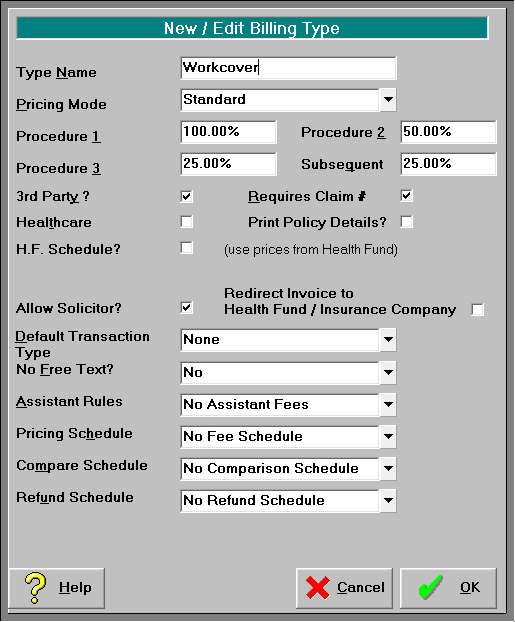
- Check on the 'Allow Solicitor' option and click OK to save.

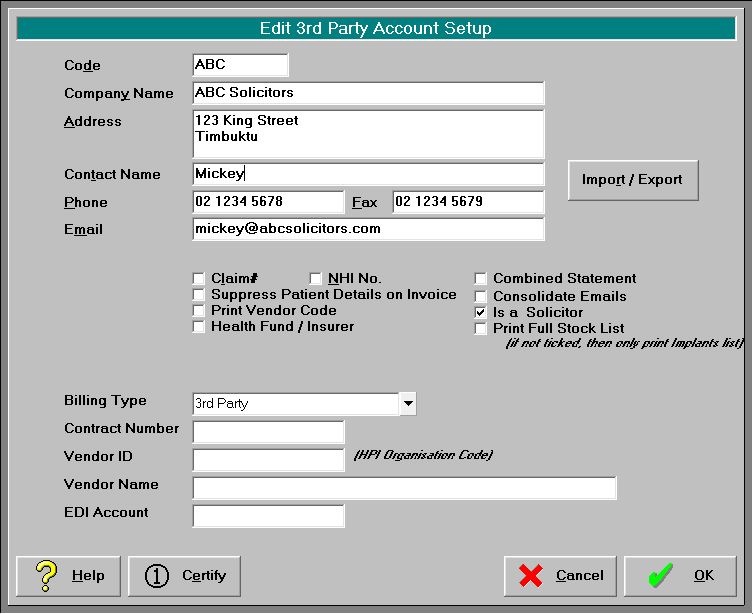
- Go to _Setup Contacts_ Billing/Reports and create or edit an entry for the solicitor. Ensure the 'Is a Solicitor' field is checked on. Click OK to save and exit

Referral
When the referral data is entered, and a Billing Type is selected that has the 'Allow Solicitor' option checked on, an option will appear allowing the solicitor to be entered as well.
- Go to the Patient module and select the patient.
- Create or edit the referral
- Select the 'Billing Type' and then enter in the 3rd Party.

- In the 'Solicitor' field, start typing in some part of the solicitor's name. As you do a search form will appear. Press the Enter key or select the Search button.

The search will only include the Address File entries that have the 'Is a Solicitor' option checked on.
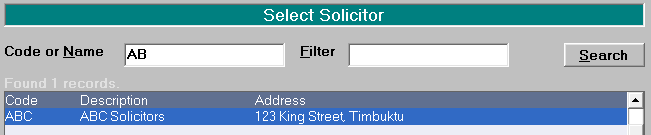
- Select the solicitor from the list and click OK. This will insert it into the Referral screen.

Invoicing
When you proceed with the invoicing, a 'Solicitor Invoice' option will appear which, when selected, will automatically create an invoice to the Solicitor entered in the Referral.
- Go to the Patient module and select the patient.
- Go to Financial New and check on the 'Solicitor Invoice' option.

If you are invoicing another party as well you can check on more than one option and the invoices will be created consecutively. - The invoice entry form appears with the Solicitor's name and address already entered.
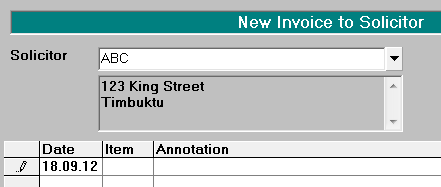
- Complete the invoice and Print or Send.