HealthDocs
Overview
HealthDocs allows for documents to be transferred between health provider organisations. This differs from the existing method of transmission used for lab results and RSD (Referral, Status, and Discharge) messages as the files that are sent are just text, or flat files.
HealthDocs does not support the broadcasting of messages.
No attempt is made to define the format or content of the document. The HealthDocs message specification provides the messaging standard for the successful delivery of the document. It is the requirement of the respective sending and receiving applications to understand the document contents.
HealthDocs consists of the following document message types:
Patient Document and Mail Document.
PatientDocument messages are based on detailed information about a single specific patient. Examples of use include an attachment to a Discharge or Status Update message. MailDocument messages are all messages not suitable to be sent via PatientDocument. The key differentiator between the supported formats is the minimum number of required fields to send a message. PatientDocuments require specific patient information including NHI number.
The following file types are currently supported by Healthlink:
DOC - Word document
RTF - Rich text document
ODT - Open Document Format
HTML - HTML document (default)
XML - XML document
TXT - plain text document
ZIP - compressed file archive
PDF - Adobe PDF document
JPG - JPEG graphics
PNG - PNG graphics
GIF - GIF graphics
BMP - BMP graphics
MP3 - MP3 audio
Please note that while TIF files are not supported (most sites save their scanned documents in this format to save space), we convert these into the PNG graphics format for sending.
Setup
Before you can begin using HealthDocs, some set up is required.
Message Carrier
A path needs to be set for the outgoing files that are to be created. This will be to the computer that has Healthlink installed. In Setup – System – Message Carriers select the Healthlink option and click on the Edit button. Then, in the Hdocs section, enter the UNC paths to the XML_In\Healthdocs and XML_Out\Healthdocs on the computer that has the Healthlink software installed. 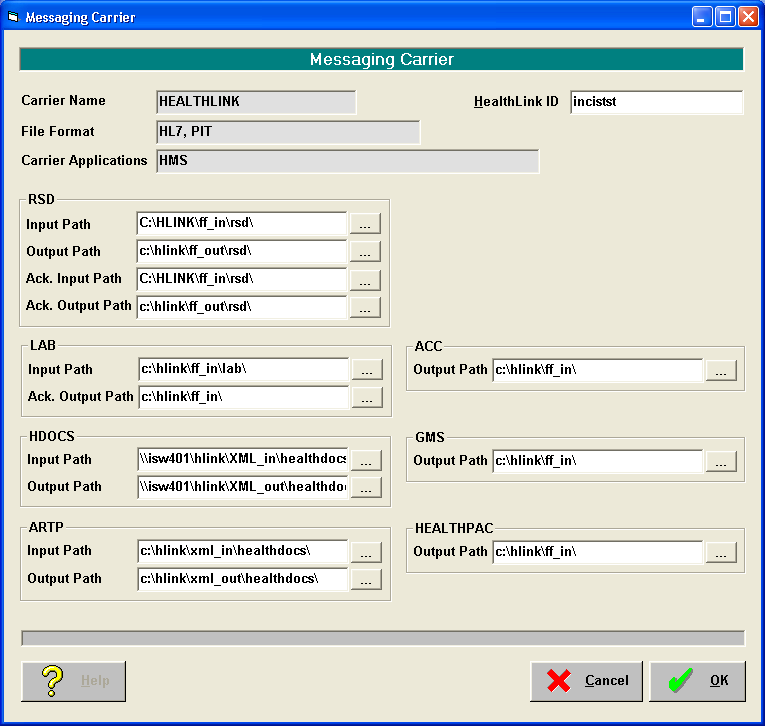
Workstation
Set the path to 'Healthdoc Out' folder on server :: Setup à Workstation à Workstation Paths 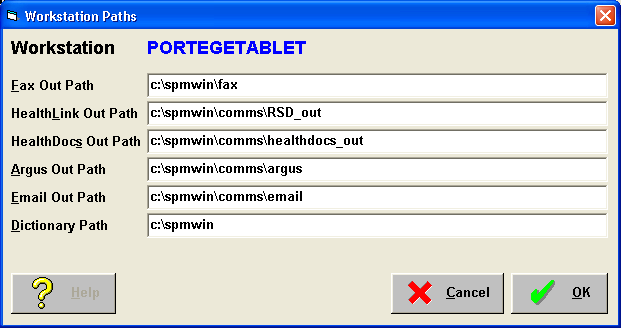
Recipient's Healthlink EDI
Ensure there is an HDI in the Healthlink section of the recipient's address file. Use Shift+F7 or Setup – Address – Correspondence to check.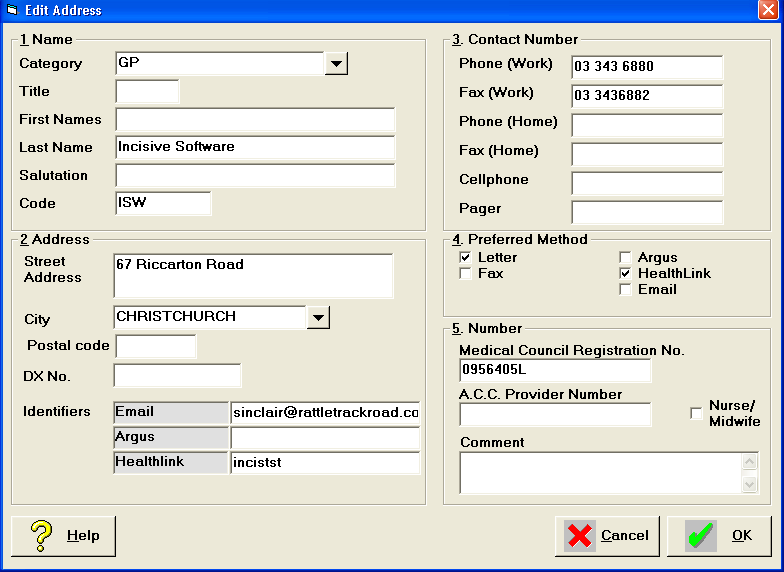
Creating the ARTP
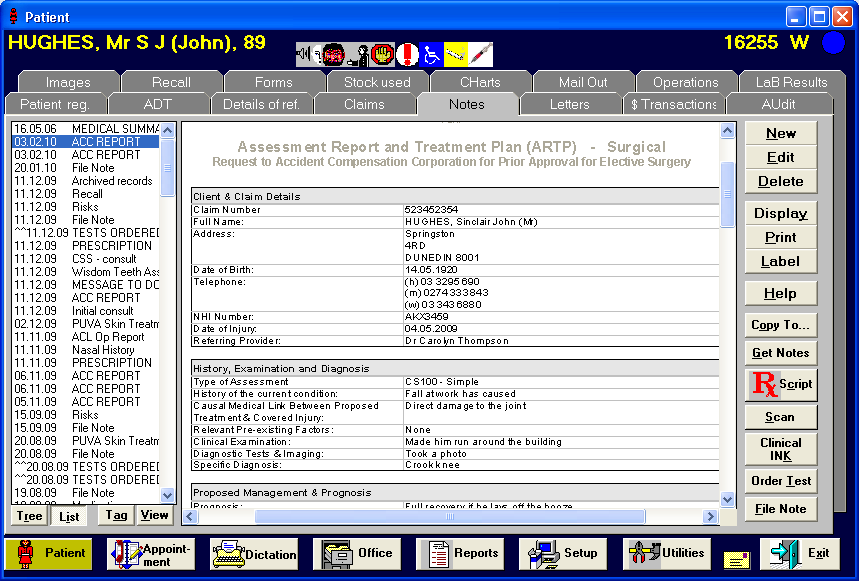
Create the ARTP in SPM : : Patient à Note à New à ARTP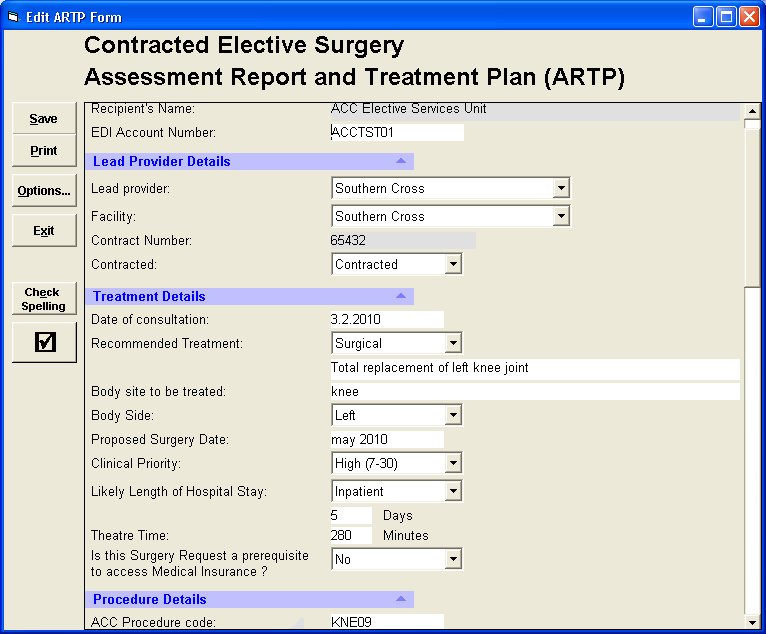
Attach supporting notes or files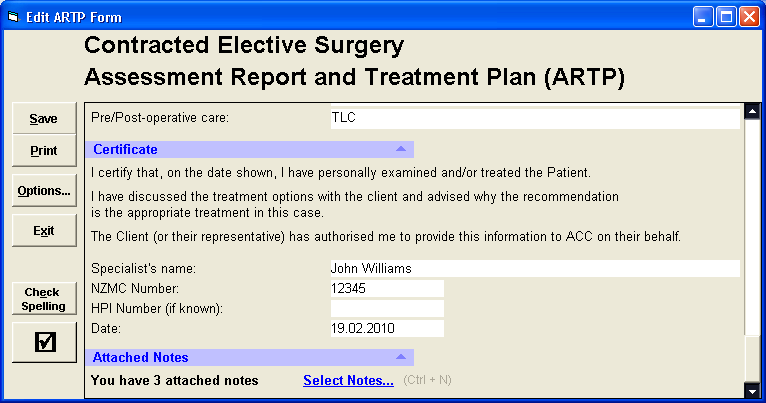
Select the items you want to attach.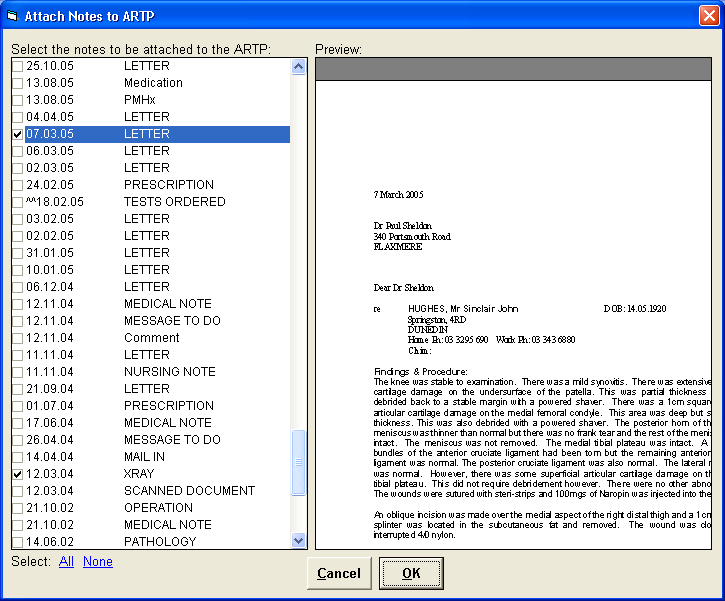
The types of Notes that can be attached are:
- Medical Note
- Nursing Note
- Paramedical Note
- Comment
- Operation Note
- Pathology
- Histology
- Xray
- Prescription
- External document
- Scanned document
- Letter
- Tests Ordered
The types of Notes that cannot be attached are:
- ClinicalInk (Infopath)
- Filenote
- Worksheet
- Message To Do
The ARTP is displayed in Notes as 'ACC Report' 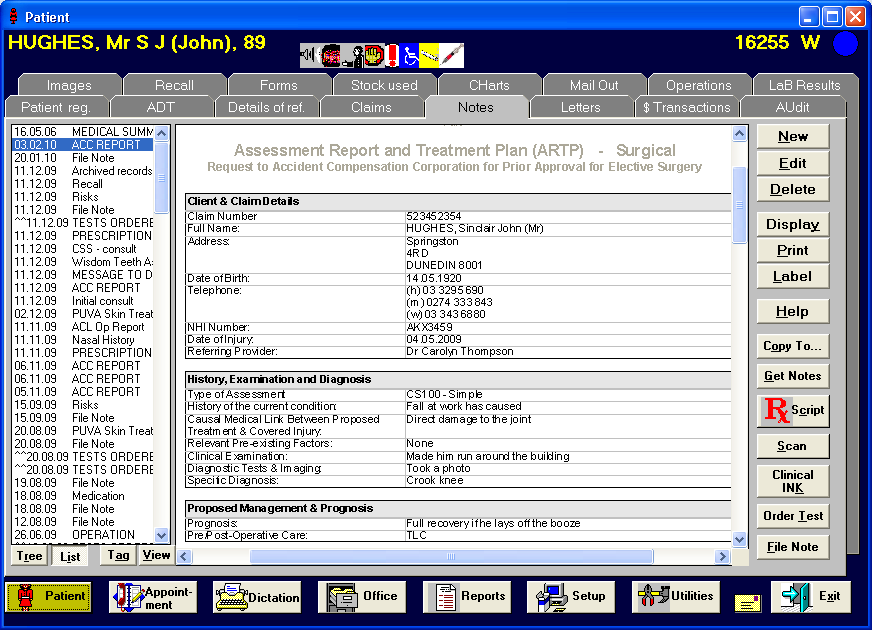
Sending ARTP
Highlight the ARTP and press F6 to tag the item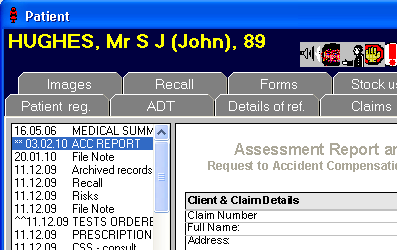
Press F7 to Send the ARTP
Select the recipient and the method. 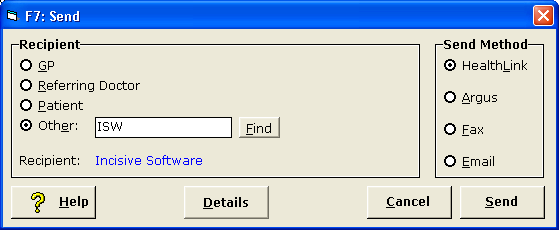
Confirmations 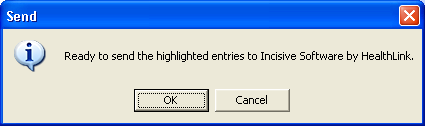
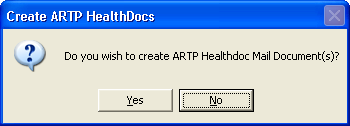
Healthdoc XML file created 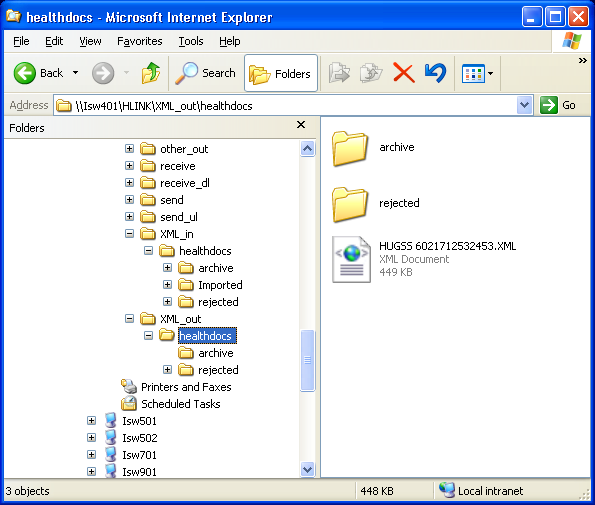
Importing Healthdoc files
Messaging > Healthdocs > Import Healthdocs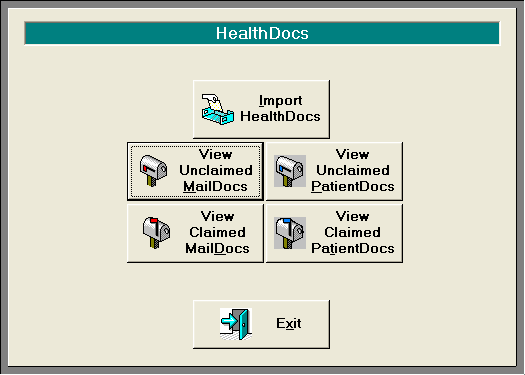
Select Scan then Import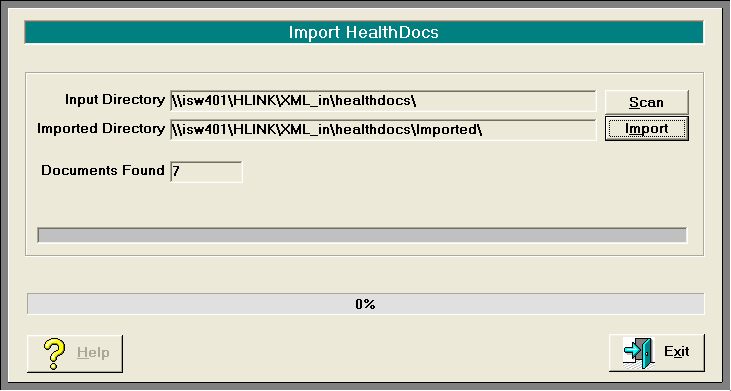
Notification of import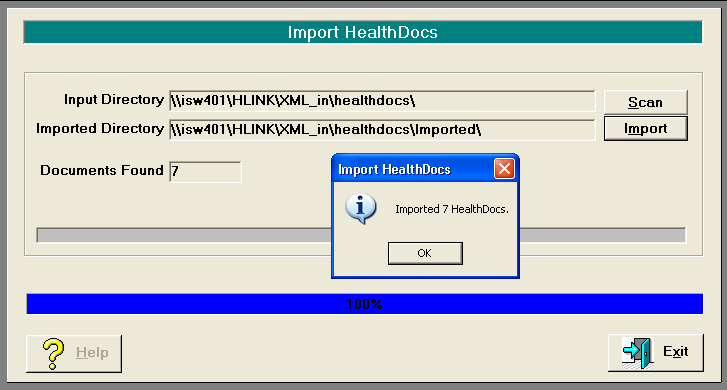
View Unclaimed Maildocs
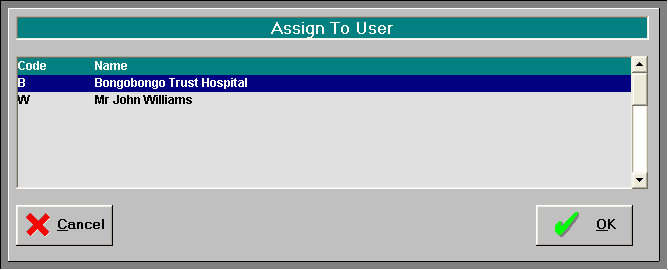
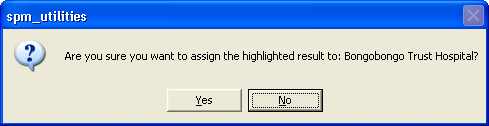
Highlight Healthdoc and 'Assign to User' 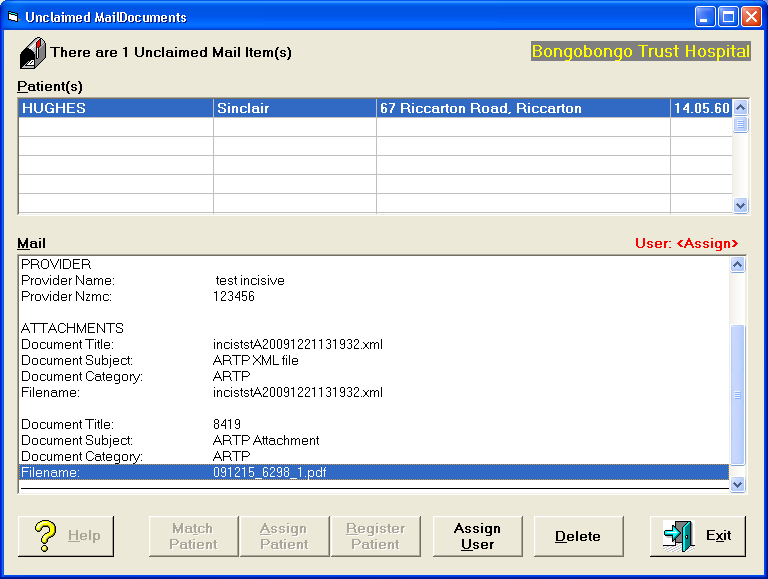
View Claimed Healthdocs
Select ARTP XML and the' ARTP' button becomes active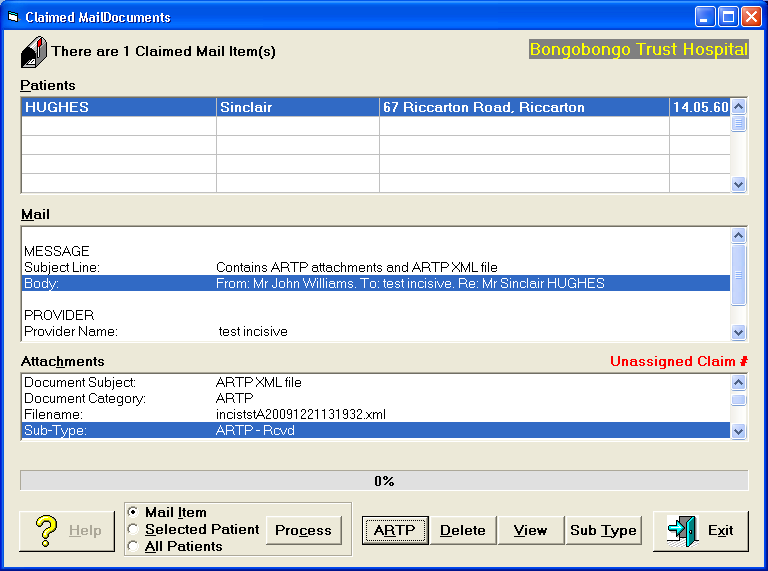
The 'ARTP' button allows you to match to an existing Claim number, or create a new Claim number.
Checks to see if the Sender is in your Address Book 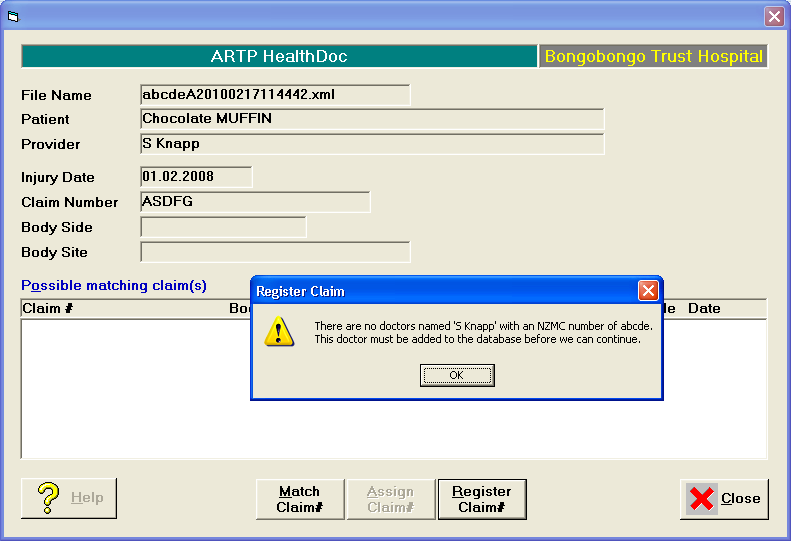
'Match Claim' to list existing Claim Numbers 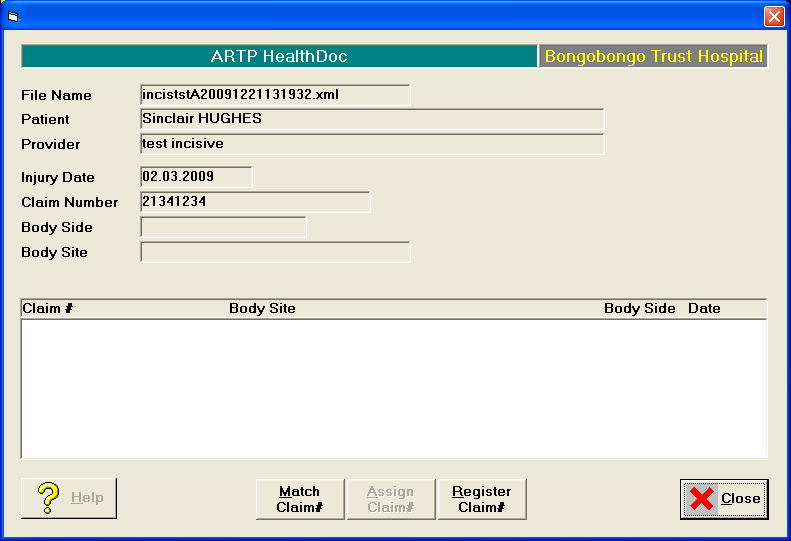
'Register Claim' to add a new Claim entry for this patient
'Assign Claim' to link this ARTP to an existing Claim entry
Once the claim is 'Assigned' or 'Registered' the word ASSIGNED is displayed 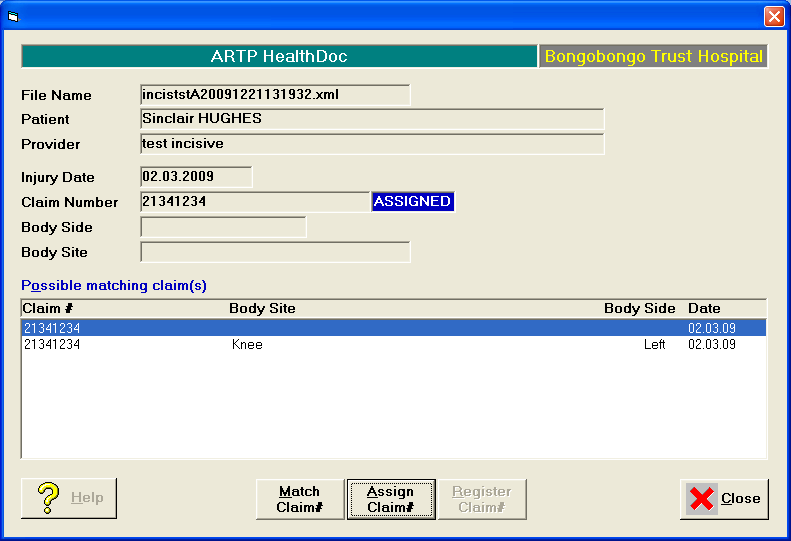
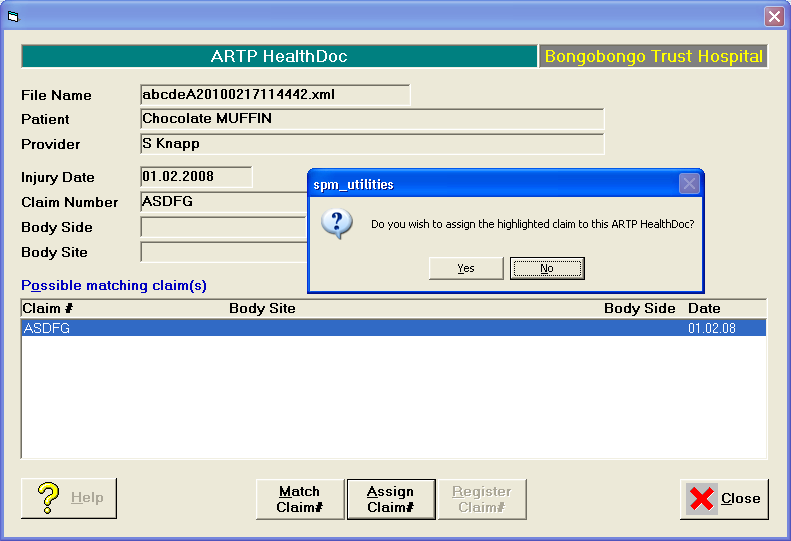
Automatically creates a new Referral from the Sender and a Claim (if not already entered)
'Details of Referral' tab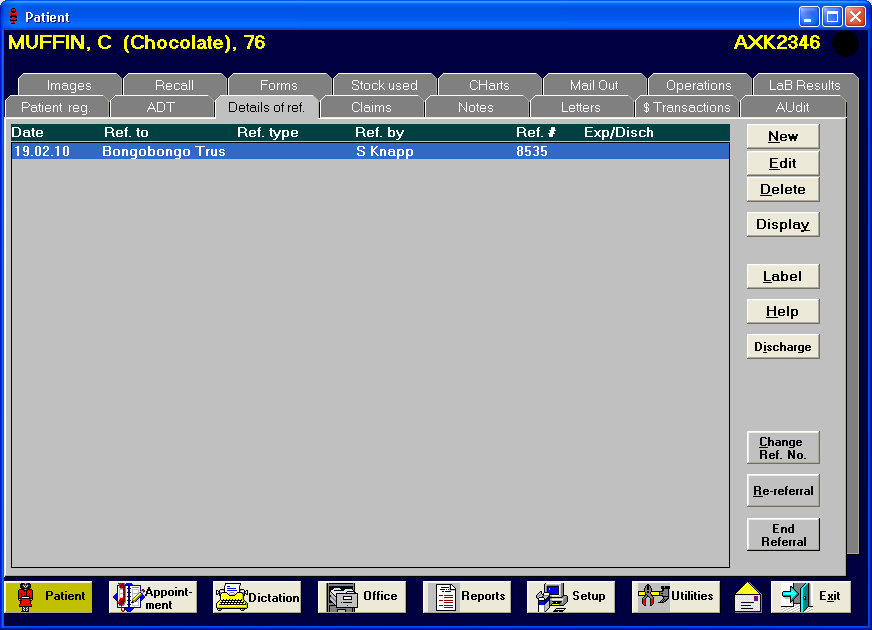
'Claims' tab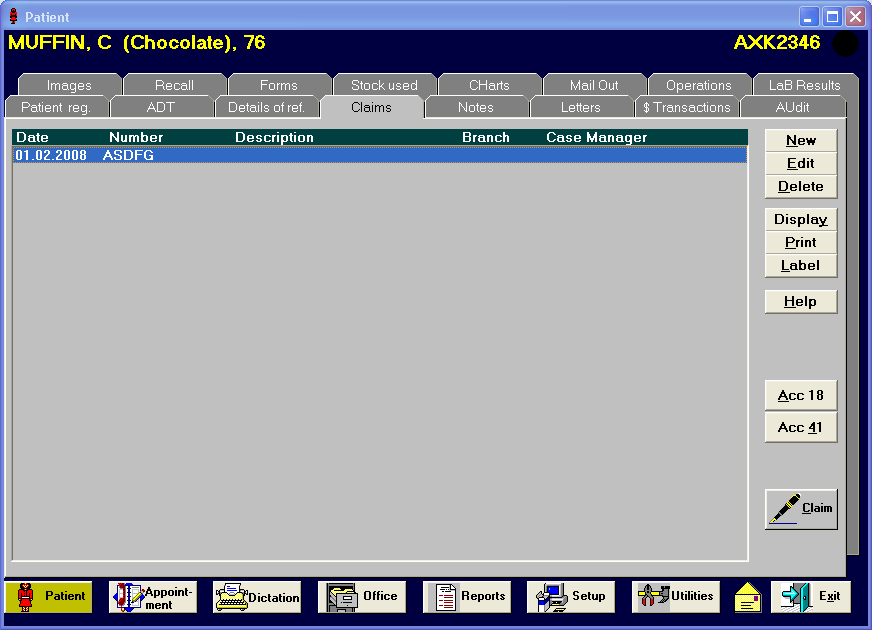
'Sub-Type' allows you to assign a title for the file when it is displayed in the Notes tab e.g. 'ARTP In – Ref.Let.'
You need to select each of the files in the Healthdoc and assign a separate Sub-Type. This is optional.'View' allows you to display the file the default viewer e.g. .rtf displays in Word 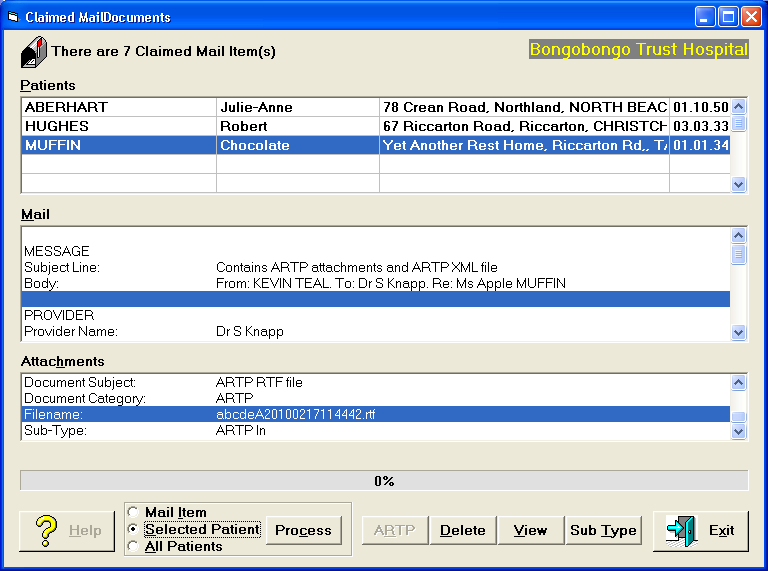
'Process' will transfer the ARTP files to the patient's record
Processed to the Patient's Notes
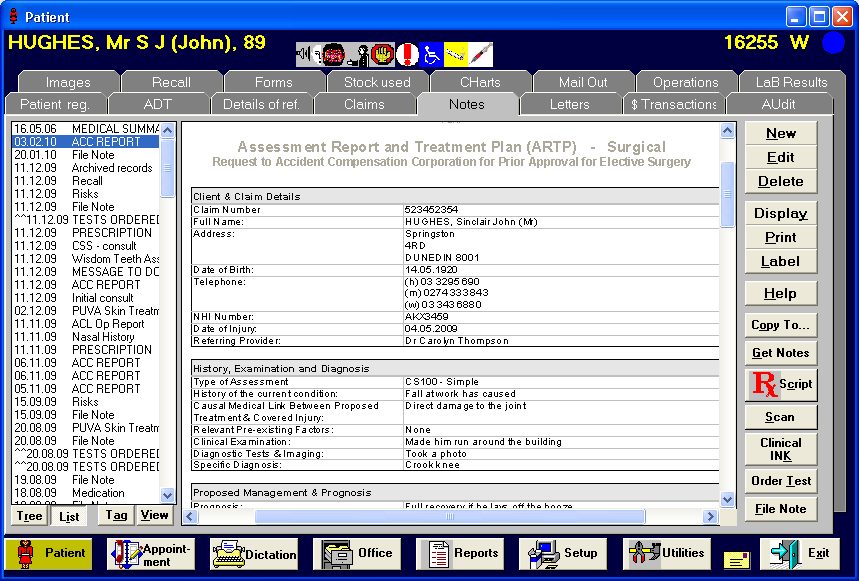
Copying the ARTP
Makes a copy of the incoming ARTP. This allows you to send and amended ARTP to ACC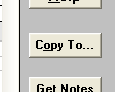
Technical
Outgoing XML file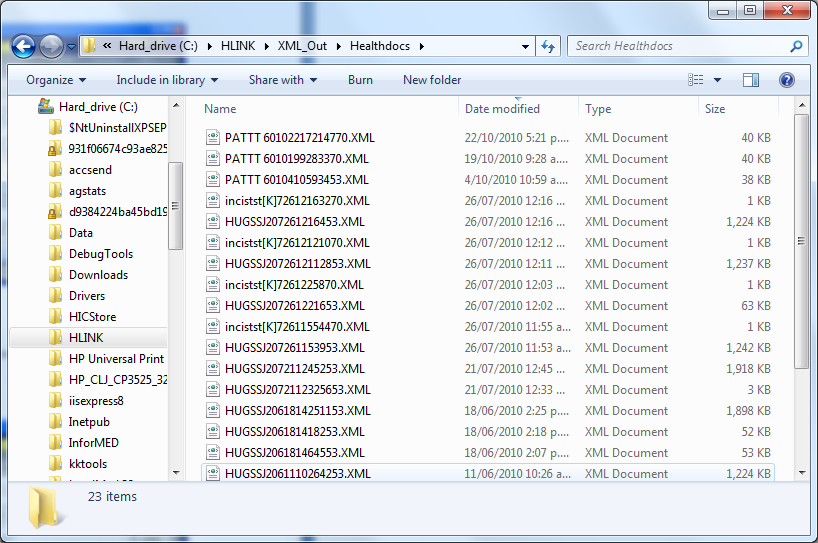
Content of Healthdoc XML
<?xml version="1.0" ?>
- <MailDocument xmlns="http://www.healthlink.net/healthdocs" xmlns:xsi="http://www.w3.org/2001/XMLSchema-instance" xsi:schemaLocation="http://www.healthlink.net/healthdocs c:\spmwin\HDOCS_1.0.xsd">
- <MessageHeader>
- <SendingApplication>
<NamespaceID>spm_f7.dll 182</NamespaceID>
</SendingApplication>
- <SendingFacility>
<NamespaceID>incistst</NamespaceID>
</SendingFacility>
- <ReceivingApplication>
<NamespaceID>spm_utilities.exe 467</NamespaceID>
</ReceivingApplication>
- <ReceivingFacility>
<NamespaceID>incistst</NamespaceID>
</ReceivingFacility>
<CreationDateTime>2010-10-22T17:21:47</CreationDateTime>
<MessageID>102217214770</MessageID>
<MessageType Version="1.0">MailDoc</MessageType>
<ProcessingID>D</ProcessingID>
</MessageHeader>
- <MessageBody>
- <ProviderInfo>
<Role>RP</Role>
- <PersonName Type="D">
<Surname>Williams</Surname>
<GivenName>John</GivenName>
</PersonName>
- <Address Type="C">
<StreetAddress>67 Riccarton Road</StreetAddress>
<OtherDesignation>Riccarton</OtherDesignation>
<City>Christchurch</City>
</Address>
<PersonID Type="MC">12345</PersonID>
</ProviderInfo>
- <ProviderInfo>
<Role>RT</Role>
- <PersonName Type="D">
<Surname>Incisive Software</Surname>
</PersonName>
- <Address Type="C">
<StreetAddress>67 Riccarton Road</StreetAddress>
<City>CHRISTCHURCH</City>
</Address>
<PersonID Type="MC">0956405L</PersonID>
</ProviderInfo>
- <PatientInfo>
<PersonID Type="NHI">EGJ4994</PersonID>
- <PersonName Type="D">
<Surname>PATIENT</Surname>
<GivenName>TEST</GivenName>
</PersonName>
<DateOfBirth>1960-06-02</DateOfBirth>
<Gender>F</Gender>
- <Address Type="C">
<StreetAddress>99 WHERE ST</StreetAddress>
<City>CITYTOWNTEST</City>
</Address>
</PatientInfo>
- <Message>
<Code Type="ARTP claim number">3452345</Code>
<SubjectLine>ARTP re Patient, T (02.06.1960) by John Williams</SubjectLine>
<Body>From: John Williams To: Incisive Software Re: TEST PATIENT</Body>
</Message>
- <AttachedDocument>
- <DocumentInfo>
<Title>patient_t_19600602_artp_1.xml</Title>
<Subject>ARTP XML file</Subject>
<Category>ARTP</Category>
</DocumentInfo>
<ApplicationProcess>01</ApplicationProcess>
<SourceDocument FileName="patient_t_19600602_artp_1.xml" FileType="XML">PD94bWwg ==</SourceDocument>
</AttachedDocument>
- <AttachedDocument>
- <DocumentInfo>
<Title>1993</Title>
<Subject>TESTS ORDERED</Subject>
<Category>ARTP</Category>
</DocumentInfo>
<ApplicationProcess>01</ApplicationProcess>
<SourceDocument FileName="patient_t_19600602_testsordered_2.rtf" FileType="RTF">UmVm=</SourceDocument>
</AttachedDocument>
- <AttachedDocument>
- <DocumentInfo>
<Title>1992</Title>
<Subject>TESTS ORDERED</Subject>
<Category>ARTP</Category>
</DocumentInfo>
<ApplicationProcess>01</ApplicationProcess>
<SourceDocument FileName="patient_t_19600602_testsordered_3.rtf" FileType="RTF">UmVmZXJ==</SourceDocument>
</AttachedDocument>
- <AttachedDocument>
- <DocumentInfo>
<Title>patient_t_19600602_artp_4.rtf</Title>
<Subject>ARTP RTF file</Subject>
<Category>ARTP</Category>
</DocumentInfo>
<ApplicationProcess>01</ApplicationProcess>
<SourceDocument FileName="patient_t_19600602_artp_4.rtf" FileType="RTF">e1xydGYxX
</SourceDocument>
</AttachedDocument>
</MessageBody>
</MailDocument>