Printing Profiles is designed for Terminal Server/Remote Desktop scenarios (Citrix=True) and is only available if the feature is enabled, at a database level, for the whole practice or hospital. Request this configuration from Incisive staff.
There may be some initial reselection of the workstation printers, but nothing else changes.
Automatically creating the Profiles
The first time an operator logs in to SPM/PHM using Remote Desktop or inCLOUD.clinic, there won't be any Workstation Profile records, so the program simply copies the printer choices, etc. from the existing Workstation record to build a Workstation Profile. This is handled automatically.
If the workstation itself is a new (new machine / new network login) then the Workstation Profile record is automatically created by copying the settings from the most recent previous workstation, after which the same copy to create a Workstation Profile is done. Note that the printer selections may not be correct so you will need to update them in Setup > Workstation > Configuration.
If a Remote Desktop or inCLOUD.clinic login is used on multiple different workstations or at different locations, a Workstation Profile can be created for each scenario. If the combination of the 'actual' workstation name + RemoteDesktop/inCLOUD.clinic login is new (for example an Operator using a computer at a new location for the first time) BUT other Operators have already used that machine (and presumably selected printers, etc), then the program will offer the operator the option to copy those settings into a new profile, hopefully saving them considerable time. The exact message will depend on the previous settings, but will be along the lines of "This is the first time you have connected to the server from this computer ('XXXX'). Other operator(s) have connected from this computer with the following settings: YYYYYY, ZZZZ. Would you like to copy these settings?". If you choose not to use the copy option, the profile will be created using the existing workstation configuration.
New profiles can also be created from existing profiles by selecting one in Utilities > Advanced > Workstation profiles, then choosing the New button from the toolbar.
Manually creating the Profiles
- Setup > Workstation > Profiles
- Select 'New' from the toolbar
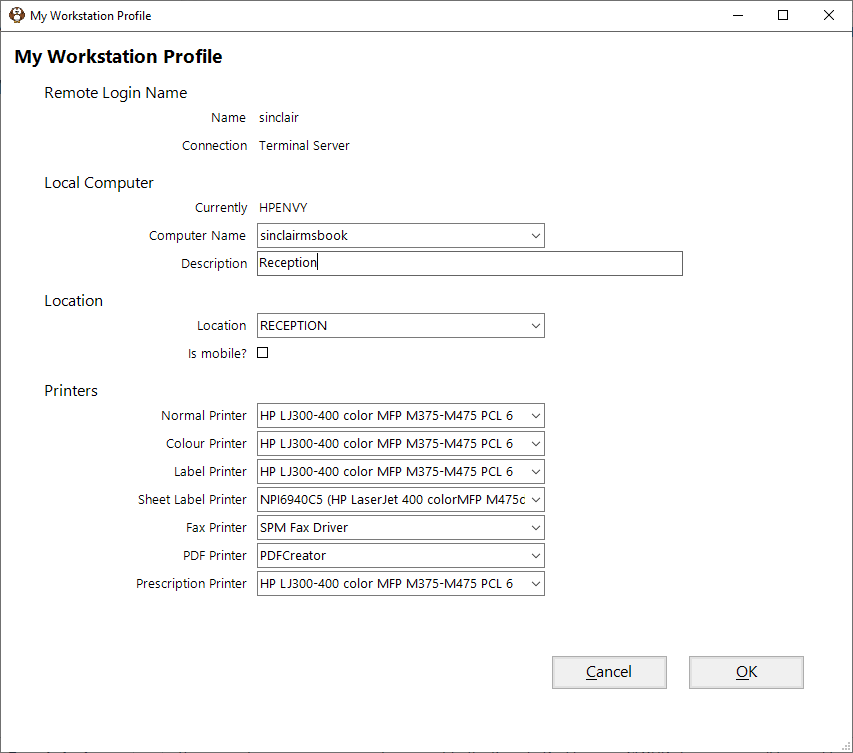
Remote login name |
The account name you are using to connect to the Remote Desktop or inCLOUD.clinic server, will be used to create a 'Virtual Workstation' that is associated with your login. The Network login is not the same as your Operator login used to get into the SPM /PHM application. |
|
Local computer name |
Select or type in the name of the computer your are working from. The Computer Name can be found in Control Panel > System or in SPM/PHM go to Help > About. This computer will be linked to the printers you will be using. You can manually type in the name of the computer you expect to be working from, if it is different from the one you are currently using. When the Profile is created, the Computer Name will be used to automatically select the correct profile for the physical place you are working from. The computer names in the selection list are all the computers that have been previously recorded in the Login table for the Network login that is currently being used. If your computer is not listed, exit the program and log in again. |
|
Description |
Enter a name for the Workstation Profile e.g. Office@MainRooms or Reception-Brighton or just Home. The default is "From <computer-name>" |
|
Location |
A 'Location' can be used to separately report the Banking and the Invoicing. The Location does not need to be physically distant - it might be a separation between the office and reception at the same rooms. See Setup > Locations for more information. If the 'Is Mobile' option is NOT selected, this Profile will automatically use the Location specified. |
|
Is Mobile? |
If this option is checked ON, you can choose a Location when you choose a Workstation Profile at the login screen. This is option not usually required and should be used sparingly. The only scenario this needs to be checked ON is when a laptop is physically taken to different places (e.g. a specialist using their own laptop) because the Workstation Profile cannot be automatically selected and they want to have choose a different Location |
|
Printers |
Select or enter the name of the printers that will be used with this Workstation Profile. |
Automatically creating the Profiles
The first time an operator logs in to SPM/PHM using Remote Desktop or inCLOUD.clinic, there won't be any Workstation Profile records, so the program simply copies the printer choices, etc. from the existing Workstation record to build a Workstation Profile. This is handled automatically.
If the workstation itself is a new (new machine / new network login) then the Workstation Profile record is automatically created by copying the settings from the most recent previous workstation, after which the same copy to create a Workstation Profile is done. Note that the printer selections may not be correct so you will need to update them in Setup > Workstation > Configuration.
If a Remote Desktop or inCLOUD.clinic login is used on multiple different workstations or at different locations, a Workstation Profile can be created for each scenario. If the combination of the 'actual' workstation name + RemoteDesktop/inCLOUD.clinic login is new (for example an Operator using a computer at a new location for the first time) BUT other Operators have already used that machine (and presumably selected printers, etc), then the program will offer the operator the option to copy those settings into a new profile, hopefully saving them considerable time. The exact message will depend on the previous settings, but will be along the lines of "This is the first time you have connected to the server from this computer ('XXXX'). Other operator(s) have connected from this computer with the following settings: YYYYYY, ZZZZ. Would you like to copy these settings?". If you choose not to use the copy option, the profile will be created using the existing workstation configuration.
New profiles can also be created from existing profiles by selecting one in Utilities > Advanced > Workstation profiles, then choosing the New button from the toolbar.
Manually creating the Profiles
- Setup > Workstation > Profiles
- Select 'New' from the toolbar
Remote login name |
The account name you are using to connect to the Remote Desktop or inCLOUD.clinic server, will be used to create a 'Virtual Workstation' that is associated with your login. The Network login is not the same as your Operator login used to get into the SPM /PHM application. |
|
Local computer name |
Select or type in the name of the computer your are working from. The Computer Name can be found in Control Panel > System or in SPM/PHM go to Help > About. This computer will be linked to the printers you will be using. You can manually type in the name of the computer you expect to be working from, if it is different from the one you are currently using. When the Profile is created, the Computer Name will be used to automatically select the correct profile for the physical place you are working from. |
|
Description |
Enter a name for the Workstation Profile e.g. Office@MainRooms or Reception-Brighton or just Home. |
|
Location |
A 'Location' can be used to separately report the Banking and the Invoicing. The Location does not need to be physically distant - it might be a separation between the office and reception at the same rooms. See Setup > Locations for more information. If the 'Is Mobile' option is NOT selected, this Profile will automatically use the Location specified. |
|
Is Mobile? |
If this option is checked ON, you can choose a Location when you choose a Workstation Profile at the login screen. This is option not usually required and should be used sparingly. The only scenario this needs to be checked ON is when a laptop is physically taken to different places (e.g. a specialist using their own laptop) because the Workstation Profile cannot be automatically selected and they want to have choose a different Location |
|
Printers |
Select or enter the name of the printers that will be used with this Workstation Profile. |
