If there are no Sessions or Appointments, the Appointments Tab displays the message "No Session or Appointments for Day and Date.
- Select 'New' to create a session.
- Select 'Session' and 'Yes' or 'No' to 'Do you want to roster many sessions at once?' The New Session screen appears.
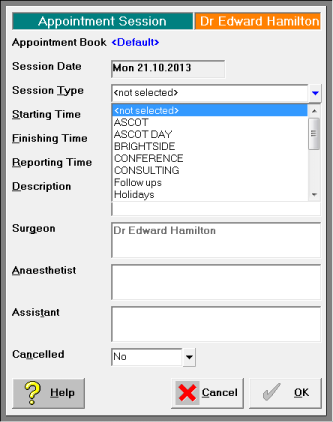
- Select the Session type from the drop down list (these must first have been set up via Set-up > Appointments > Sessions).
- Enter the Starting time.
Use either a 12 or 24 hour clock format. If you are using a 12 hour format and it is the afternoon or evening type pm after the time eg 2pm. - Enter the Finishing time.
- Enter a Description for the Session, eg. Monday P.M. Rooms or Southern Cross Op. List.
- For a one off Session, Select 'OK'.
- If you are entering a rostered Session, select 'Repeat'.
- Type in the frequency (weeks) for the Repeat, ie 2 for fortnightly, or 1 for weekly.

- Enter a date the Session is to be repeated until.
By default, this is the end of the current year. - Select 'OK'.
Operating Sessions
If the session you are adding is an Operating Session, then you can also record the Surgeon and Anaesthetist details.