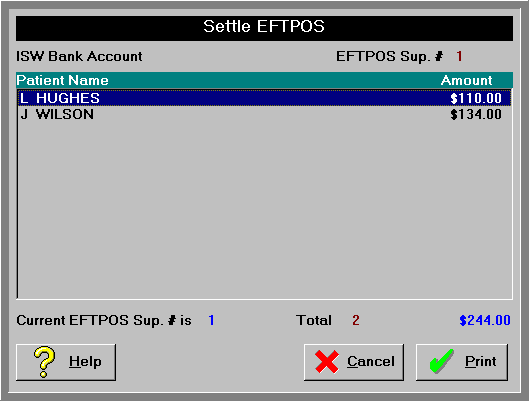
Settling, advancing or closing-off the banking are terms frequently used to describe the process of checking that you have all the physical cash and cheques that are listed on a deposit supplement, and then closing it off and starting with a new, clear supplement.
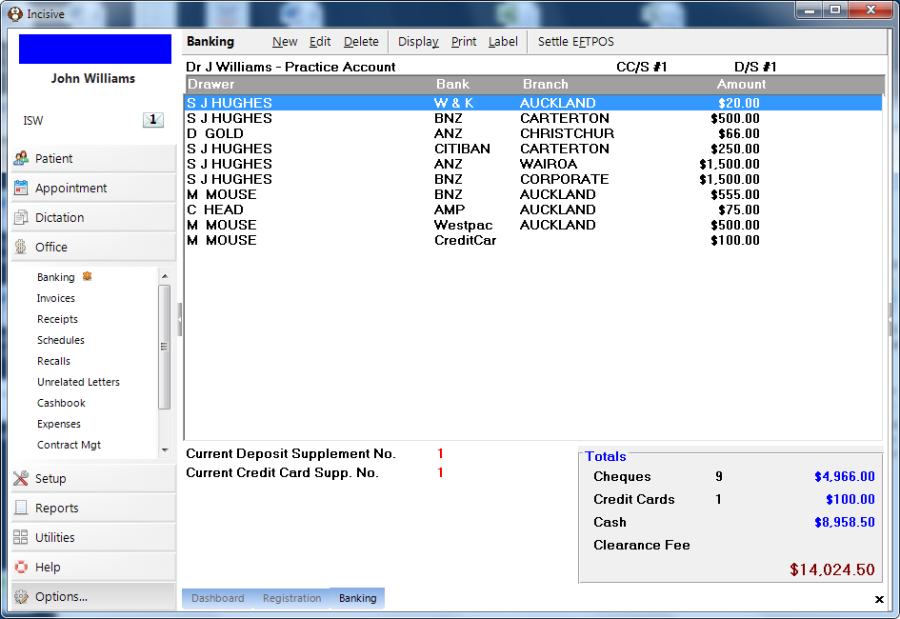
The current Deposit Supplement number for the default bank account displays in the bottom left corner.
The number for the currently displayed deposit supplement appears on the top right hand corner together with the cheques that currently make up that deposit supplement.
Totals are displayed at the bottom of the screen.
IT IS IMPORTANT THAT YOU HAVE SELECTED THE CORRECT LOCATION.
If you bank at multiple locations, the payments will not appear on the deposit supplement unless you have logged on using the same location.
To Close-Off a Deposit Supplement
Selecting 'Close-Off' allows you to print the Deposit Supplement currently displayed on screen, post the total banked to the Cashbook, and advance to the next one.
- Use Display (on the Toolbar) to select the Deposit Supplement that you want to close-off.
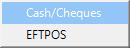 Select 'Close-Off', then choose 'Cash/Cheques' .
Two copies of the current deposit supplement will be printed.
- Check that you physically have the cash, cheques (and credit card slips) that are listed on the deposit supplement(s). If it is the current Deposit Supplement, or the one currently on hold (advanced but not printed and confirmed), two copies will print and you will be prompted to confirm that the banking is correct to advance to a new deposit supplement.
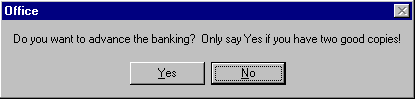
- Select 'Yes' to close-off and advance the banking. This transfers the banking total into the Cashbook.
If the banking has been previously printed and advanced or confirmed, no further action is required.
To Edit the items on the Current Deposit Supplement
You may edit the drawer, bank, and branch details here if they have been entered incorrectly.
- Highlight the item you wish to alter.
- Select 'Edit'.
- Alter the details as appropriate.
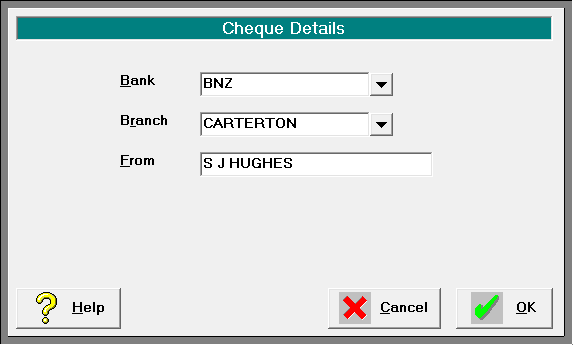
- Select 'OK'.
To Delete items off the Deposit Supplement
You may not delete receipted items directly off the deposit supplement. This can be done in the Office Receipts or in Patient Financials by deleting the receipt.
To Display (and print) previous Deposit Supplements
This option allows you to go back and display previous Deposit Supplements which you can then reprint a copy of, or print for the first time if you have advanced the Deposit Supplement (see above) without first having printed and cleared it.
- Select 'Display' from the Toolbar

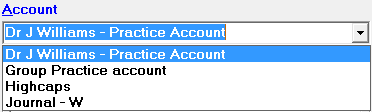
- Choose the bank account.
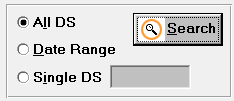
- Select from the search options available then click on the 'Search' button.
- Highlight the Deposit Supplement you want to display.
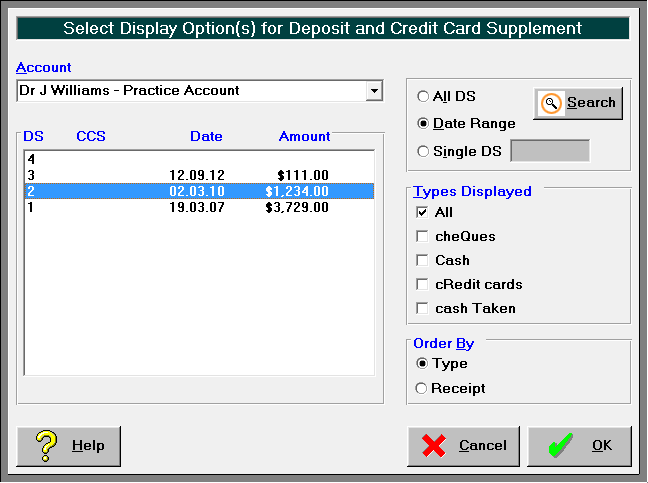
- Select 'OK'. The Deposit Supplement will display on screen.