Invoice options
Fee-on-Hold
A Fee-on-Hold is a charge that you have allocated to the patient, but have not yet included it on an invoice. The Fee can be converted to an invoice at any time. Each time you go to create an invoice for the patient, a message will appear asking if you want to use the Fee to create the invoice. 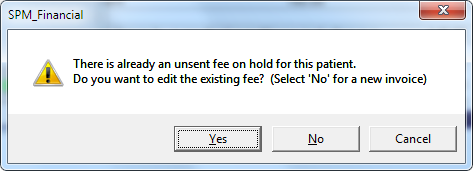
Flag
Applying a 'Flag' is only applicable if there is a Fee on the patient's file and you want the fee to be automatically converted to an invoice when the next 'Accounts Run' _(Office Invoices Accounts Run)_ is activated.
Delay Printing
Delay the printing of an invoice via the 'Accounts Run' option until the specified date.
Rounding
Rounding of the charge can be used to adjust the total up or down.
Display options
Selecting the Display button provides a number of options which will alter the information displayed on the Transactions screen.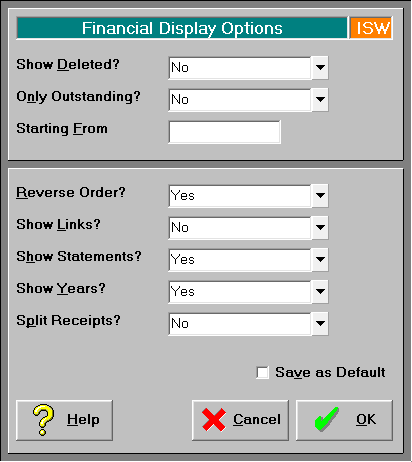
Invoicing for Assistants / sub-contractors
Assistants
Invoicing for Assistants, and tracking payment of the receipted amount, is possible, but does require additional configuration. Please talk to Incisive to get this set up correctly.
This option is ideal where you want to present the patient with a single invoice which combines the fees from both the primary surgeon and the assistant.
Electronic invoicing
ACC electronic invoicing
SPM has the option to produce electronic invoice files / claims that can be used with the ACC eForm application. The Incisive application, once configured, will submit the invoice or schedule to the ACC portal.
Claims can either be submitted on a bulk bill schedule (normally for services provided under the Clinical Services Contract) or on individual invoices. Service items claimed on bulk bill schedules do not require Purchase numbers. Individual invoices will require a Purchase number.
Contact Incisive for further details.
Medicare (HIC) Online
SPM integrates with Medicare Online to send invoices to Medicare and the participating Health Funds, and receives the remittance advice when payment is made. Contact Incisive for further details.
Billing Type options
Claim number required on the invoice
For each Billing Type you are able to have the Claim number, associated with the service charged for, inserted on the invoice. This function is active on Patient Invoices and 3rd Party Invoices.
Go to Setup > Financial > Charges > Billing Type

When the invoice is created you will be prompted for the correct Claim number. 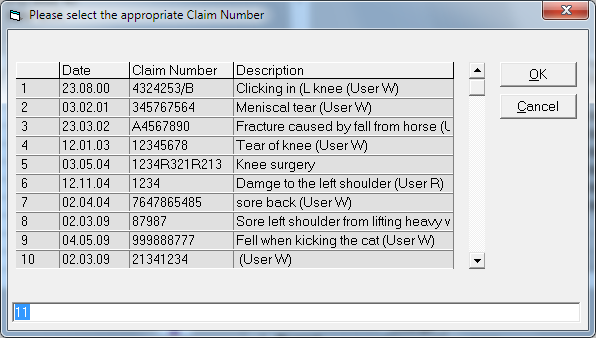
The Claim number is inserted below the patient's name. 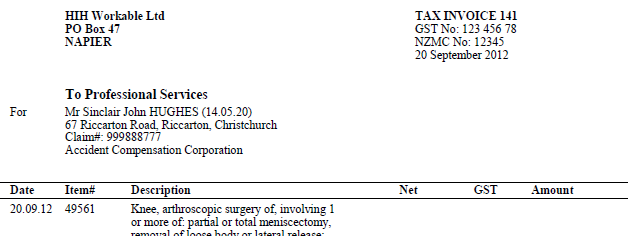
To add more than one claim number, insert it as 'free-text' in the 'Description' field of the invoice.
Policy details inserted on invoice
Go to Setup > Financial > Charges > Billing Type
For invoices created through a Billing Type, the patient's insurance / health fund policy details can be included on the invoice.
Redirect Invoice to Health Fund/Insurance company
This is a very specialised option for transactions through a specific Billing Type, such as 'Private – Insured'. This option should only be selected in consultation with Incisive.
This is only to be used where a Health Fund / Insurer (3rd Party) will be paying part of the invoice, but the amount they will pay is not known, and the balance that is not paid will then to be directed to the patient, for them to pay.
Go to Setup > Financial > Charges > Billing Type
The Health Fund / Insurer needs to be entered in the Registration form for the patient.
A 'Patient Invoice' will be produced but the invoice will be addressed to the Health Fund / Insurer, instead of the patient. When the amount paid by the Insurer is receipted, the balance still owing is directed to the patient to pay. All statements will always be addressed to the patient.
If the invoice is emailed using Send – F7, it will be sent to the Health Fund / Insurer.
Create the invoice as a 'Patient Invoice'. A prompt will appear indicating the invoice is to be redirected to the Health Fund / Insurer (as entered in Patient > Registration).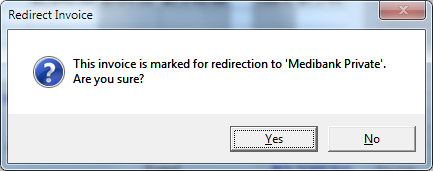
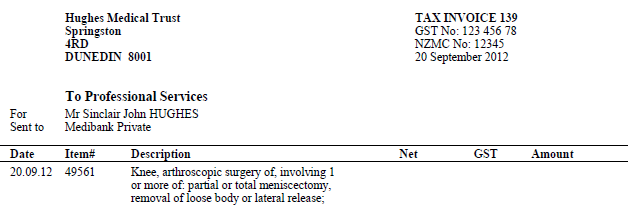
The invoice will appear with an extra 'Sent To:' field included.