An Operator is anyone using a workstation (computer) with access to the database and not necessarily a Provider.
Each Operator is then assigned one or more 'Roles' which will 'permissions' to each of menu options. The roles are assigned on a Provider by Provider basis.
Add a New Operator
Setup > Personnel > Operators > New
Please note that you will require permissions to do this. Not all roles will have these permissions. If you do not have permissions to do this, please contact the System Administrator for your database.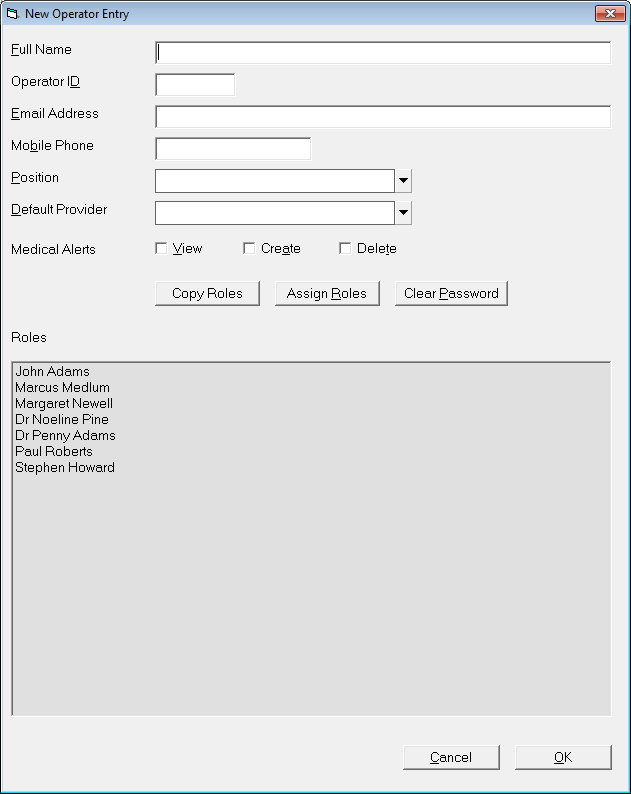
Full Name | Enter the full name of the Operator |
Operator ID | The Operator ID is usually the two or three initials. It must be unique |
Email Address | Record the email address (practice) of the Operator if you are sending out emails from the Incisive application and require an alternate 'Reply to' address rather than the default entered in Setup > Provider > Email. |
Mobile Phone | Record a mobile phone number for the Operator. Future development will allow the sending of text messages (F10) in addition to internal messages. |
Position | This is an employment position i.e. Secretary, Doctor, Practice Manager etc. It has no effect on the access rights assigned to a Role. |
Default Provider | Select a default Provider for the Operator. This should be the provider (doctor) that the Operator will primarily work for. |
Medical Alerts | Select whether the Operator will be allowed to View, Create or Delete Medical Alerts or leave blank if they are to have no rights to View, Create or Delete the Medical Alerts. |
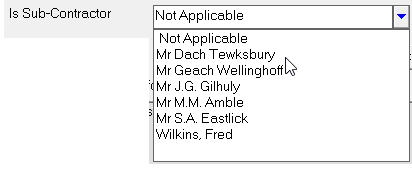
Is Sub-Contractor | This option is only used if an anaesthetist or surgical assistant is to use the inTOUCH application to have access to the patient lists and notes in their operating sessions. They must be first entered as a sub-contractor in Setup > Contacts> Sub-contractors.
|
Copy Roles
The Copy Roles function allows you to copy roles from one operator to another. 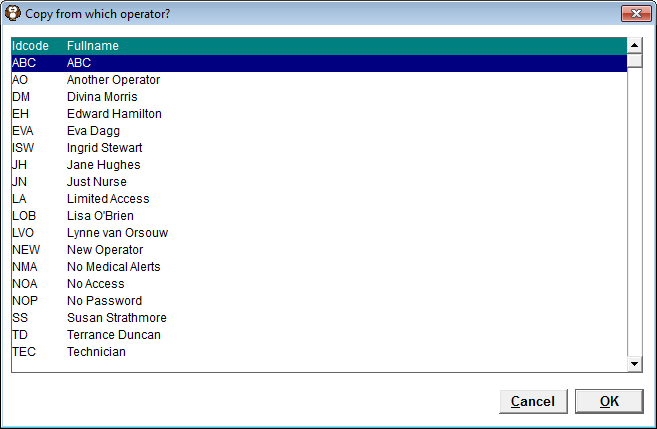
- Select the opeartor you want to copy the roles from.
- Select OK.
- The roles will be copied to the new operator you are creating.
Assign Roles
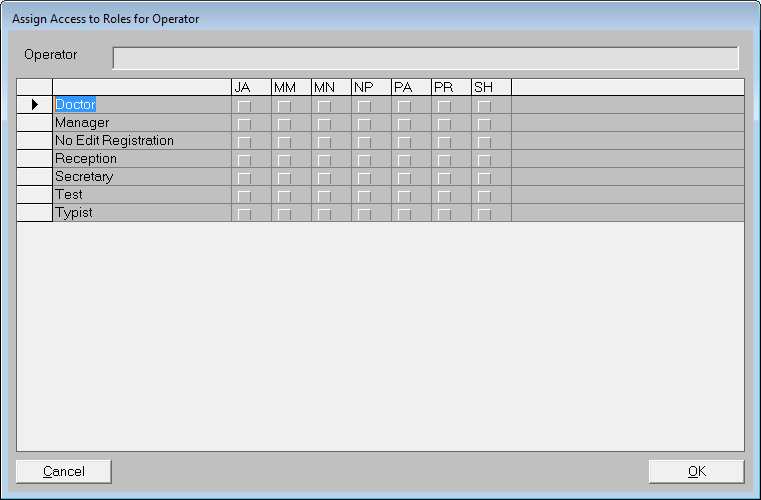
The Assign Roles function allows you to assign roles by Provider to the current selected operator.
- Tick the appropriate columns and row to assign the roles.
- Select OK to save the Roles.
Deleted Operators
By default, the list of Operators does not include deleted Operators. To include these in the list, select 'Display' and choose Deleted Operators.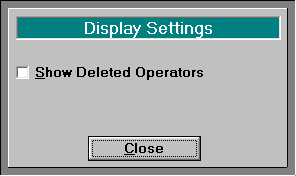
To delete an Operator
Highlight the Operator you wish to delete and select 'Delete'.
Confirm the Operator you wish to delete.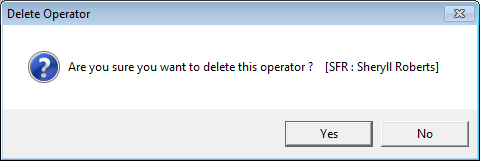
Operator Settings
Setup Operator Settings Edit
After a new Operator has been added, there are a number of settings that they should set.
Have the new Operator log in (they will be required to set their password the first time that they log in).
It is important that this password is only know to the Operator. Under no circumstances should they divulge this password as the actions of the Operator is logged in many parts of the program.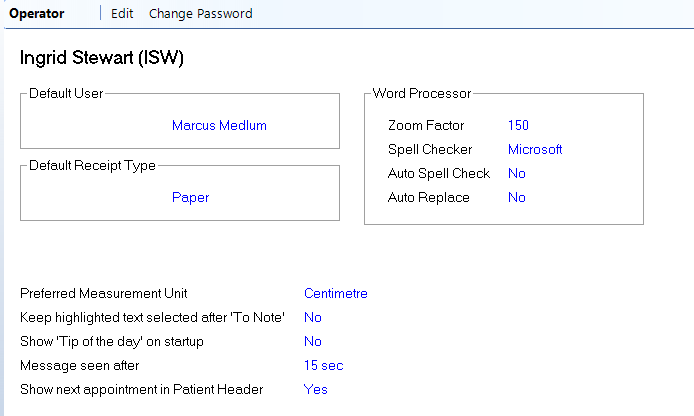
On selection of 'Edit' a screen similar to the following will display: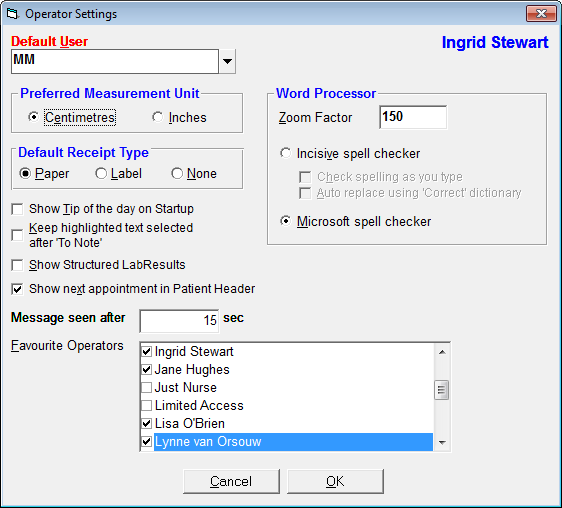
Default User | A default provider needs to be selected. The Operator should select the Provider that they will be performing the most work for. The Operator will be able to change between providers by using the function key 'F2'. |
Preferred Measurement Unit | The default unit of measurement is set to centimeters. Change if required. |
Default Receipt Type | If the Operator will be issuing receipts, select the default receipt type that is most applicable. Choose from Paper, Label or None |
Show Tip of day | Obsolete. |
Keep highlighted text selected after 'To Note'. | If the Operator will be typing letters and notes and copies text from the letter to the note, to keep the text highlighted after copying, select this option. Note, that with text highlighted, pressing any key will delete the highlighted text. |
Show Structured LabResults | Lab results can be displayed in either a simple format or a structured format. Select this option if you wish to display the text in a structured format. |
Show next appointment in Patient Header | |
Word Processor | To have the word-processing font display larger (or smaller) alter the zoom factor. The default is 100. |
Incisive spell checker | Options are available to check spelling as you type (red underline) and Auto Replace. Activate these options as required. |
Microsoft spell checker | |
Message seen after x seconds | Enter here the number of seconds, after which a message will automatically be marked as seen. |
Favourite Operators | When sending internal messages, operators marked as Favourite Operators will appear at the top of the list. |
Select appropriate options for the Operator. Exit out of SPM and log back in to allow changes to take effect.