- Select 'New'.
- Select 'OK' or 'enter'.
The New Claim Registration screen will display.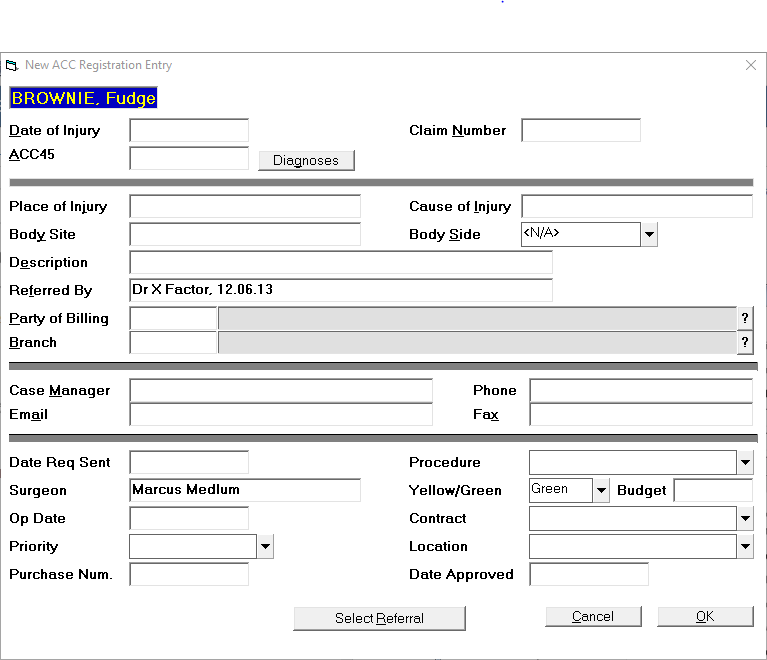
- Type a Date of injury and press 'Enter'. This must be a valid date. If a specific date is not known, perhaps just a month and year, or even just a year, then leave this field blank and add what is known of the date of injury into the description.
- Type the Claim Number and press 'Enter'.
- The "Description" field will automatically pick up from the Referral field description. Type more details of the problem, eg site (and, optionally, date) if required and press 'Enter'.
- The "Referred by" details should automatically be picked up from the referring doctor entered in the Referral details. If not, type the details and press 'Enter'.
- Select the ACC Branch that the patient is under from the list. If the branch is not listed then add it (see Set-up – Address file – 3rd Party Billing/Reports).
- Type the ACC Case Manager if known and press 'Enter'. The ACC Case Manager will appear on the 3rd Party Invoice or Schedule, providing the party is configured to show the claim details (see Set-up - Financial 3rd Party Billing / Reports).
- Select the Party of Billing. This may be different from the branch above because of the ACC Contract scheme. If the party is not listed then add them (see Set-up - Financial - 3rd Party Billing / Reports).
- Select 'OK'.