Under the new Clinical Services Contracts it will become mandatory to send Clinical Notes to ACC. This can either be copies of notes and letters etc, or the ARTP which may include attached notes.
The following steps are required to successfully send clinical notes and ARTP's to ACC via Healthlink.
Notify ACC
- If you have Healthlink and will be sending Clinical Notes via this method, you must notify ACC of your Healthlink EDI account details to ebusinessinfo@acc.co.nz. This is normally an eight digit code.
- Your EDI can either be for your site, or in some instances individual doctors each have their own. If you do not know what your EDI account code is, obtain it as follows:
- Site EDI
Go to Setup > System > Messaging Carriers and edit the Healthlink entry. The Healthlink ID (EDI) is in the top right hand corner of the screen. - Individual User EDI
Go to Setup > User > More User Config and select 'Edit'. The Healthlink ID (EDI), if it exists for an individual user, is located in the bottom right of the screen.
- Site EDI
Configure your Address file
Correspondence
In Setup > Contacts > Address File > Correspondence you will need an entry for ACC where copies of correspondence are to be sent: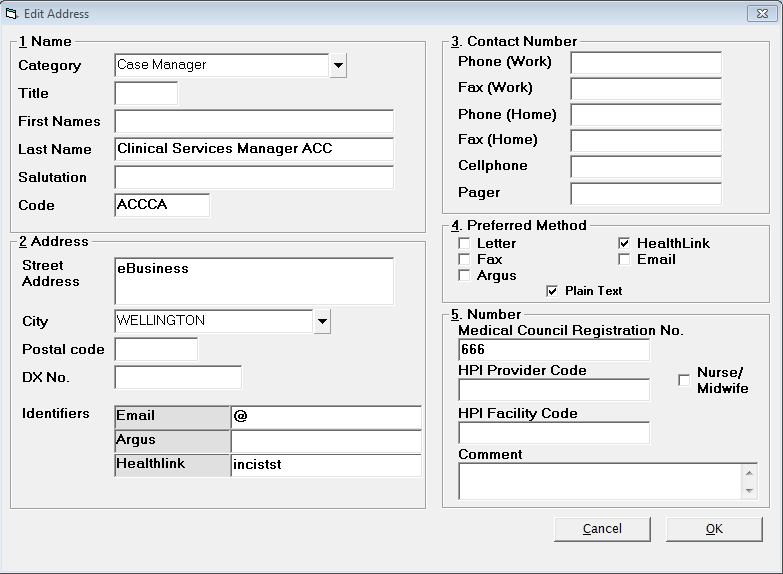
The entry must contain:Category
Select a suitable category from the drop down list, or add.
Last-name
i.e. Clinical Advisor ACC
Code
This will be created automatically, but you may want to change it to something you will easily remember, i.e. ACCCA.
Street Address
This is a mandatory field for Healthlink. Something must be placed in this field.
City
This is a mandatory field for Healthlink. Something must be placed in this field.
Email Identifier
ARTPS4ESU@ACC.CO.NZ or @,
Healthlink Identifier
accspecr
Preferred Method
Healthlink
Medical Council Reg. No.
Currently this is a mandatory field for Healthlink. Enter a fictitious number, i.e. 666
- 3rd Party Invoices / Reports
In Setup > Contacts > Invoicing/Reports you will need an additional entry for ACC (or the party you wish to send the ARTP to electronically). You may already have this entry. Ensure that the EDI Account has 'accspecr' recorded, or the EDI account of your Contract holder.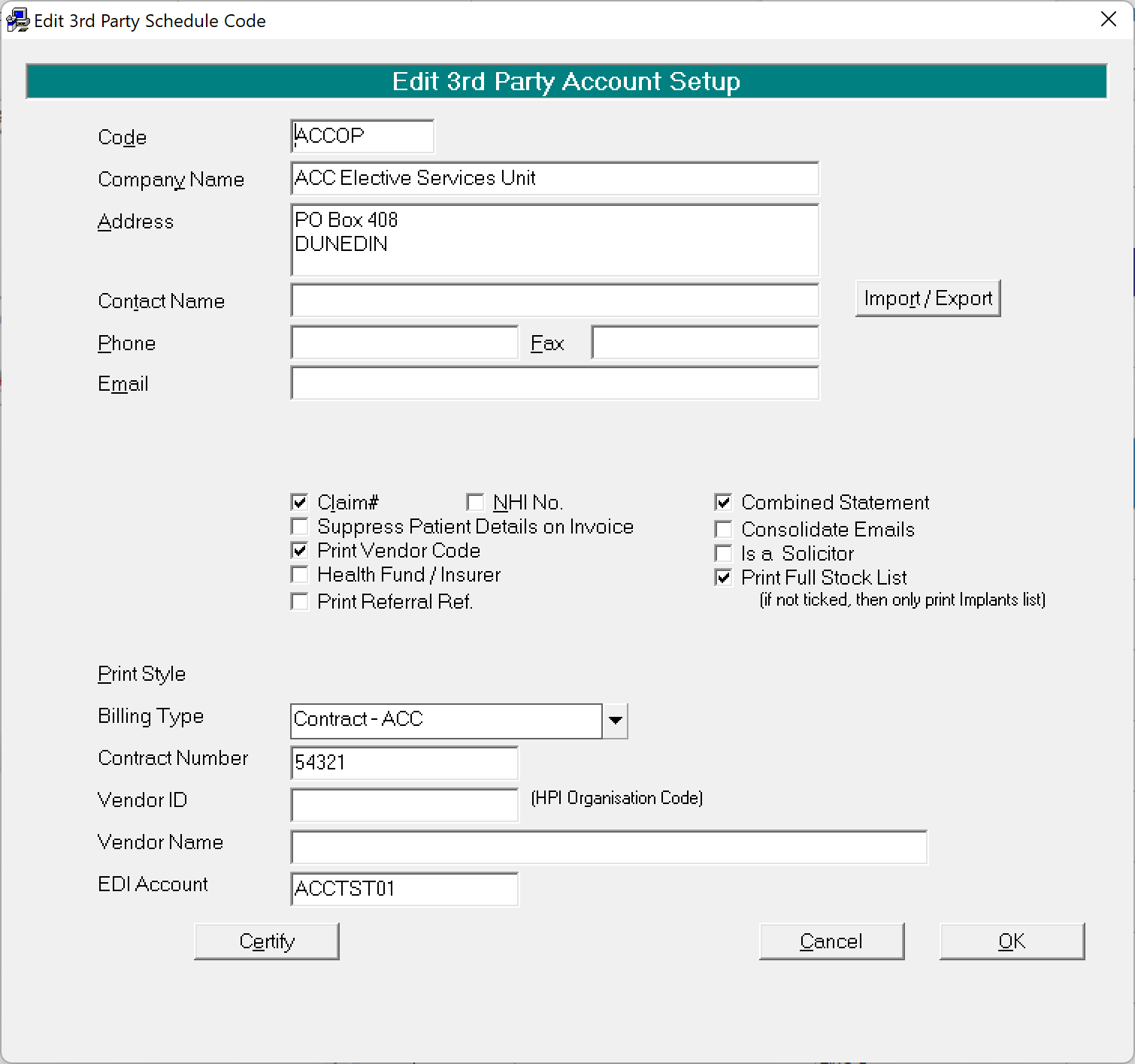
Typing Dictation
When typing dictation, if the patient has an ACC claim, ideally cc ACC in on all outgoing letters about the patient.
The easiest way to do this is to select 'Copy To' > 'Address Code' and enter the code you assigned for this entry.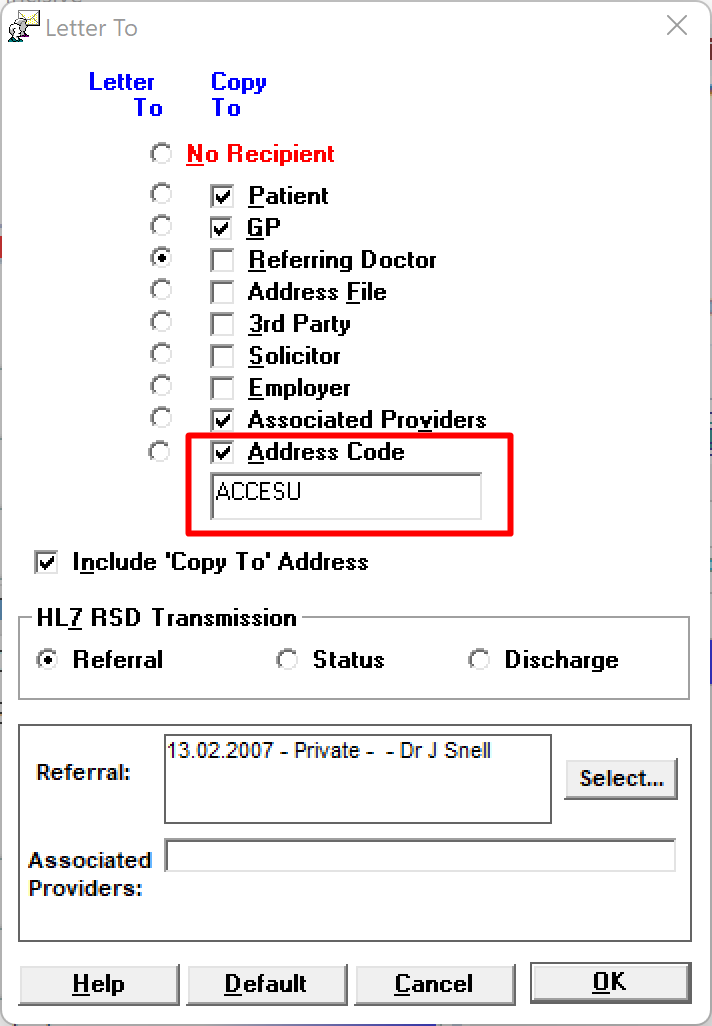
Copy to: Clinical Advisor ACC (EDI Account accspecr)
Sending existing notes or letters
If you need to send a copy of any existing notes or letters, from Patient Mode > Notes (or Letters) – tag the entries you wish to send using F6 (tag) or Shift F6 (tag all) followed by F7 to Send.
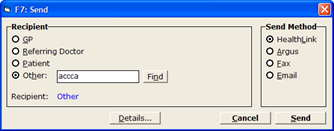
Select 'Other' and type in either the code, or the lastname.
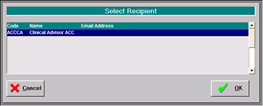
From the Select Recipient screen select the relevant entry followed by 'OK'
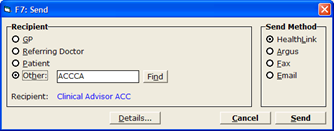
The Send Method should default to Healthlink.Select 'Send'
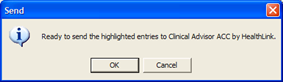
Confirm that you want to send the highlighted entries to the selected recipient by selecting OK.
Sending ARTP's automatically from Dictation Mode
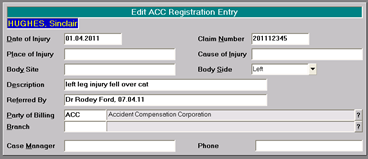
Ensure the correct Party of Billing is recorded against the claim.
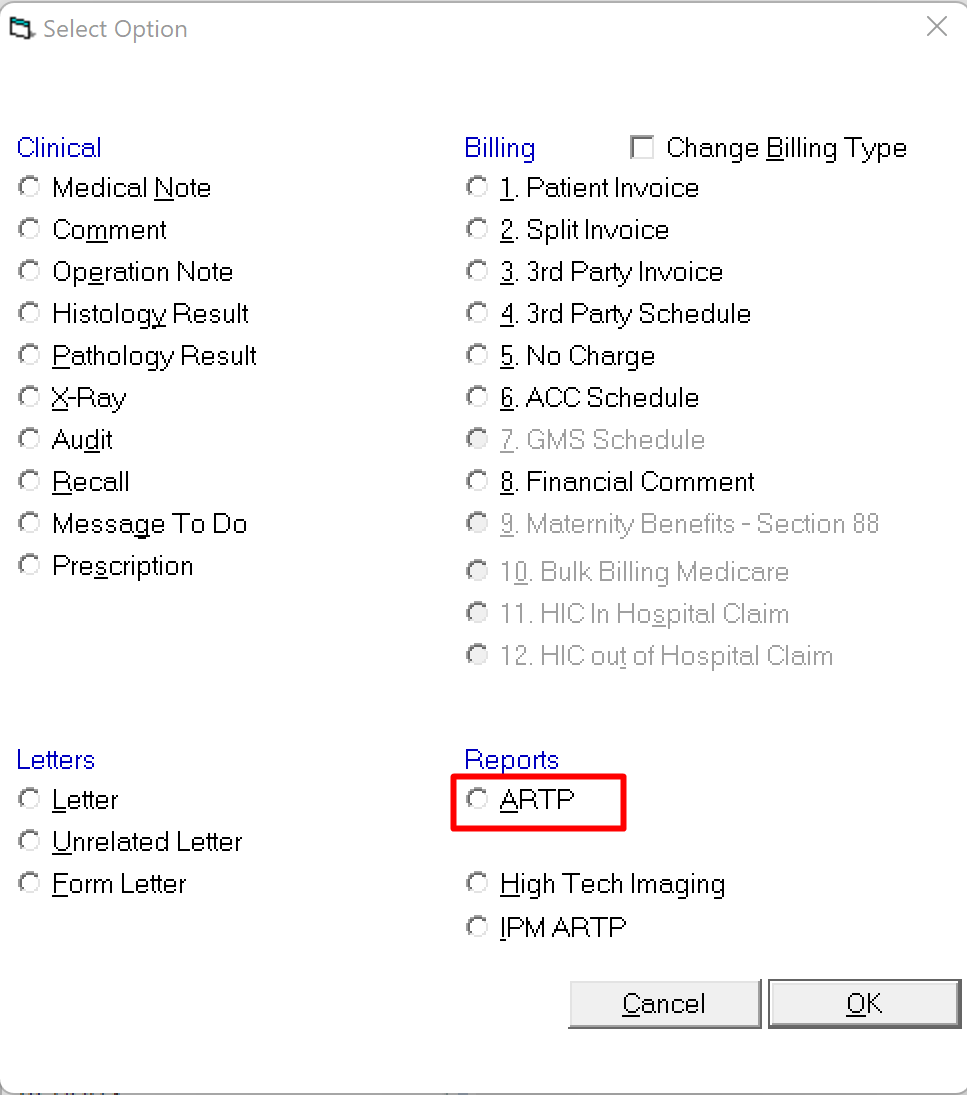
Choose 'ARTP' when creating a new document
When the ARTP is created, the EDI account details will display in the Recipient area.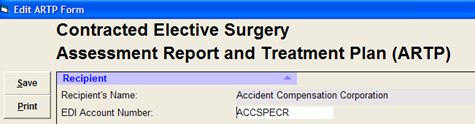
If you create the ARTP in Dictation Mode, then on checking and processing dictation, the Healthlink file will be automatically created and placed in the outgoing folder ready for transmission.If you need to manually send an ARTP, the process is the same as for notes and letters.
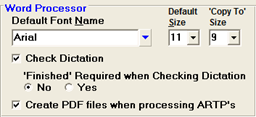
If you have previously created a PDF file, you will need to turn this functionality off in order to create the Healthlink file (Setup > User > Dictation > select 'Edit' and take the tick off 'Create PDF files when processing ARTP's'