This option allows you to view all the images in a folder and allocate them to multiple patients. The benefit is that you do not need to navigate to each patient's file.
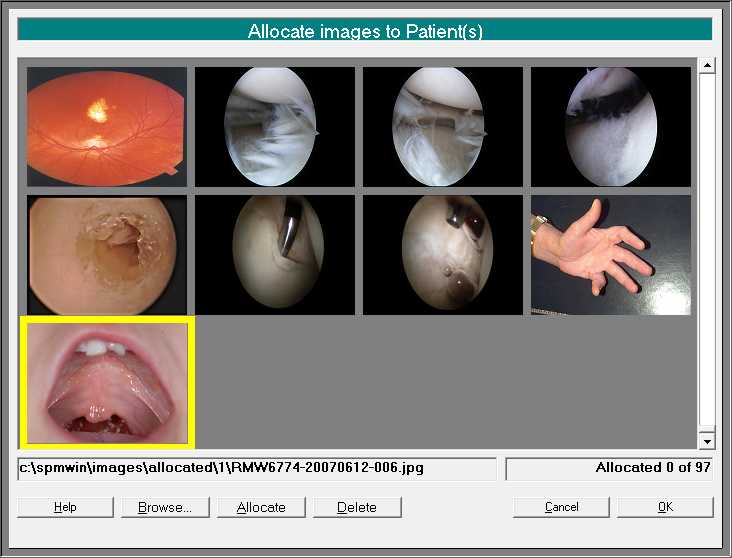
Browse | Browse to a location other than the default Images\Allocated directory |
Allocate | Select a patient to allocate the image to |
Delete | Delete the image from the folder |
- Right mouse-click on the image and select 'Allocate To...' or highlight the image and click on the 'Allocate' button
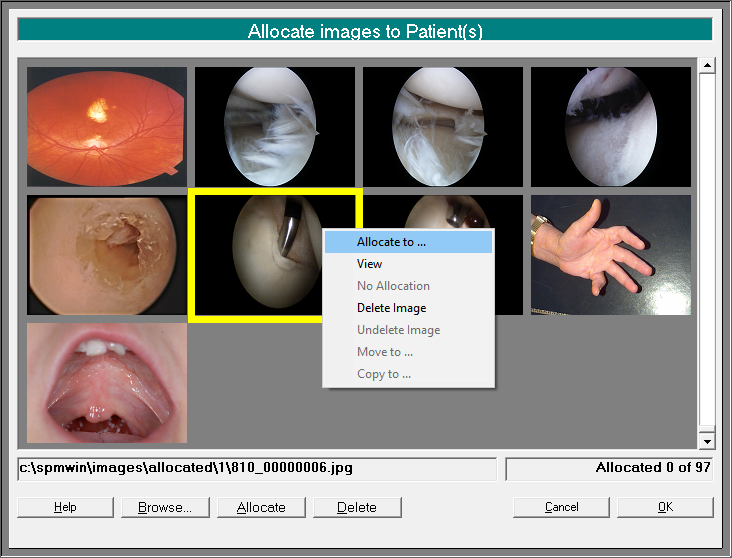
- Select the patient
- After the first image is selected for the patient when you right-mouse-click again the patient's name is at the top of the list.
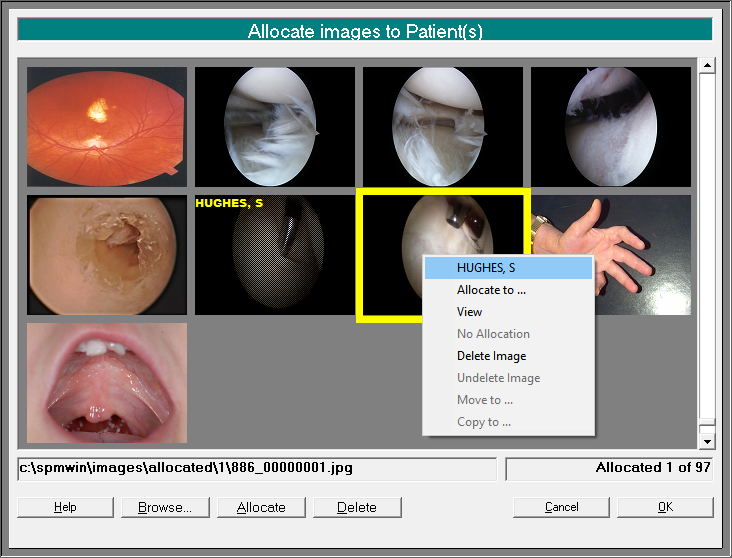
- Once you have completed the selections click on the OK button to move the images onto the patient's file.