The F5 Daylist serves a number of purposes. In addition to allowing the status of the appointment to be updated when activated from the various modes, i.e. Dictation, it also allows a patient to be selected and loaded from the list when activated from Patient Mode.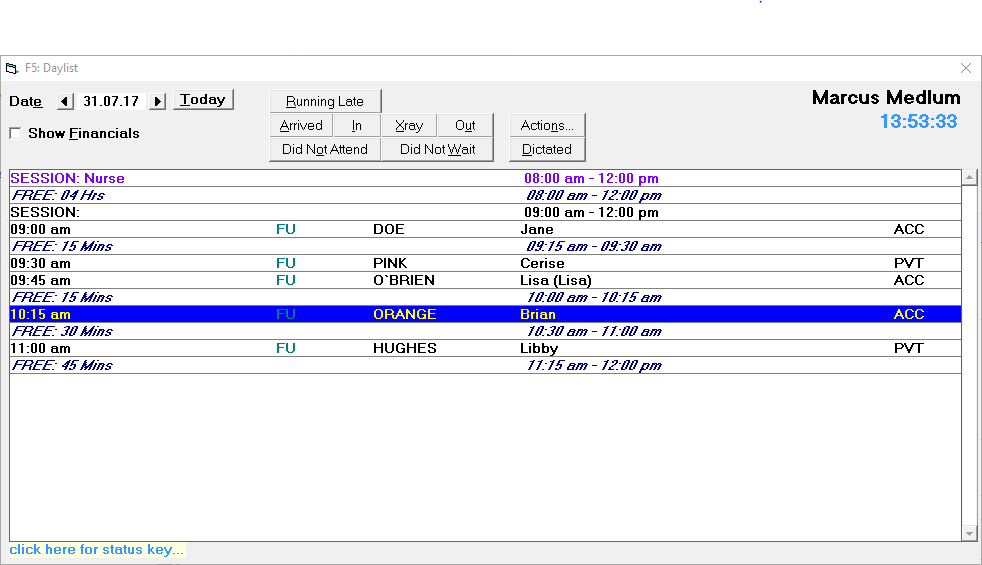
- Either update the Status of the appointment;
- Load the patient by pressing Enter or selecting with the mouse.
Press Escape to close down the F5 Day List.
Date | If the correct date is not displayed:
|
Today | Selecting today with take you to today's date. |
Running Late | Lets you know patient has made contact and is running late.
This displays as (RL) next to the patient. |
Arrived | Marking patients as 'Arrived' not only lets the doctor know who is waiting, but it avoids having "Did not attend' recorded on the patients file.
This displays (Ar) beside the appointment time for the patient. Alternatively this can be done via the Appointment Book > Status. If you inadvertently mark a patient as having Arrived and they have not, select 'Arrived' again and it will reverse the arrived status. The timer starts from the time of the patient's appointment, not the time that the patient arrives. |
In | If the doctor has a computer in the consulting room (or a very efficient receptionist at the front desk) patients can be marked as 'In' (with doctor) or 'Out'. This then provides an indication to the front desk as to the status of the clinic (ie how far behind the doctor is) plus useful statistics on the average actual time taken for different Appointment Types.
This displays (In) beside the appointment time for the Patient. |
X-ray | Indicates that patient is temporarily away having an Xray or other treatment but is expected back.
This displays (Xray) next to the patient. When the patient arrives back the Arrived button can be selected again to indicate they are back in the Waiting Room. |
Out | If you are marking patients as 'In' then you should also mark them as Out, otherwise the statistical information will be meaningless.
This displays an asterisk * beside the appointment time for the patient. |
Did Not Attend | Indicates that the patient did not attend their appointment.
This displays DNA next to the patient. |
Did Not Wait | Indicates patient arrived but chose not to wait for the their appointment. You must have marked them as 'arrived' before you can mark them as 'Did Not Wait'.
This displays DNW next to the patient. |
Show Financials | A '$' will appear next to the patient if an invoice or claim has been made and has a Service date the same as the date of the appointment. This is useful to show that consultations have been invoiced. |
Actions | This function is only available if you have Worksheets set up in your system. It will take to you a drop down box for the appropriate worksheets. If the Actions button is disabled the usr_F5Worksheets field needs adjustment |
Dictated | Indicates that the Doctor has dictated on this patient.
This displays a 'D' next the patient and a check-mark will appear alongside the patient in the 'Dictated' column in Dictation > Type. |
| The Warning sign indicates that you have two (or more) patients with the same surname. A red exclamation mark |


By default the Daylist will default to the last daylist that you selected a patient from. Selecting F5 and changing the date but not loading a patient will not change the date.