You can convert addresses from your database to a .csv file and select from Microsoft Excel when you run a mail merge from Microsoft Word.
File fomat:
Category, Code, Lastname, Firstnames, Title, Address1, Address2, Address3, Address4, Homephone, Workphone, City, Postcode, State, Home, Fax, Work Fax, Cellphone, Pager, Email, Document Exchange, HealthLink, NZMC, Nurse, Health Benefits Payee, Prefer Letter, Prefer HL7, Prefer Fax, Prefer Email, Comment, Plain Text
You can also run the file 'ExportDoctors2CSV.exe
The 'Import GP & Doctors' function will directly import this file.
- Optionally, choose to only export the doctors who have referred to a specific Provider. Contact Incisive for the value to enter - otherwise leave blank.
- Enter the name of the Target file and location - or leave as the default entry.
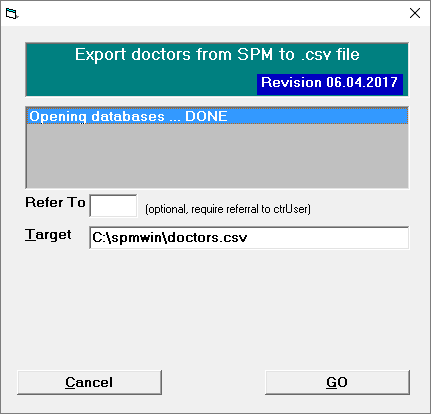
- Select 'Go'
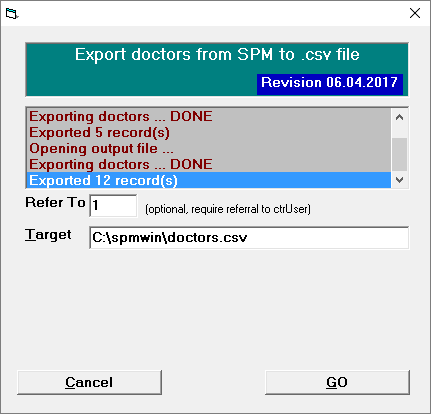
- Select 'Cancel' now that the files have been exported.
- Find the file c:\spmwin\doctors.csv which was the target file and exported.
- Open and sort in to the order in which you want, eg: remove any fields that you do not wish to merge, re categorise the file. This will include all of the providers in your data base, so you may want to save each category of provider in to a separate file. Therefore choosing your data source file for your mail merge letters is made easy.
Now you are ready to run your mail merge in Microsoft Word choosing the above file as your data source.
Please refer to your Microsoft Word manual on how to complete a mail merge if you have any queries regarding this.