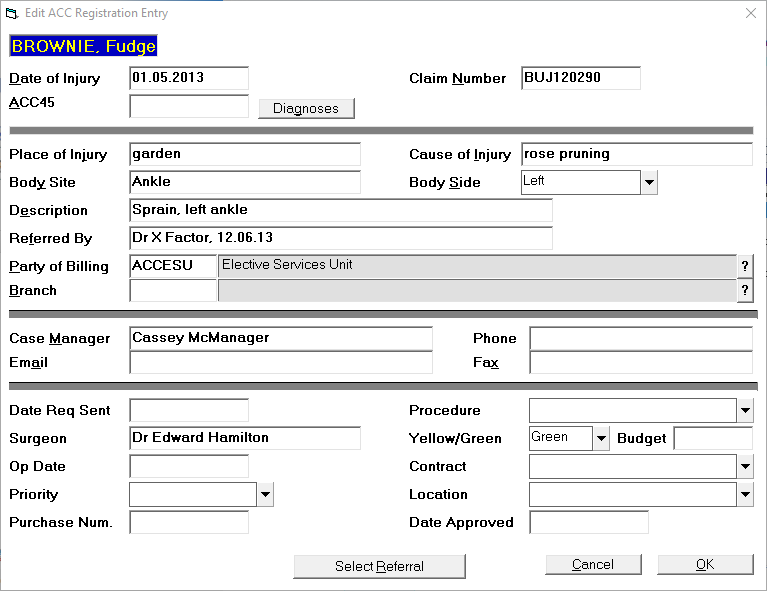
Enter the ACC45 number into the ACC45 field.If there is nothing in the Claim Number field the ACC45 number will be automatically inserted into the Claim Number field as well.
Enter the Principal Diagnosis. Start typing some key words of your diagnosis and a list of possible suitable Read Codes will appear. Select the relevant diagnosis and the appropriate code will be inserted.
Continue entering the rest of the claim related information.
Click OK to save and exit
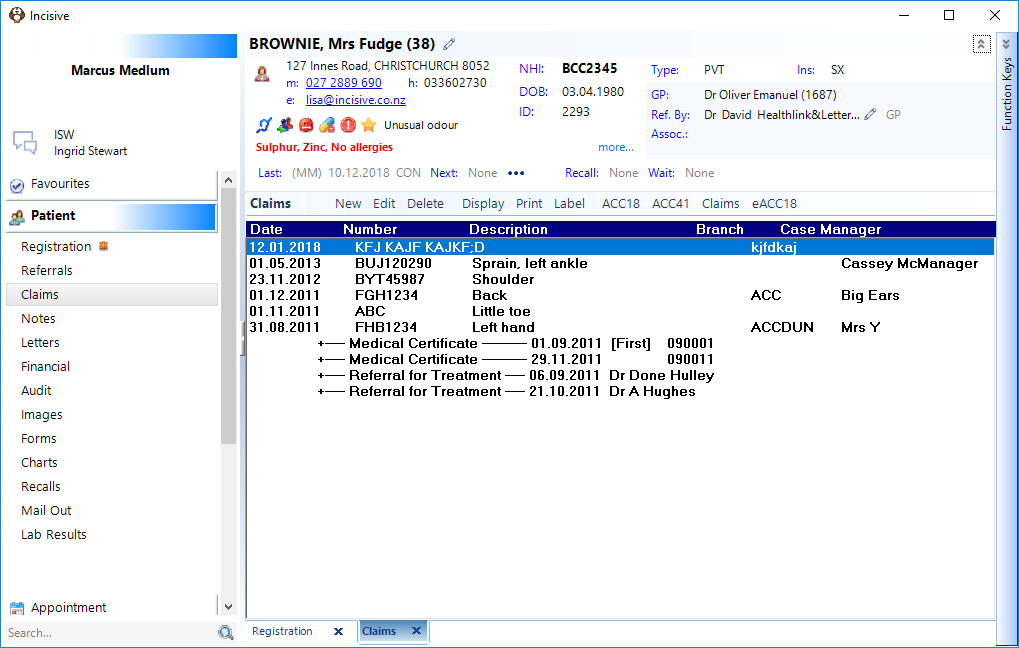
From the list of claims in the patient's file, select eACC18 from the Toolbar If this is the first time you have used the eACC18 option you will be prompted for the Username and Password that ACC have provided to you.
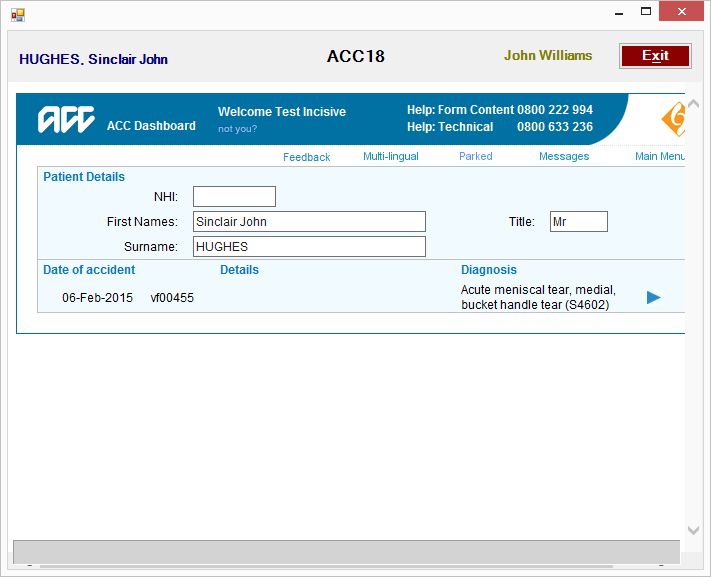
Select the arrow beside the diagnosis to proceed.
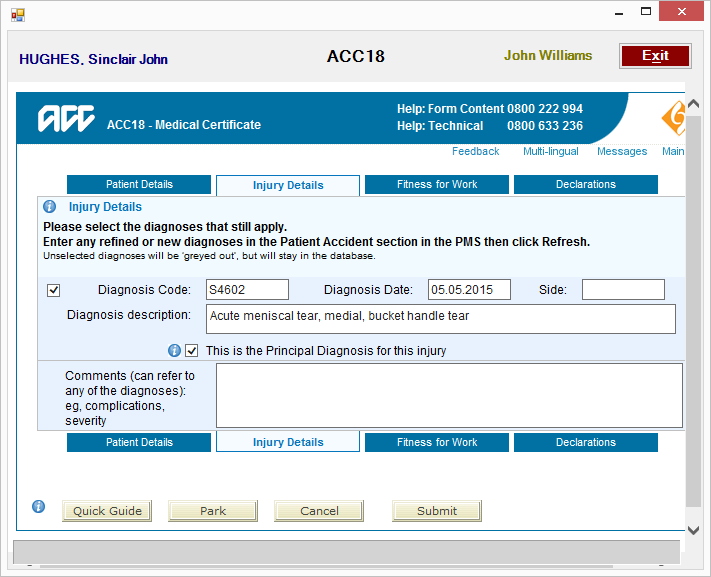
Check the Injury Details. If correct, click on the 'Fitness for Work' tab.
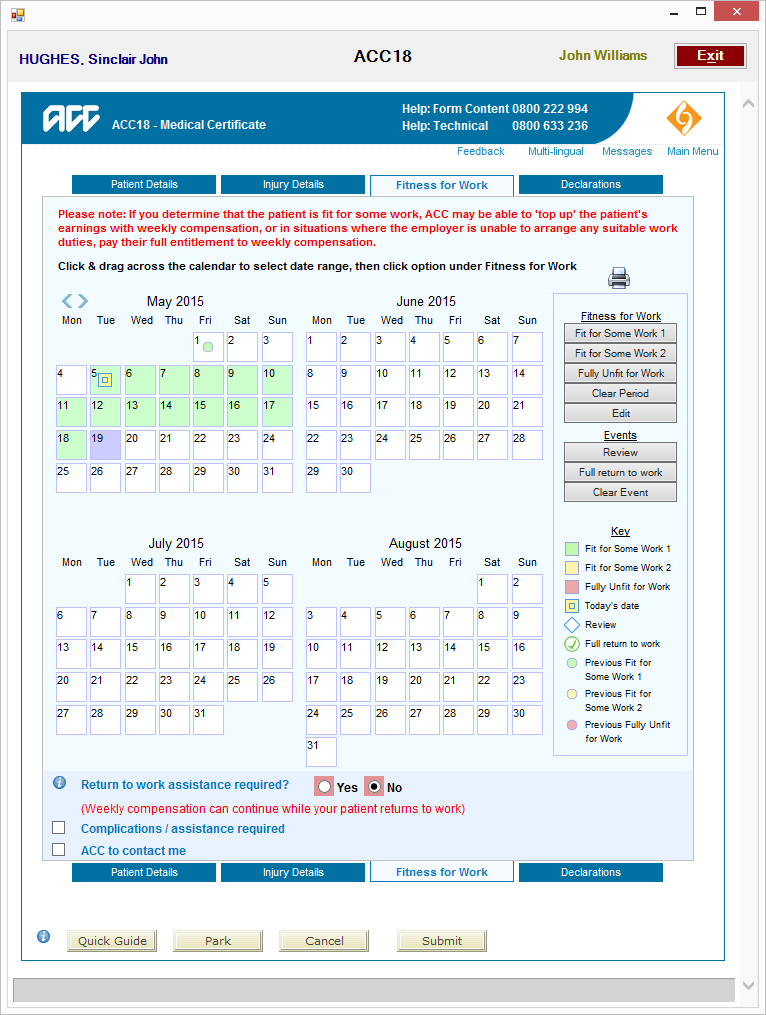
Use the options available to record the patient's fitness for work.
Left-mouse-click and drag the pointer over the start and finish range of dates then select the appropriate 'Fitness for Work' option.
Select a date for the 'Event' options.
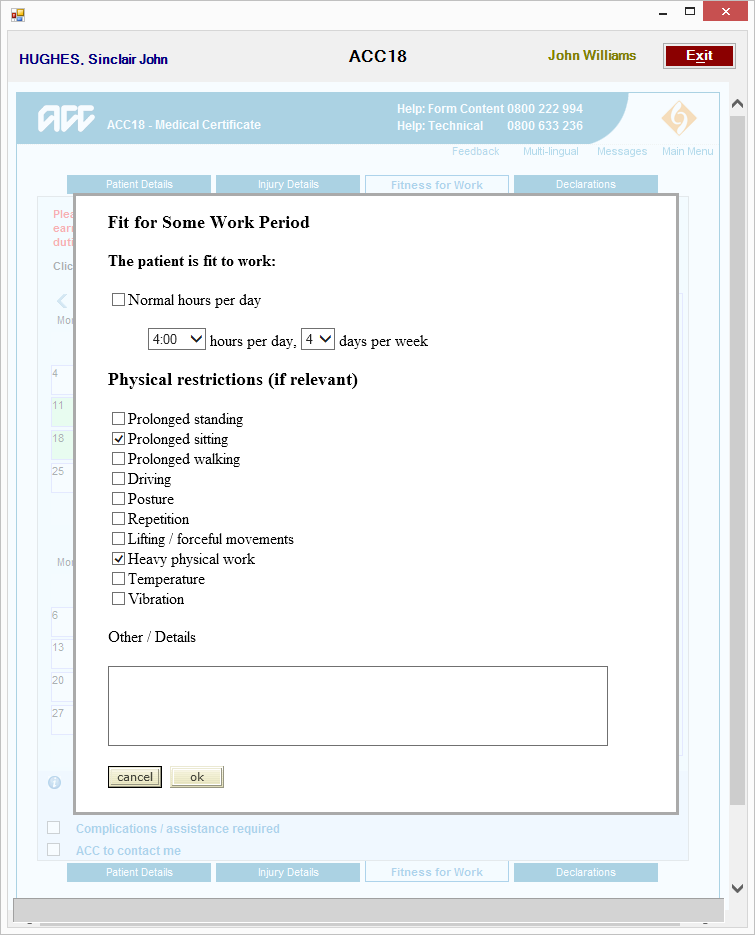
If a 'Fitness for Work' option was selected you may be prompted for additional information.
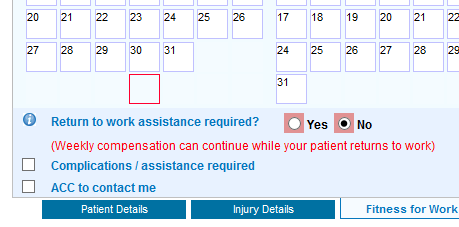
Complete the 'Return to Work Assistance' option and then select the Declarations tab.
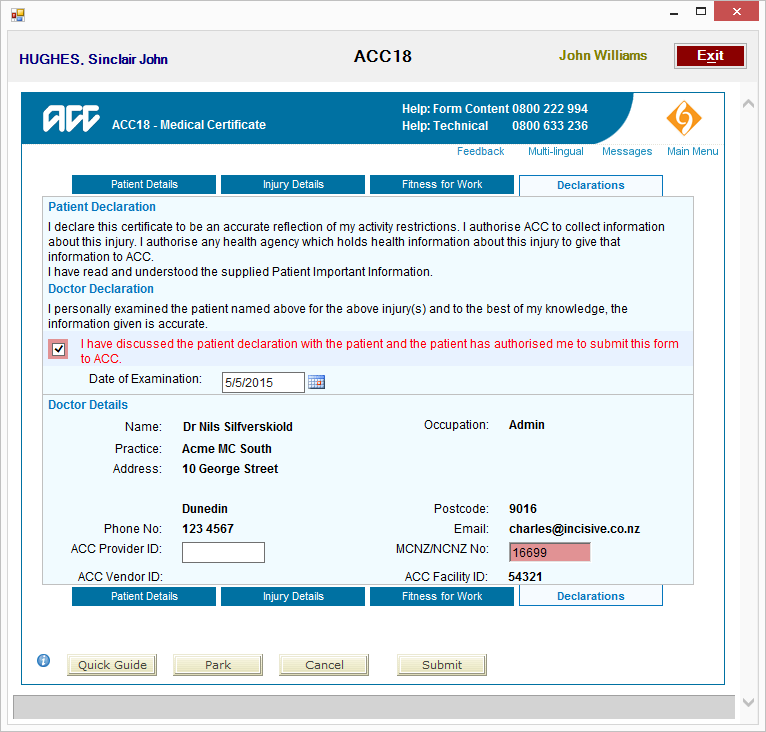
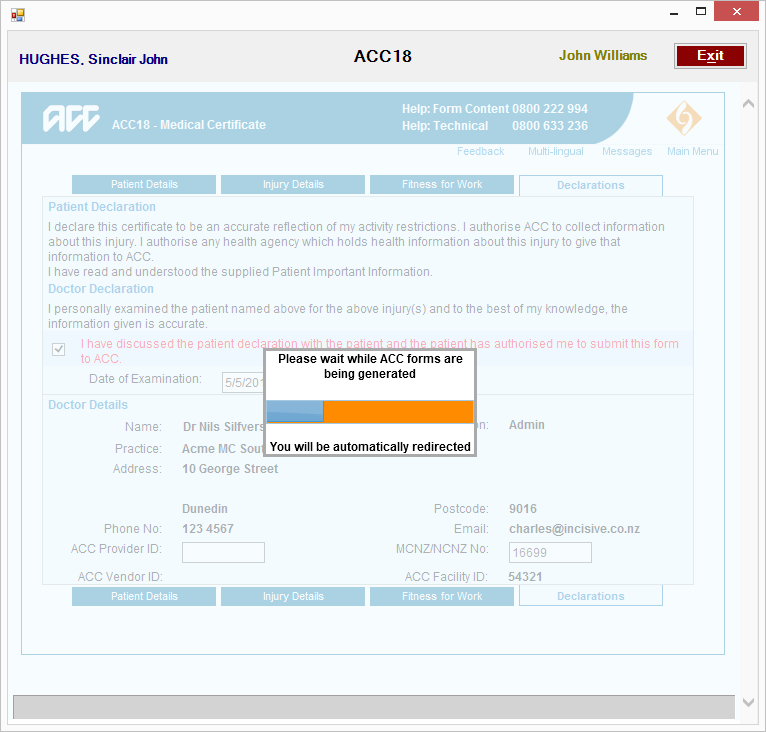
Put a tick in the Declaration check-box then click on the 'Submit' button.
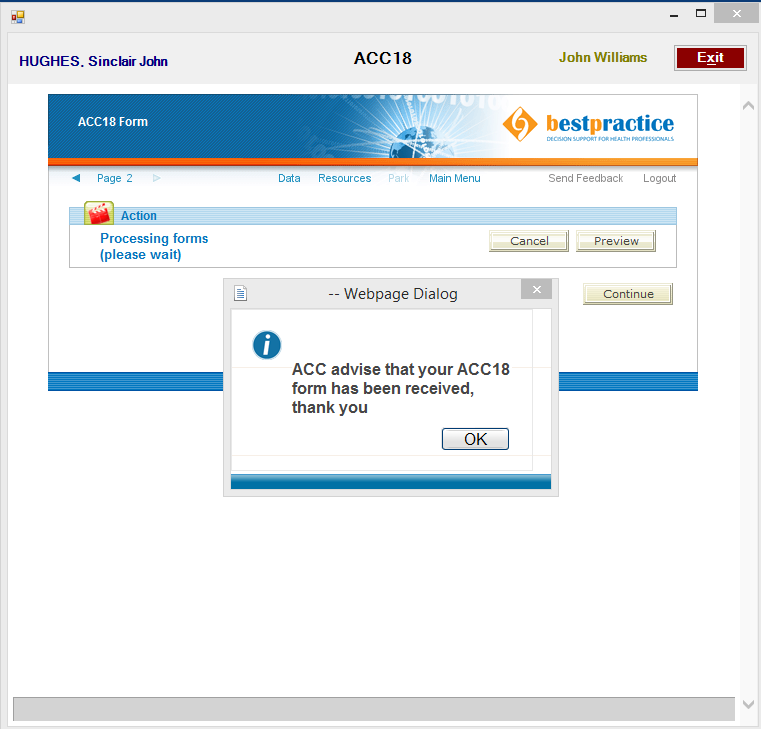
The eACC18 details are now being sent to ACC. Do not exit or close the form.
Notification will appear that the details have been accepted by ACC. Click OK to proceed.
The eACC18 form will now close and the Claims form in SPM will appear. An entry has been inserted indicating that a Medical Certificate has been submitted and accepted.
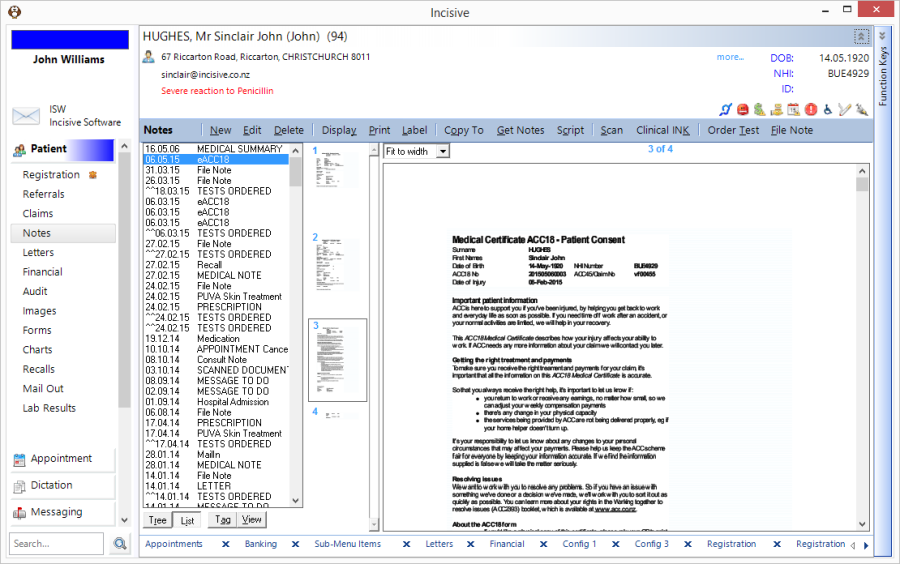
Copies of the Patient Consent, ACC/Patient version & Employer version documents will appear as a new eACC18 note in the patient's Notes.