If you require a frame around your text, use the Insert Text Frame icon to insert the frame into your letter. You can then type the required text into the frame.
To size the frame
Click on the frame and then use the mouse (double sided arrow) on one of the points to lengthen or shorten the frame.
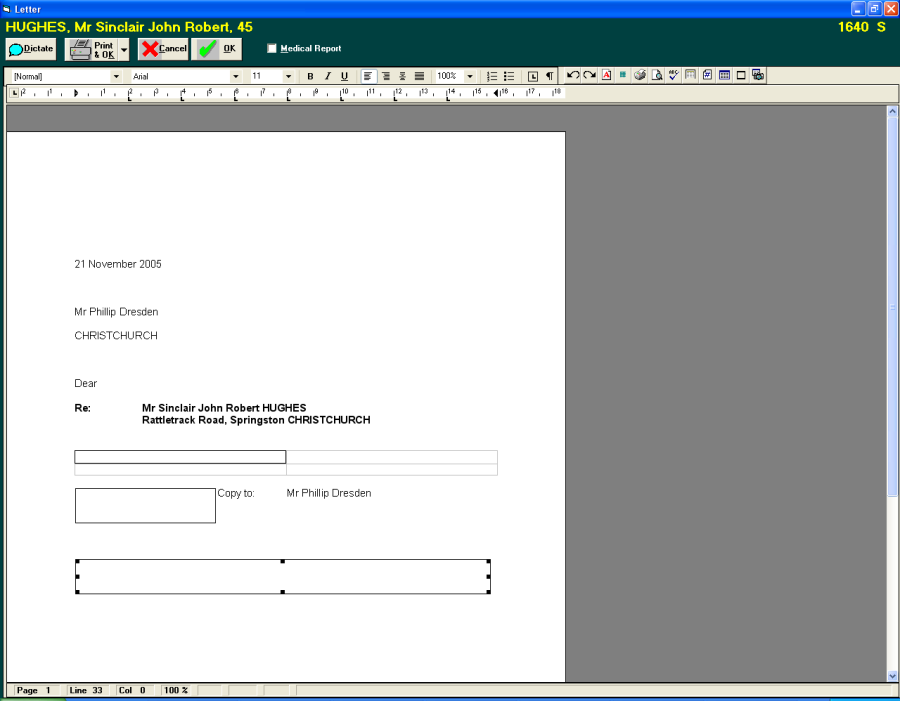
To move the frame
Click on the frame and then use the mouse (four way arrow) to move the frame to the correct location.
Text Frame Attributes
Right mouse click on the text frame and the Text Frame Attributes screen will display.
This allows you to set the layout and position, size and distance and frame and colour.
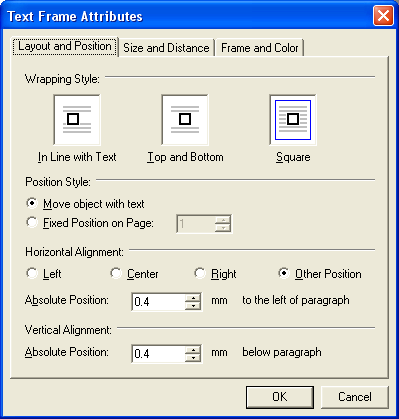
Layout and Position
Wrapping Style:Select from In Line with Text, Top and Bottom or Square.
Position Style:Select from Move object with text or Fixed Position on page
Horizontal AlignmentSelect from Left, Centre, Right or Other Position.
Vertical Alignment:Select the Absolute Position below the paragraph.
Size and Distance
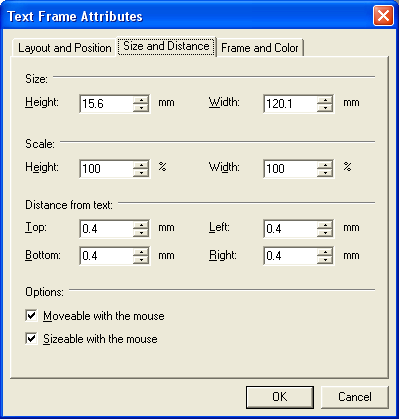
Size:Select the Height and Width of the frame
Scale:Select the % to scale the Text Frame, the default is 100%.
Distance from text:Set a Top, Bottom, Left and Right distance from text.
Options:By default Moveable with the mouse and Sizeable with the mouse are selected. If you do not want to be able to move or size the frame with the mouse then turn these off.
Frame and Colour
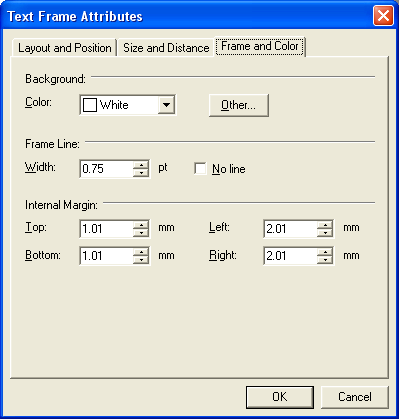
Background Colour:Select the background colour for the frame from the list of available colours.
Other: Allows for the selection of additional colours.
Frame Line:Set the width of the line, or select No line.
Internal Margins:Set the distance to the text from the frame. Allows for the Top, Bottom, Left and Right margins to be set.