To lessen the time taken to perform a stock-take and improve accuracy, a new capability has been added to the Stock-Take function to allow you to specify exactly the stock items you would expect to see at a store or location.
The term Store and Location are referring to the same function and are interchangeable.
The eventual aim is to utilise this functionality to:
interact with a stock management mobile app (in early-stage development)
provide a store/location specific list of expected items
allow continuous or periodic stock counts
allow min/max/reorder thresholds to be specified
track batch & serial numbers and expiry dates.
Create your Stores/Locations
Stock > Stock On Hand > Edit SOH Levels > By Location > New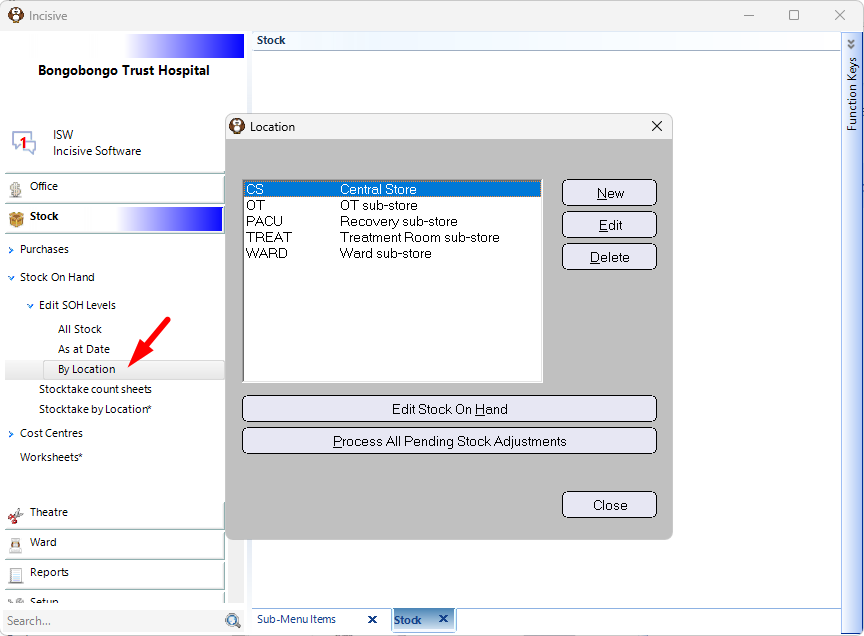
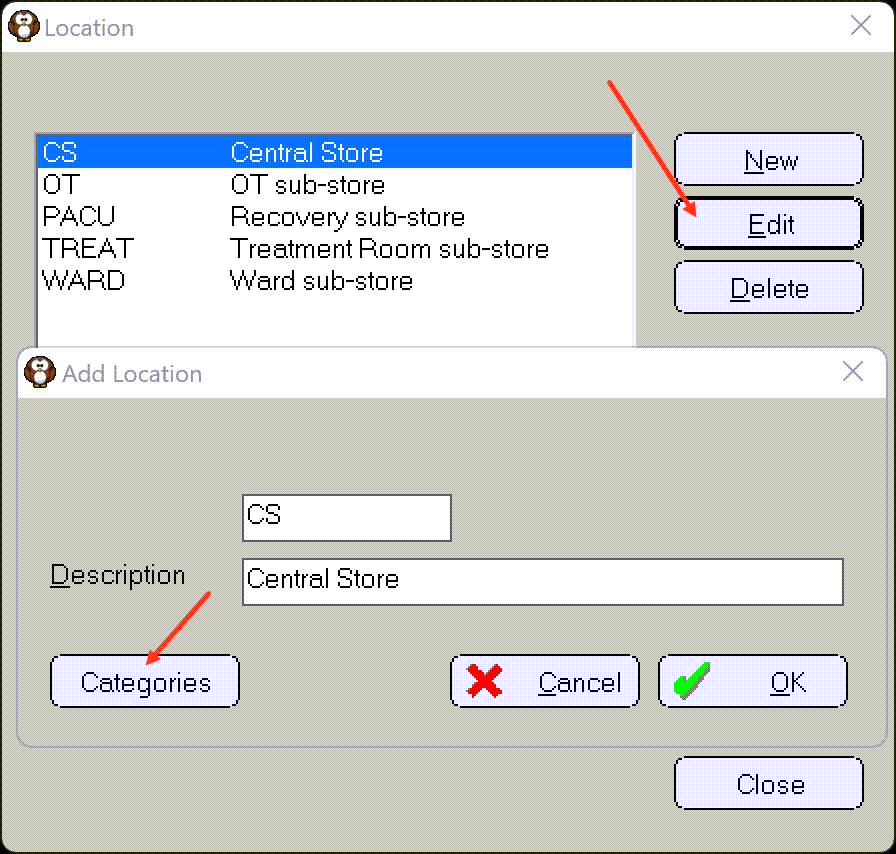
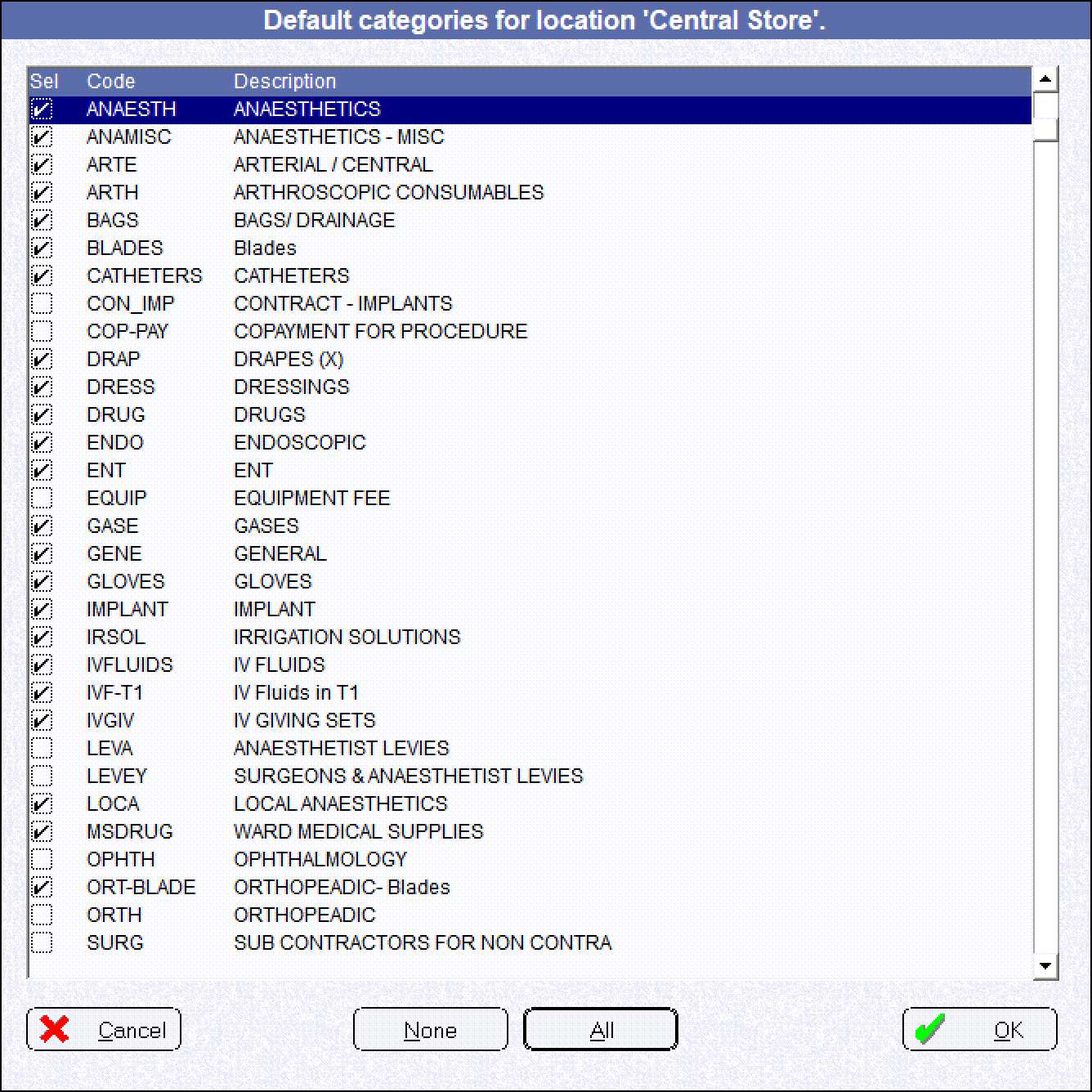
Choose the Categories of stock that will be relevant for this Store/Location
Assign a stock item to Stores/Locations and optionally include a Bin identifier
Setup > Stock > Material Items, select the Item > Edit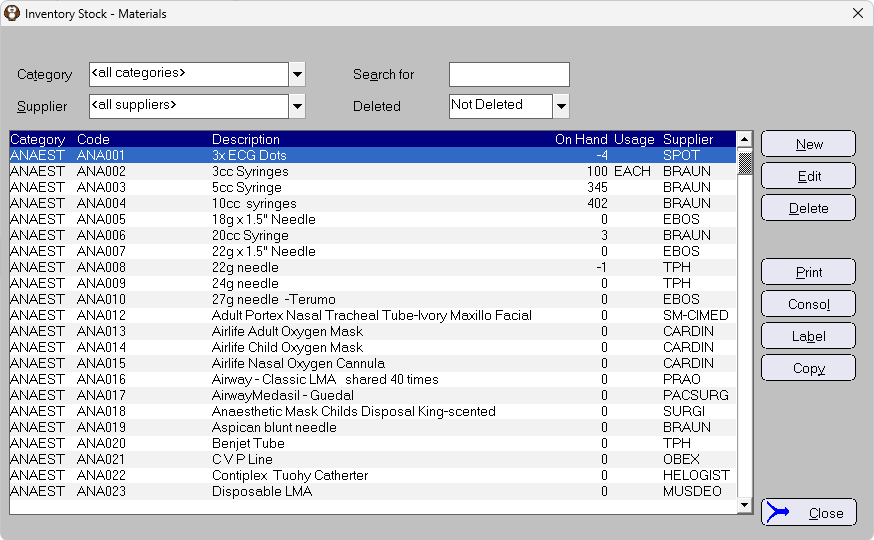
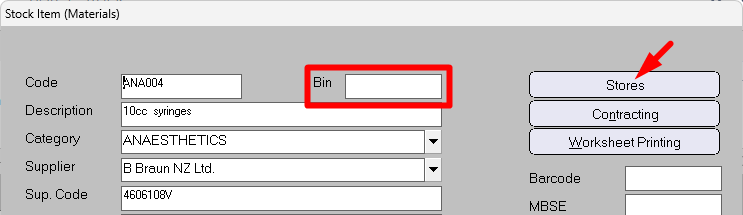
If the Item is to be located in multiple stores/locations, click on the Stores button.
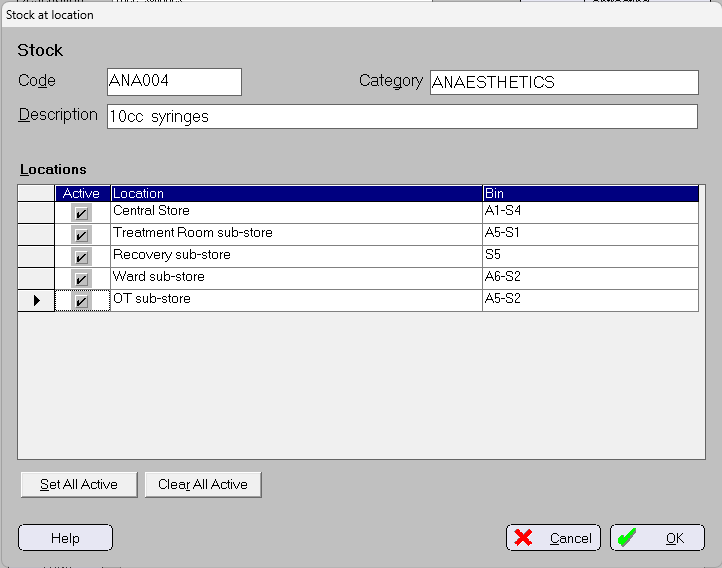
Choose which stores the item is going to be located, by making it Active. Optionally, include a Bin identifier
Generate Stock-take count sheets for the specific Store/Location
Stock > Stock On Hand > Stocktake Count sheets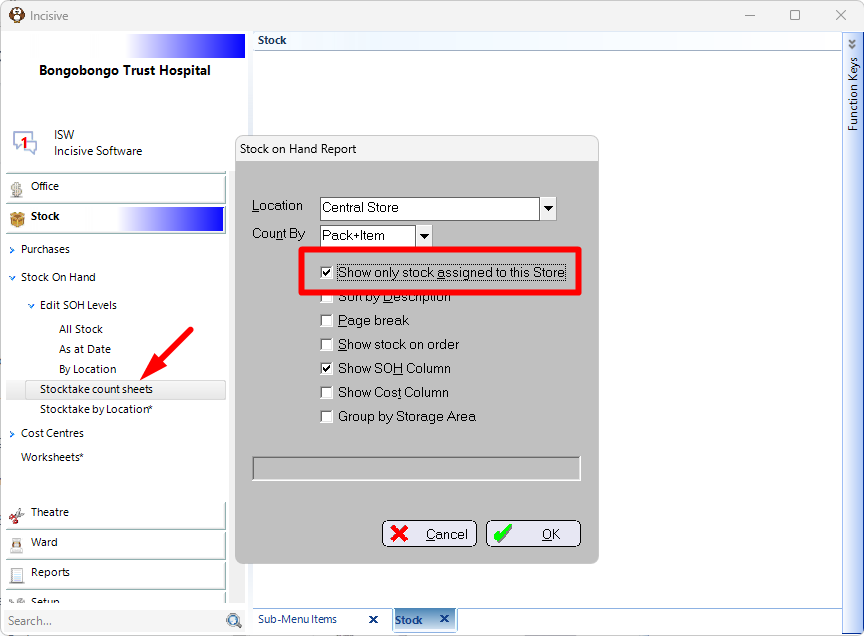
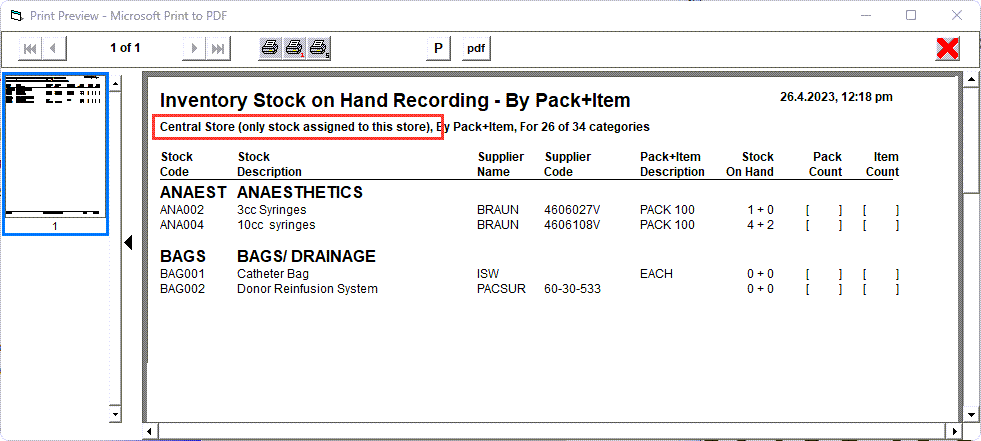
Make sure the Location is selected and the ‘Show only stock assigned to the Store’ is checked on.
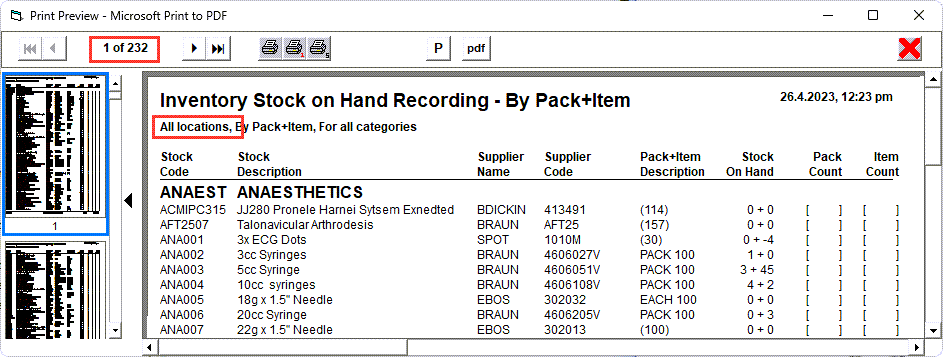
If the 'Show only stock assigned to this store was not checked on, 232 pages of items would be presented (from this trial database).