Hospital Invoicing NEW ZEALAND
Configuration
Invoice DateThe date used for the Invoice Date can have a default pre-selected from either:
- Today's date
- Referral date (usually the date of the operation)
- Last Discharge date
To change the default selection go to Setup -> Provider -> Config3 and make the selection from the Default Invoice Date field. 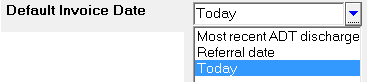
Creating the Invoice
Select the patient
Go to the Stock Used tab
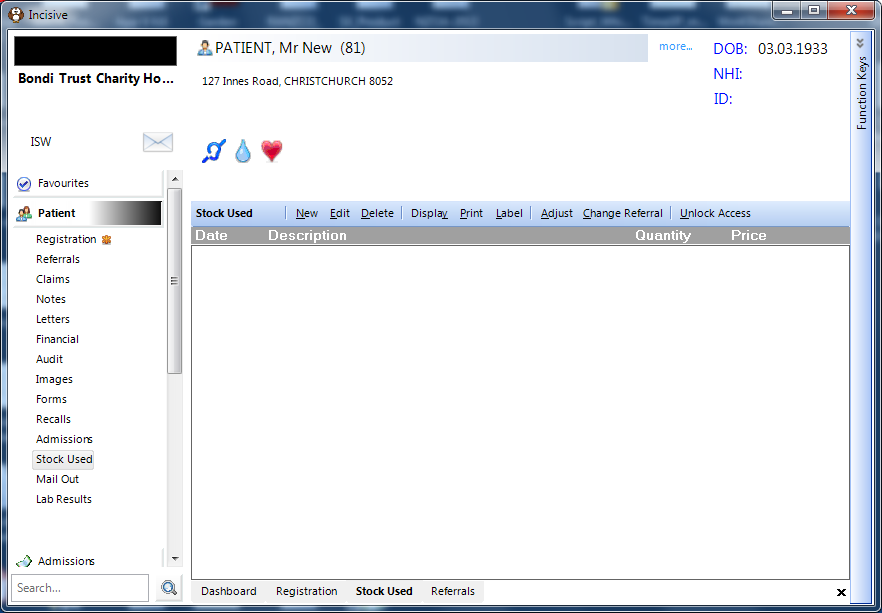
Select 'New'. If the patient has had more than one referral (operation event) select the correct one.
Check that the correct Billing Type is chosen (displayed at the top of the form). If it isn't you will need to exit out and select the correct one in the patient's Referral.
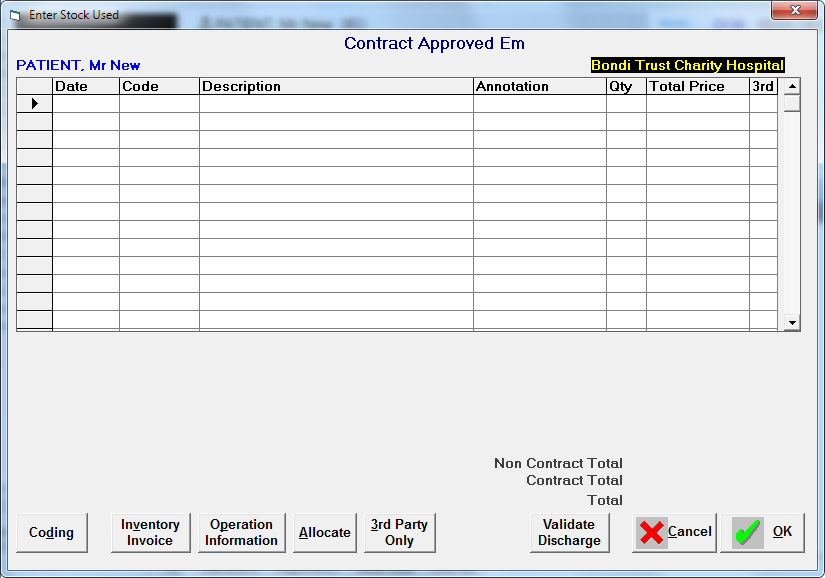

Click on the 'Operation Information' button to check the theatre information is available.
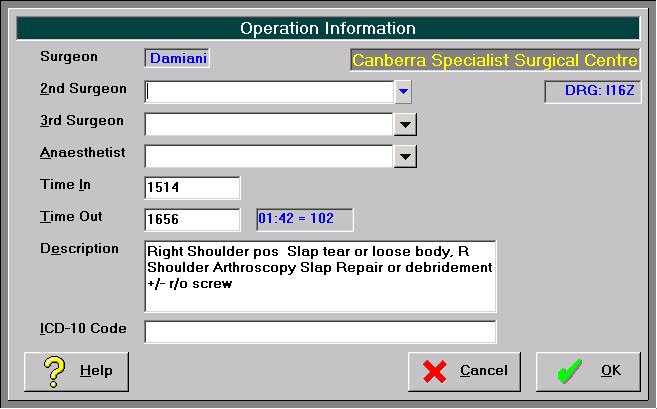
Times are sourced from the Theatre Register function in the Hospital Booking program. If the Theatre Register is not used, or the times are not entered or are incorrect, you can manually enter the Start & Finish time in. The 'Description' will display the text that was originally entered when the operation was booked. The actual operation performed may differ from what was intended so you may need to modify the text to record the actual operation details.
The Time In, Time Out, Duration and Operation Description will automatically appear on the invoice.
'Cancel' to exit back to the stock entry screen.
Proceed to enter information in. Note that depending on who the funder is will determine the minimal amount of data that you need to enter. For example:
Contract – One contract code covers all theatre, accommodation, prostheses and medical materials costs but may not cover additional services (special entertainment etc.)
3rd Party – Requires procedure codes, theatre band, accommodation band, prostheses
Self-funded – Requires all items including theatre times, accommodation, medical materials, prostheses, and all other items or services used or consumed.
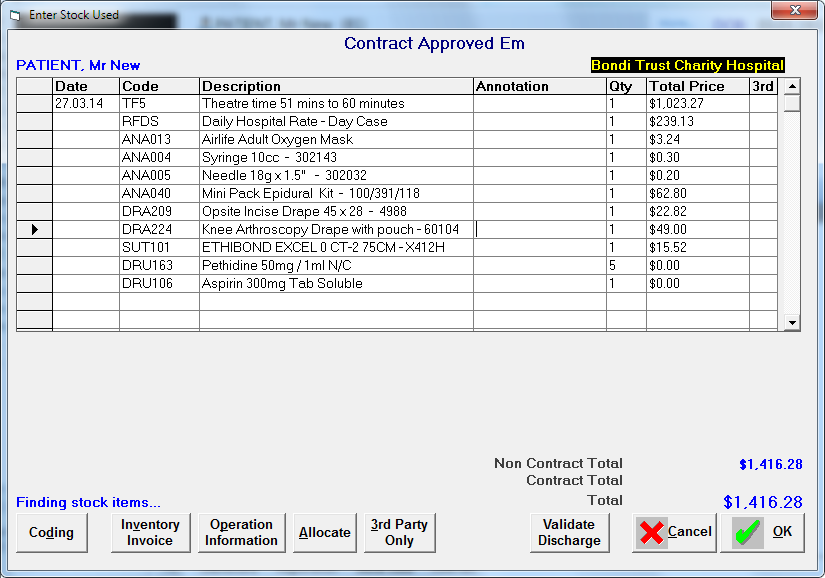
Check that the Billing Type is correct. This is displayed at the top of the form. If it is not correct exit out of the Stock Used tab (select the OK button to save the items already entered) and go to the Details of Referral and edit the relevant referral to select the correct one.
In the Date column enter the date that the service was provided (or press Enter for today's date)
In the Code column enter part or all of the code for the item you want to choose, then press Enter. If there is more than one item that starts with the code that you have entered you will be shown a list for you to select the correct one from.
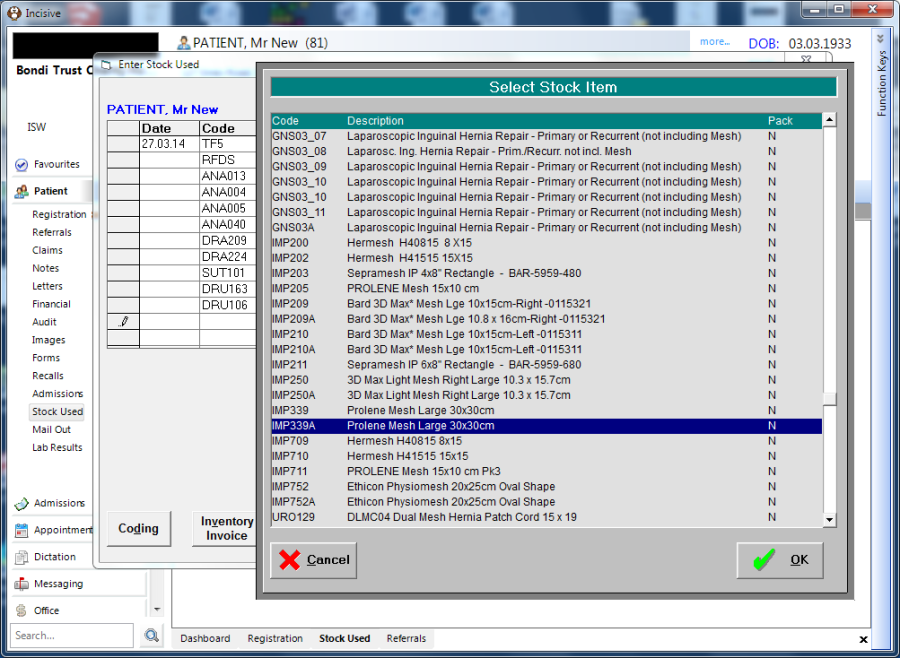
If you have created 'Packs' of items, you can enter them in using the same method.
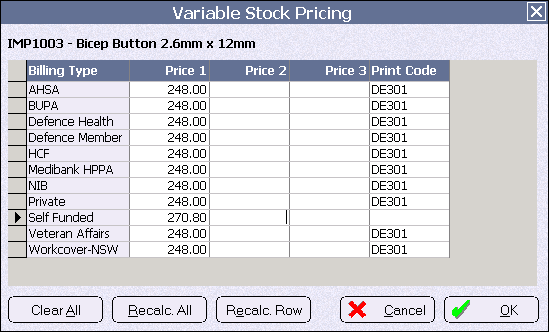
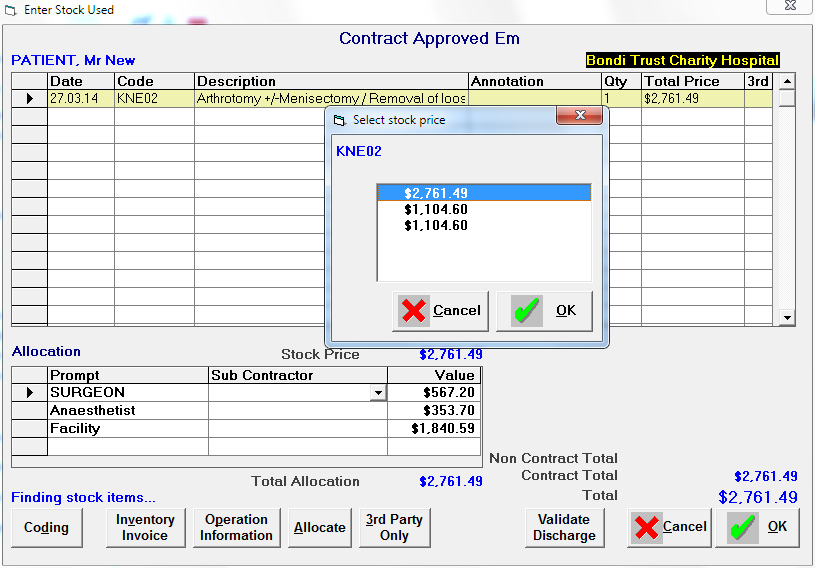
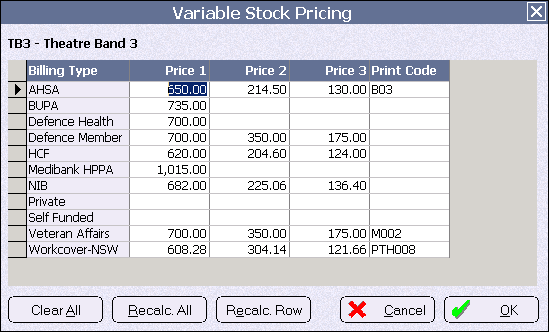
If the item you have selected has differential pricing, depending on the number that have been used or consumed, you will be given a selection showing the pricing steps. The second and subsequent prices are calculated using the percentages entered for the Billing Type that is being used.
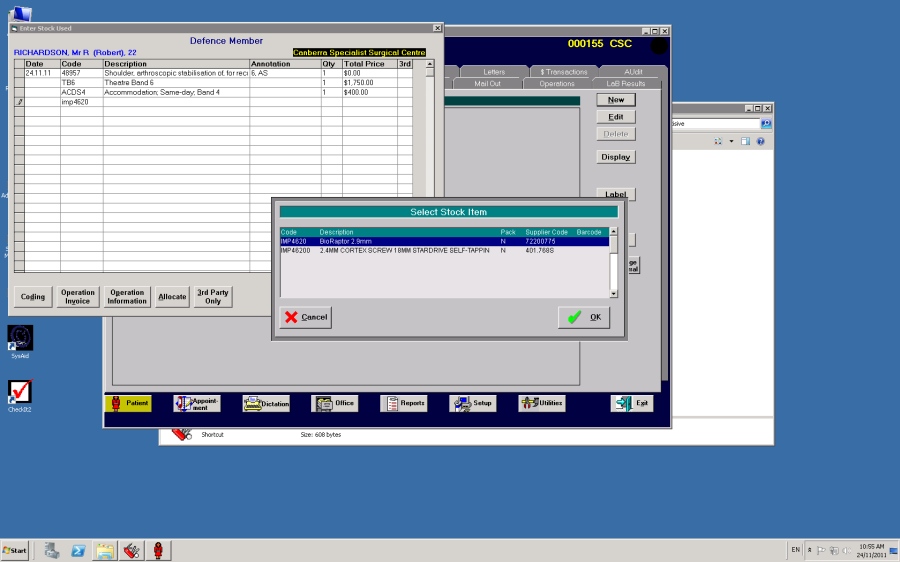
The Description column will display the text of the item selected. If you don't know what code you can type in some of the text of the description (press Enter) and it will search all the item descriptions. Be aware that this method is slower to search as it is looking through a lot more text.
The Annotation column displays text that has been recorded against the item in Stock -> Inventory. It does not display or print on the invoice. The annotation text cannot be altered from this screen. An ad-hoc comment can be added to the invoice using the Annotation button on the Inventory Invoice screen.
The Qty (quantity) column defaults to '1'. You can over-type the value if you have consumed more than 1 of the items.
The 'Total Price' column calculates the Price of the item multiplied by the quantity.Note that the value can be over-written, but, you should have a very good reason to alter the value that was inserted. This will not modify the default value of the item in the Inventory module.
The '3rd Party' column allows you to allocate the cost of an item to a third party rather than patient. This enables two invoices to be produced with items specific to the relevant parties. Click on the '3rd Party Only' to add a flag ( # ) to the entry.
Continue entering the items.Note that the order that you enter the items in this form will not determine the order of them on the invoice – the format is predetermined. You can save the items entered at any time, and resume at the later stage, by clicking on the OK button.
Discharge Validation – allows you to check to see if the patient and operation data is complete. This is the same report that runs from Hospital Booking -> Reports -> Discharge Validation report
Coding – allows you to enter Diagnostic or Procedure codes that can be used for Clinical Coding. The data is entered into and can be viewed from the Audit tab on the patient's file.
Allocate – if the operation is being performed within a contract arrangement this option allows you to allocate a credit sum to a sub-contractor (surgeon, anaesthetist) which is to be paid when the invoice is receipted.
3rdParty Only – allows the creation of a second invoice to a 3rd Party using the values that have been inserted into the 3rd Party column.
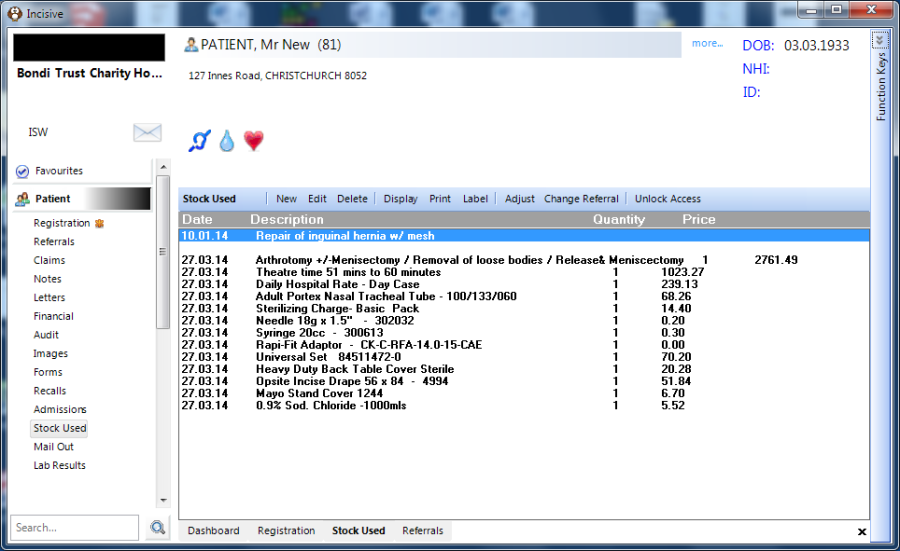
Once you have completed the entry of stock and services you can then proceed to produce the invoice. Click on the Operation Invoice button.
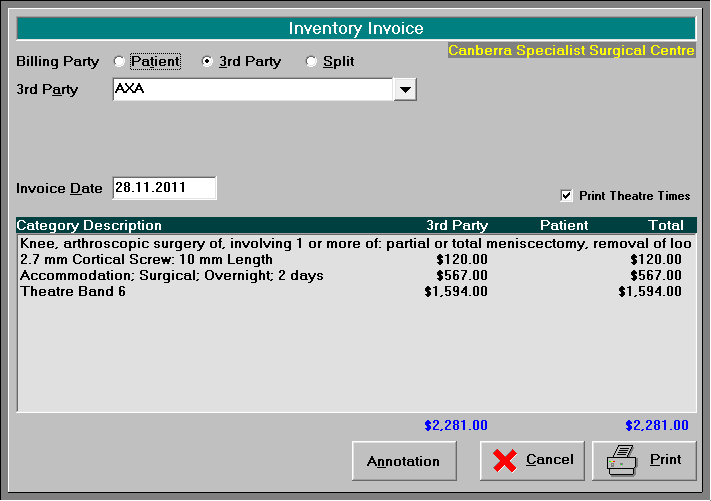
Change the Invoice Date if you wish it to reflect the Operation Date. Remember that many of the financial reports can report on either Invoice date or Operation date.
Enter an Annotation if you want to insert a comment onto the body of the invoice.
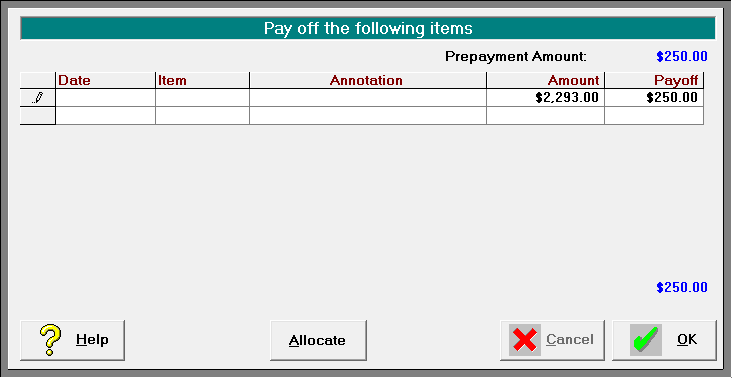
If a prepayment has been taken for this operation a form will appear prompting you to select the prepayment that will appear as a deduction from the invoice.
Printing the invoice
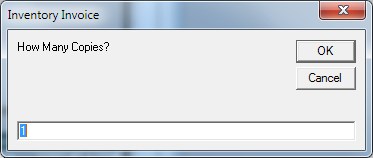
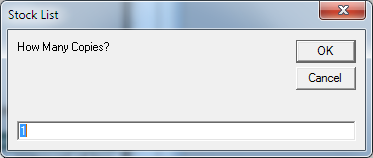
Prompt for the number of copies of invoice
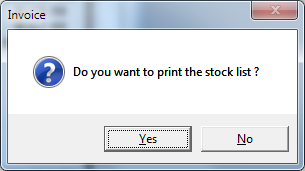
Prompt to print the stock list and the number of copies
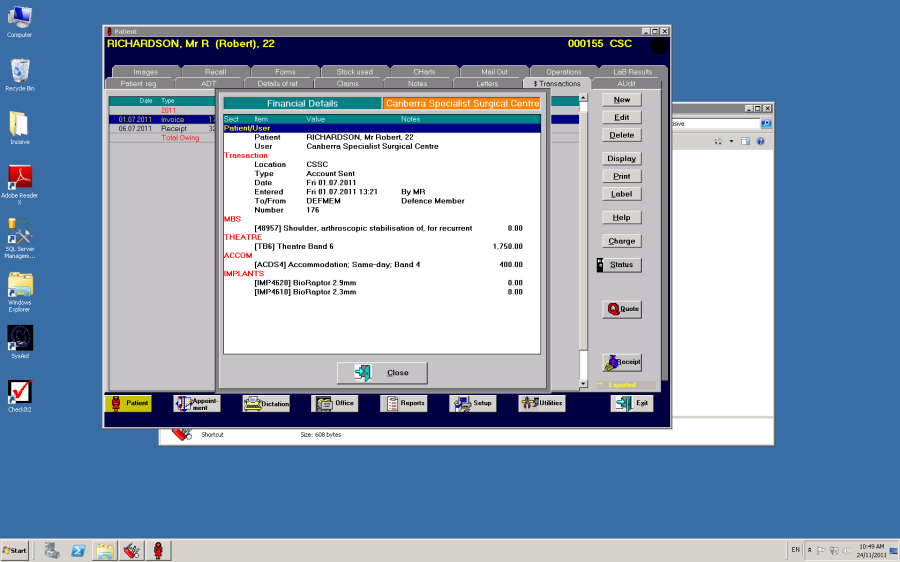
Viewing the details of the invoice
Preparing for Invoicing
Categories
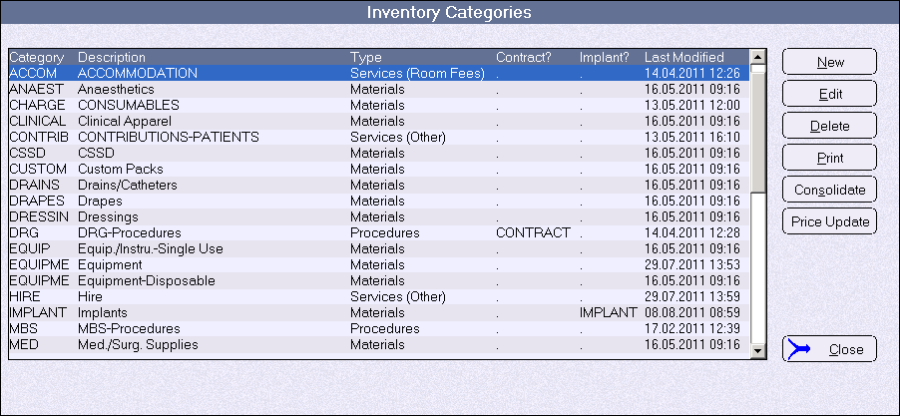
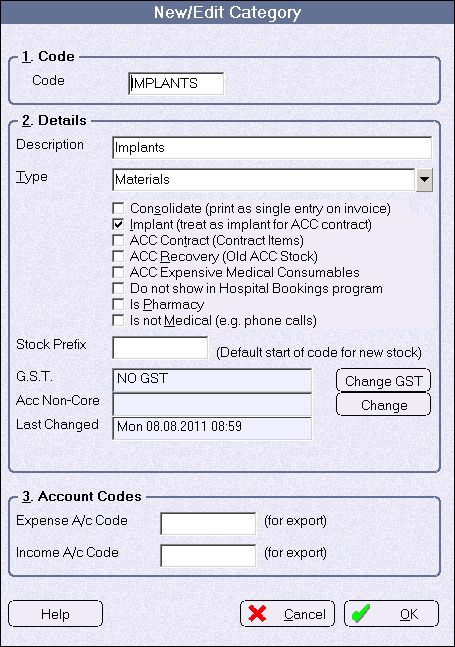
Category properties
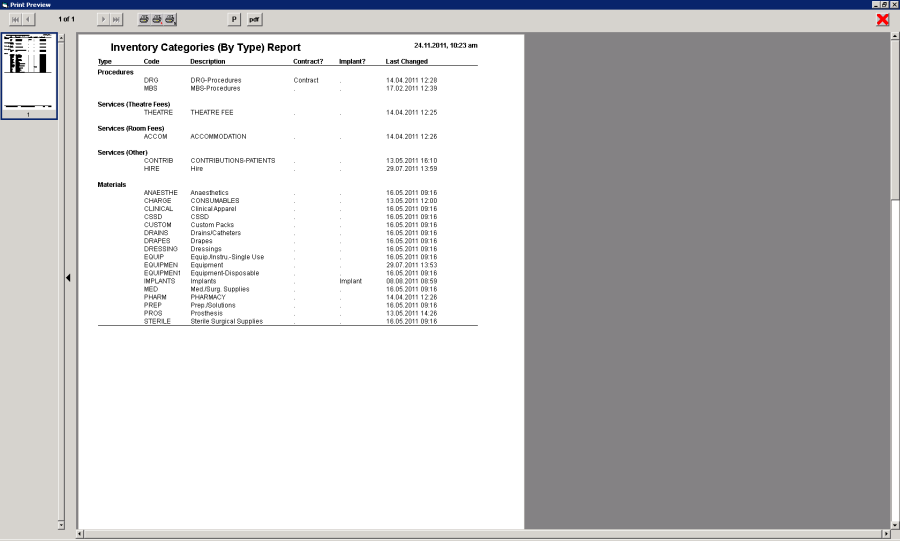
Procedures
Categories
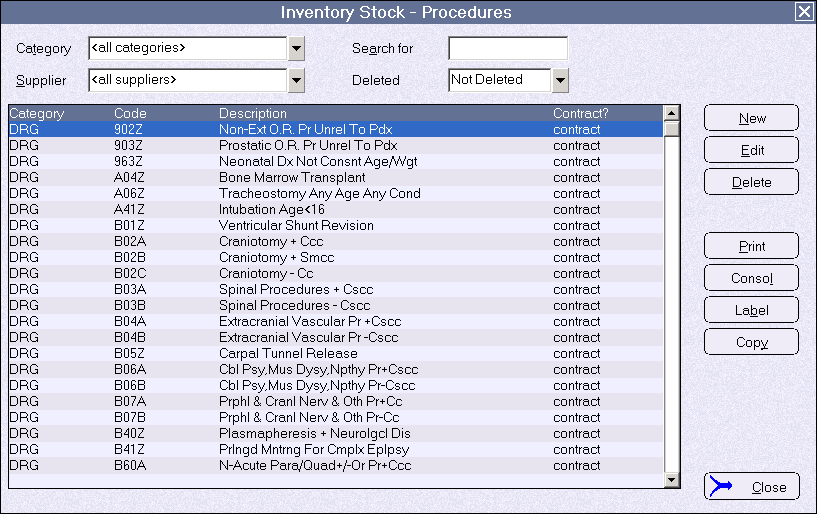
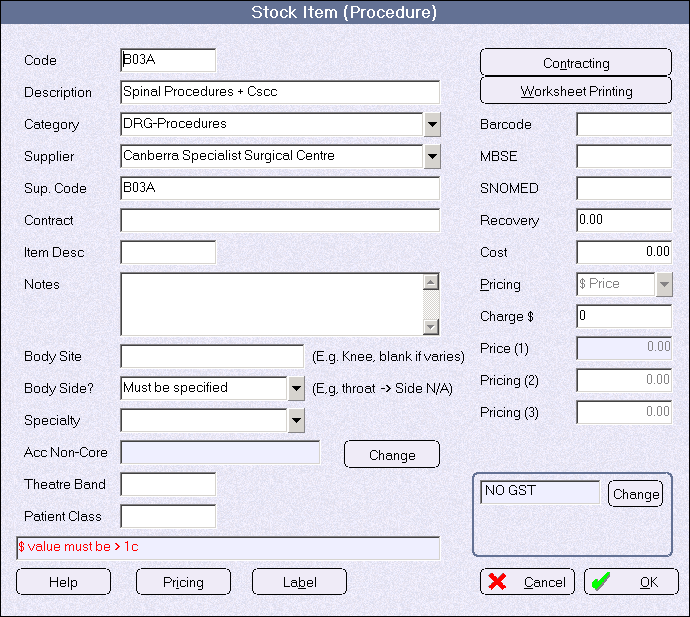
Procedure properties
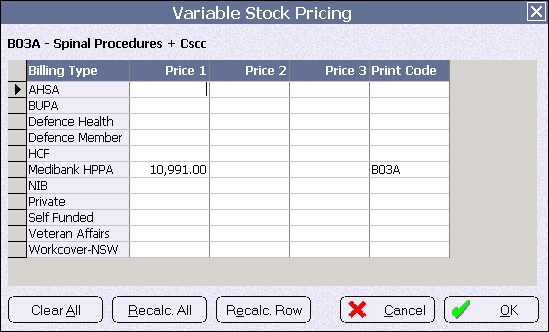
Pricing details
Services
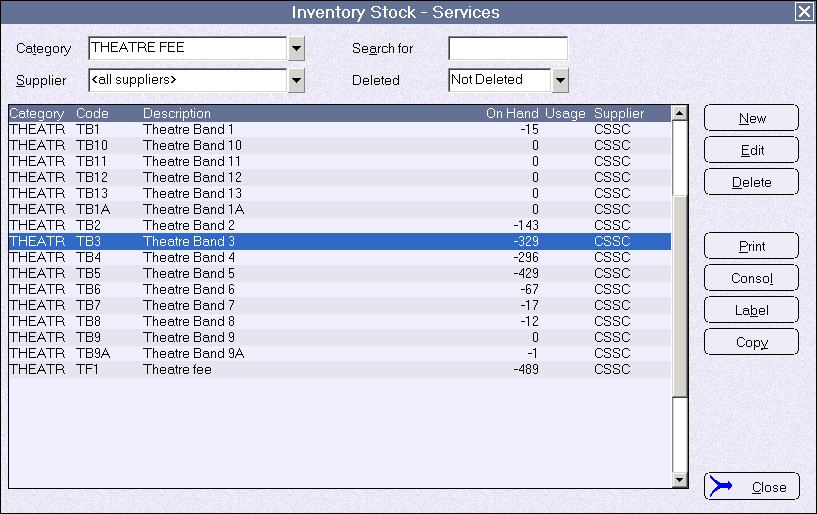
Categories – Accommodation & Theatre
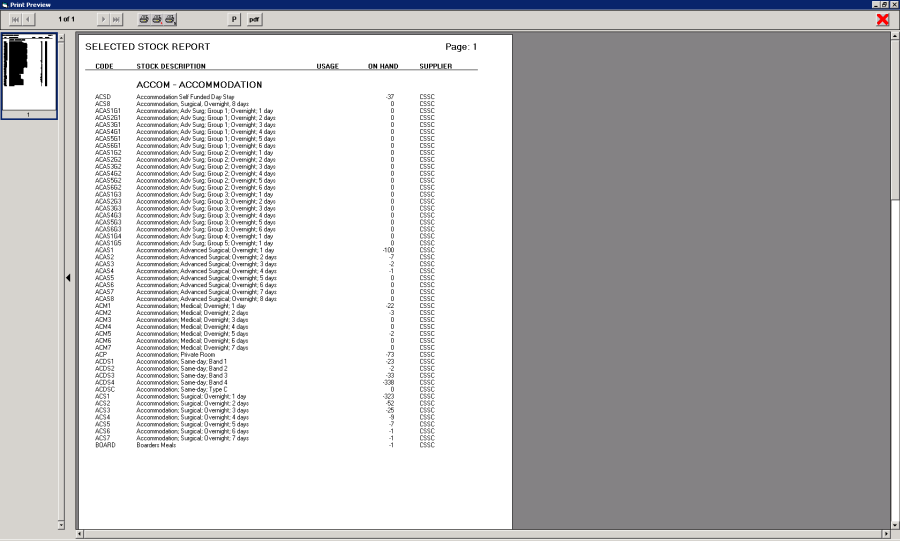
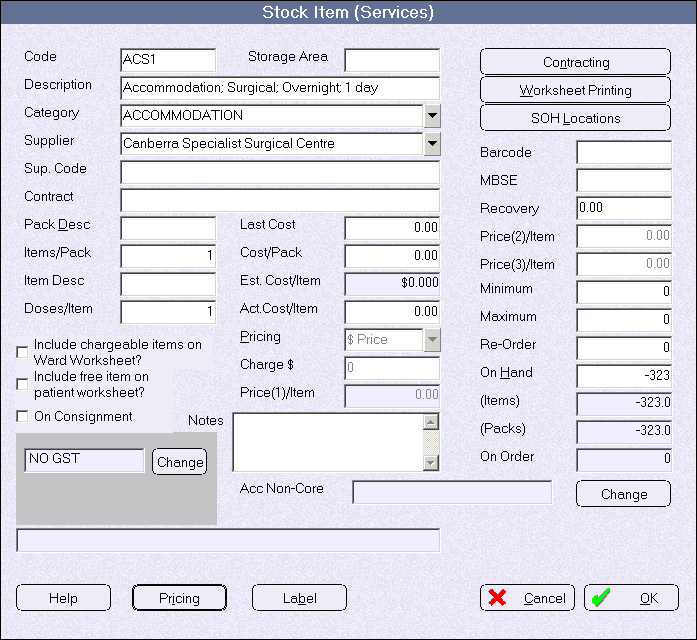
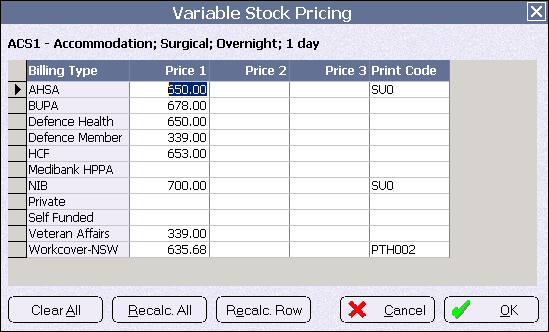
Accommodation 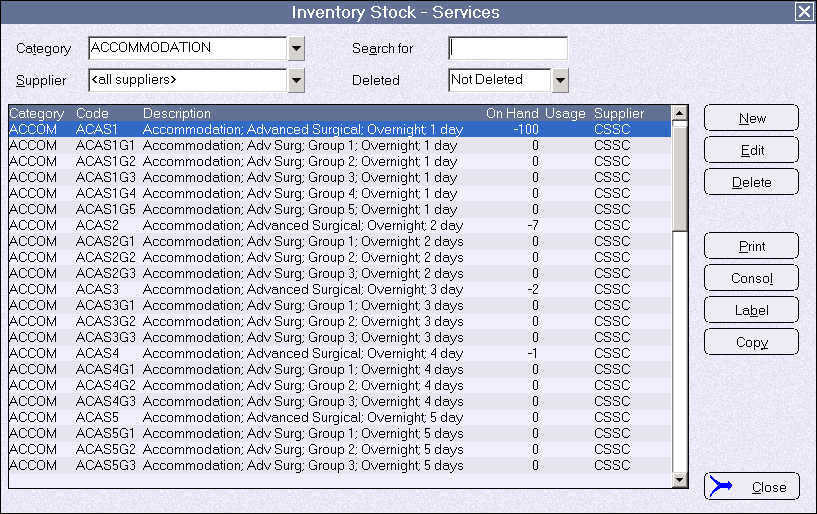
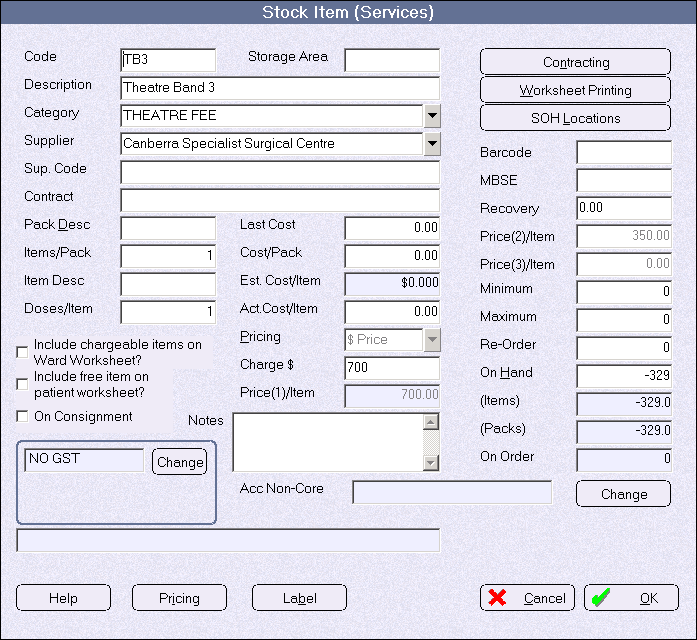
Theatre
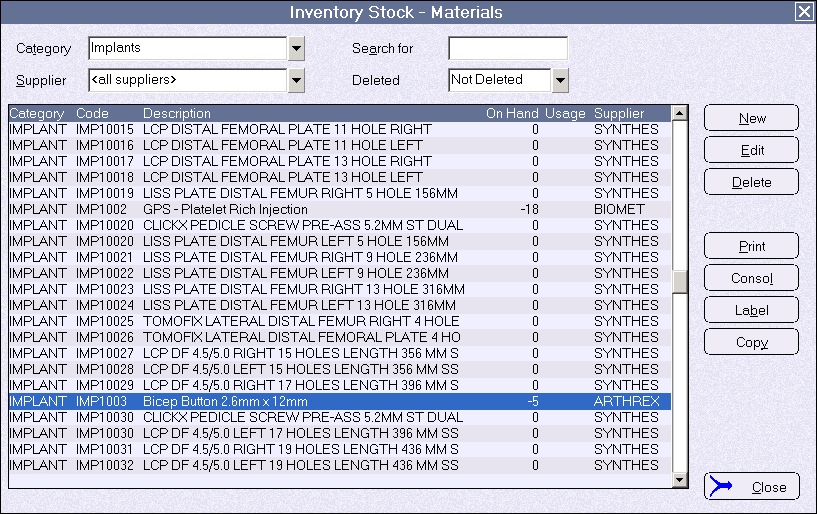
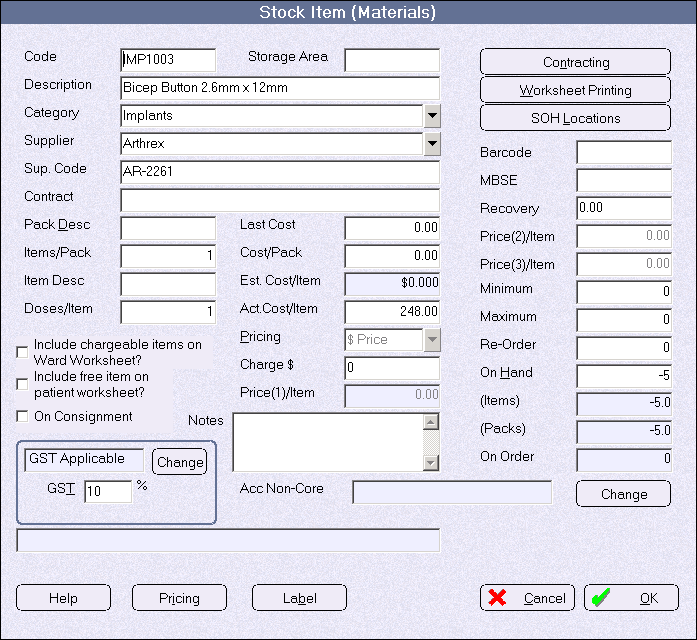
Materials
Categories – Consumables (various) & Prostheses (Implants)
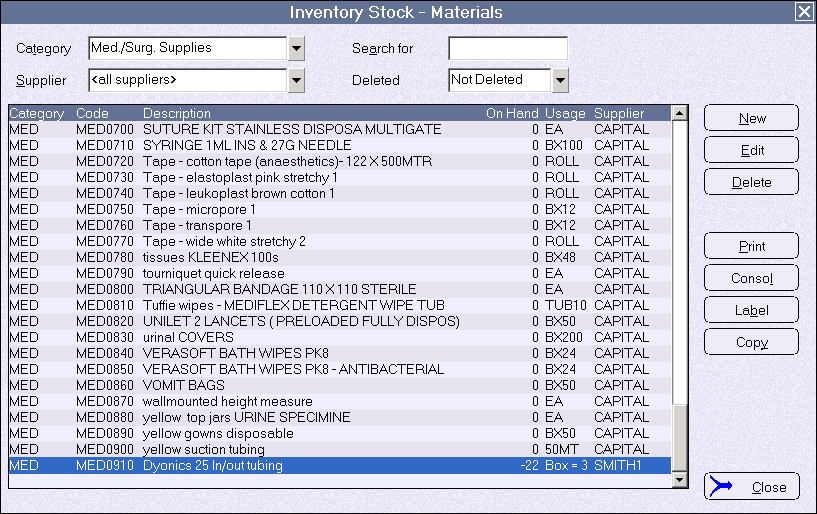
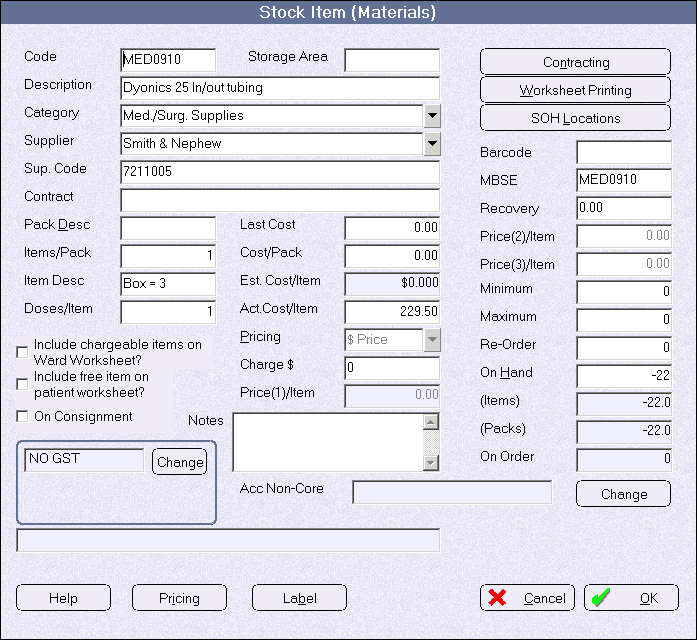
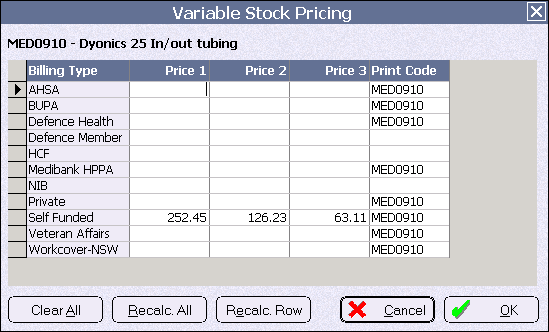
Prostheses