Setting up New Quick Code
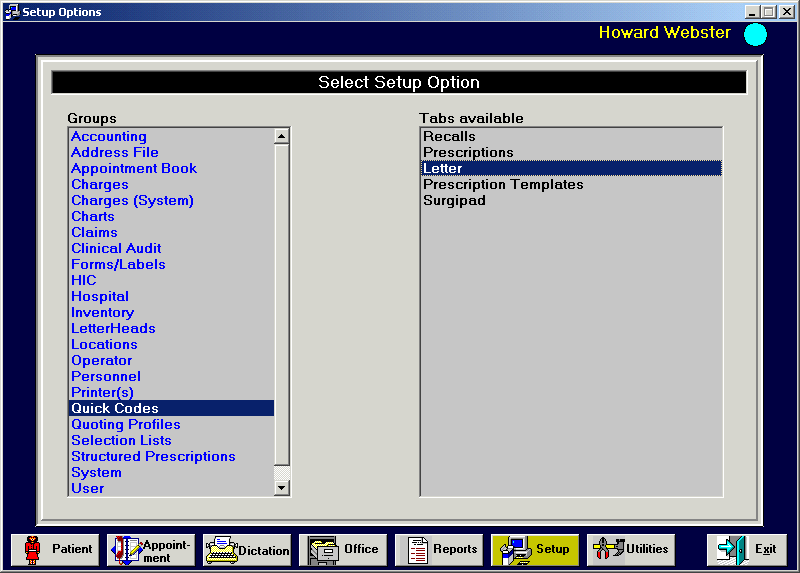
Go to Setup and click on Quick Codes – Letter and press New.
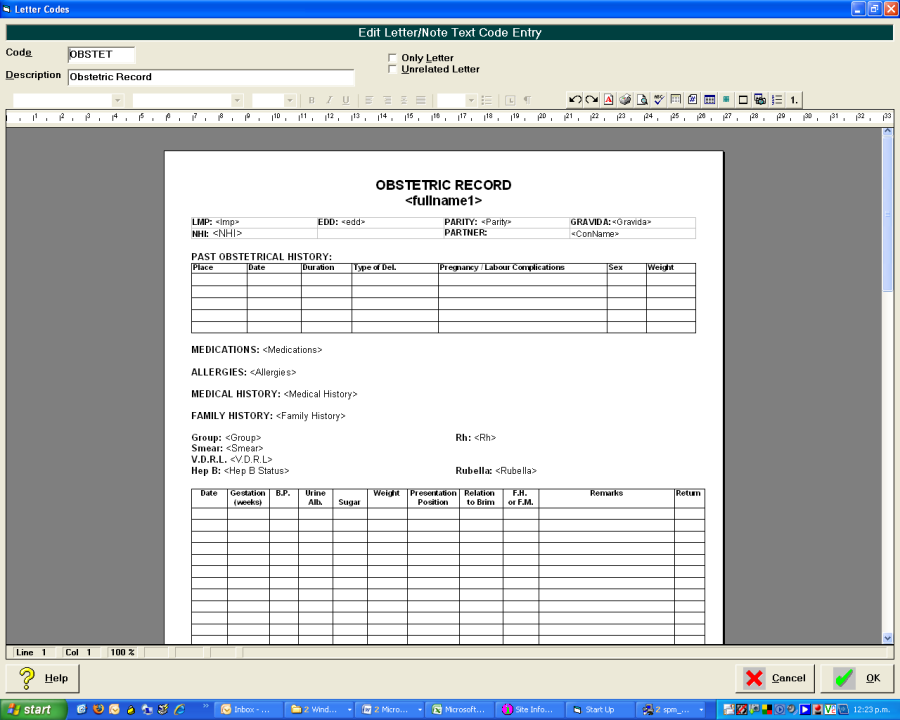
Add the details you want into the Quick Code. If you wish the Quick Code to appear for Unrelated Letters the make sure the Unrelated Letter box at the top is ticked as well as the Only Letter box. Press OK to save.
ADDING NEW FIELDS
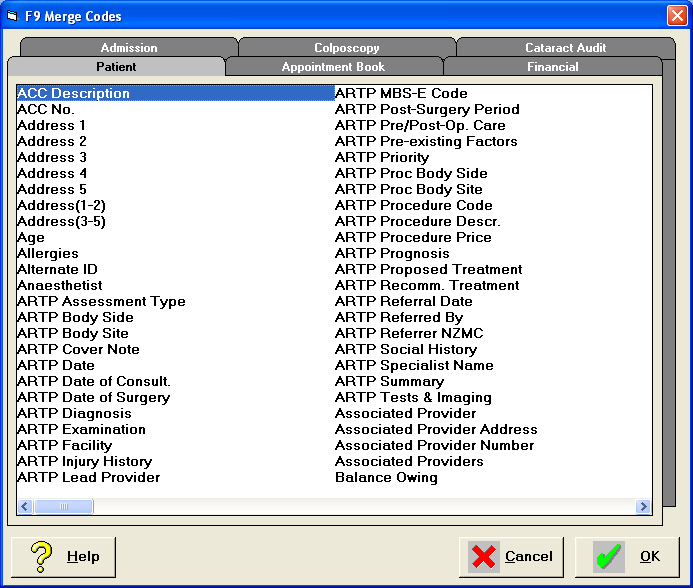
When you are in the Quick Code you can add fields that will be populated automatically from the information in the Database. Go to the postion that you want a new field to be entered and then press F9 to bring up the list of Merge Fields, highlight the field and either double click or press enter to get the field to appear on the form.
ADDING PROMPTS
You can add a prompt to your Quick Code, which allows you prompt for an answer, see examples below. To add a prompt to the Quick Code you need to enclose the prompt within these < > .
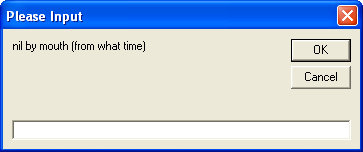
<nil by mouth (from what time)>
This will bring up a box like this and you would just enter the time.
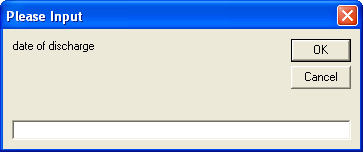
<Date of Discharge>
This will bring up a box like this and you would just enter the date of Discharge.
ADDING MORE SELECTION OPTIONS
You can add selection lists to your Quick Codes.
To add another selection list to the Quick Code you need to enclose the list within these < > and separate each choice with a //, see examples below
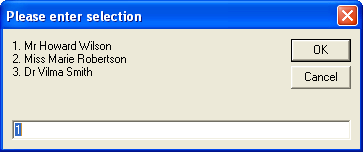
<Mr Howard Wilson//Miss Marie Robertson//Dr Vilma Smith>
This will bring up a box like this and you would just enter the number required, if none of the options are suitable, then just type in what you want.
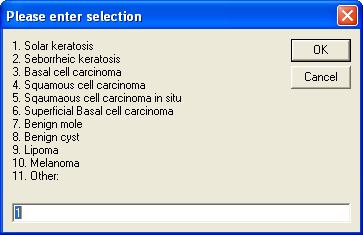
<Solar keratosis//Seborrheic keratosis//Basal cell carcinoma//Squamous cell carcinoma//Squamous cell carcinoma in situ//Superficial Basal cell carcinoma//Benign mole//Benign cyst//Lipoma//Melanoma//Other:>
This will bring up a box like this and you would just enter the number required, if none of the options are suitable, then just type in what you want.
Note
It is essential that the selections lists are enclosed within the <> and the different items are separated by //, else when you run the Quick Codes it will not work properly. Also the Merge Codes will be included in the <> as well, if these are missing or other brackets are used then the Quick Code will not work properly.