What you need to do:
Update your HIC Participants list
You will need to update your list of HIC Participants to get the latest Eclipse functionality and the Participant ID for this fund.
Import the latest Rates.Aus file
The latest Rates.Aus file will include the new policy names.
Link a fee schedule to a Fund name
This function links the fee schedule in the Rates.Aus file with a fund you can select when you are creating the schedule or invoice.
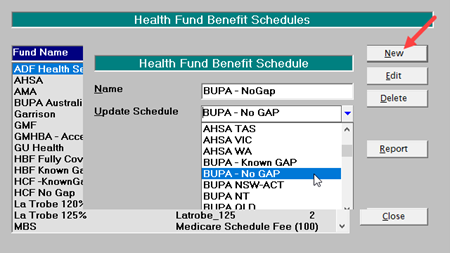
This example shows the steps to add 'BUPA-No Gap' and 'BUPA-Known Gap' fee schedules to the system.
Setup > Financial > Charges > Health Fund Schedules (System)
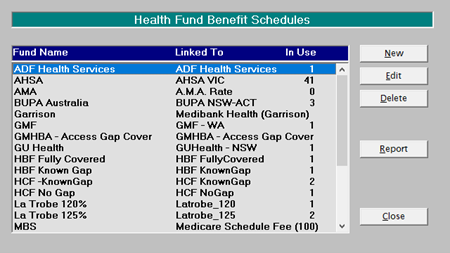
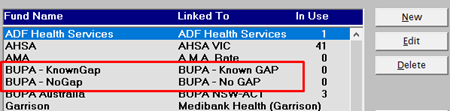
Select New then add BUPA-No Gap and also add BUPA – Known Gap
Add the policies to the Health Fund contact
This function provides the details of the Schemes and Agreements for the Health Fund and also the maximum amounts for Gap calculations.
This example shows the steps to add 'BUPA-No Gap' and 'BUPA-Known Gap' policies to the system
Setup > Contacts > Health Funds. Choose the BUPA entry and click Edit.
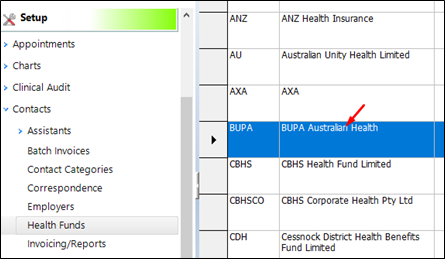
Click on Policy Names
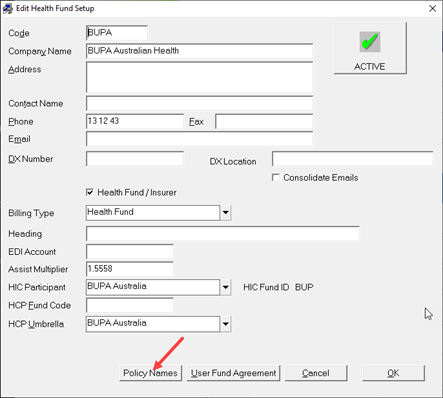
If there is an existing policy name, edit and rename it to something like ‘BUPA – pre 1 Dec 2021’
Use this for invoicing up to 1 December.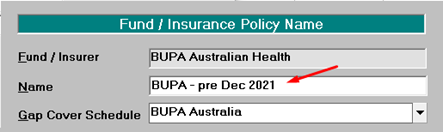
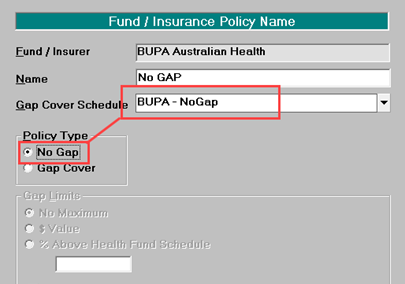
Add a New Policy for ‘No Gap’
Add a New policy for ‘Known Gap’.
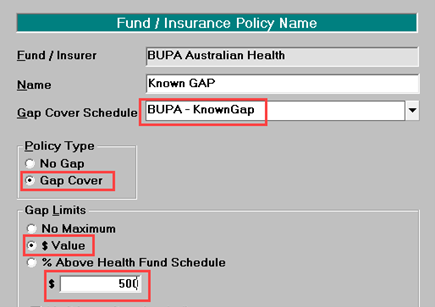
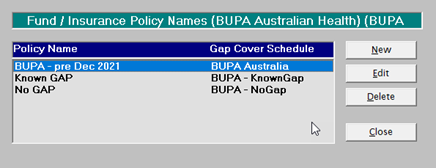
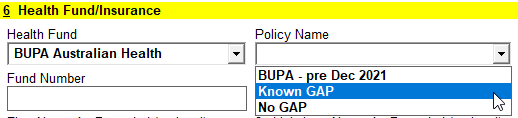
The policy options will now appear in the Registration screen.
Import the Rates.Aus file again (step 2.)
This will fully populate the new policy entries with the latest fee schedules.