Assistants or locums need to be added to the database as follows:
As a sub-contractor
SPMi Setup – Contacts – Assistants – Assistant Names
Complete the Sub Contractor screen details:
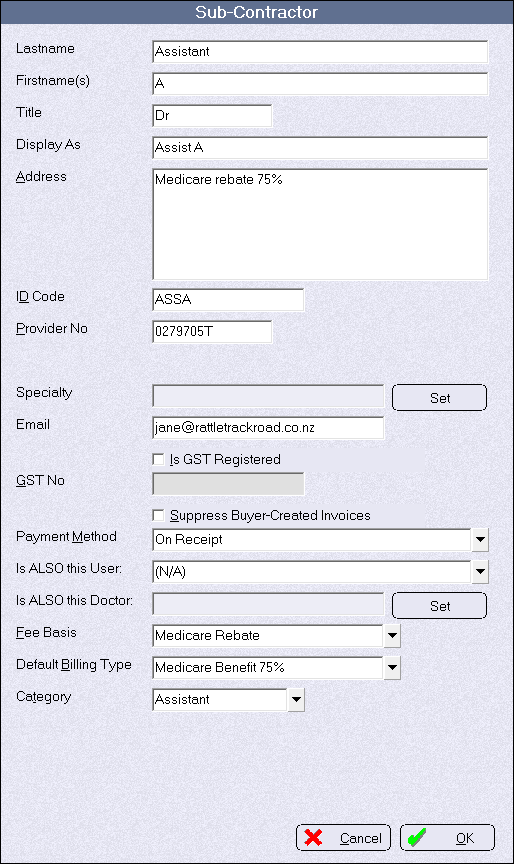
Lastname | * | Enter the assistants last name |
Firstname(s) | * | Enter the assistants first name |
Title | * | Enter the assistants title |
Display As | ** | When selecting an assistant / subcontractor, the data entered here is what displays together with the ID Code. |
Address |
| Used for sending the Buyer Created Tax Invoice. |
ID Code |
| This is a means of identify |
Provider No |
| A valid Provider number is required. |
Specialty |
| Not required |
| This email address will be used when emailing the Buyer Created Tax Invoices to the assistant. | |
Is GST Registered | * | Tick this option if the sub-contractor is GST registered and if GST is to be added. Normally this option would not be ticked in Australia. |
GST No |
| If you have ticked the GST Registered option above, enter the GST Number. |
Suppress Buyer-Created Invoices |
| Only select this option if you do not require a Buyer-Created Invoice to print / email or for the figure to show on the Accrural Report. |
Payment Method |
| Select from: |
Is ALSO this User |
| NA (applies to PHM module) |
Is ALSO this doctor | * | NA (applies to PHM module) |
Fee Basis |
| This is used for the calculation when quoting. |
Default Billing type | * | Can be left blank |
Category |
| Select from the list of Categories as configured in Assistant Types |
*denotes fields that are only visible in SPMi
**the Display As is the same as the Name field in SPMc
As an Invoice Code
Once the assistant has been added as a sub-contractor, you will then need to add one of more invoice codes that will 'link' back to this sub-contractor.
SPMi Setup – Financial – Charges – Invoice Items
If you already have assistant invoice codes created, edit once of these entries to see how the data has been entered. If necessary, take a screen shot and then use this as the basis for completing the new entry(s).
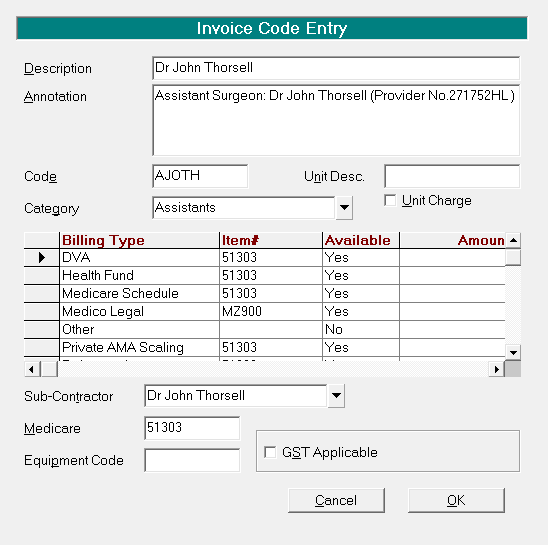
In the code field, not the convention previously used, and follow this. I.e. all the Assistant codes start with 'A'.
In the Medicare field, ensure you link to the correct Item number, i.e. 51300 or 51303.