- Select 'New'.
The 'Select Address' screen displays.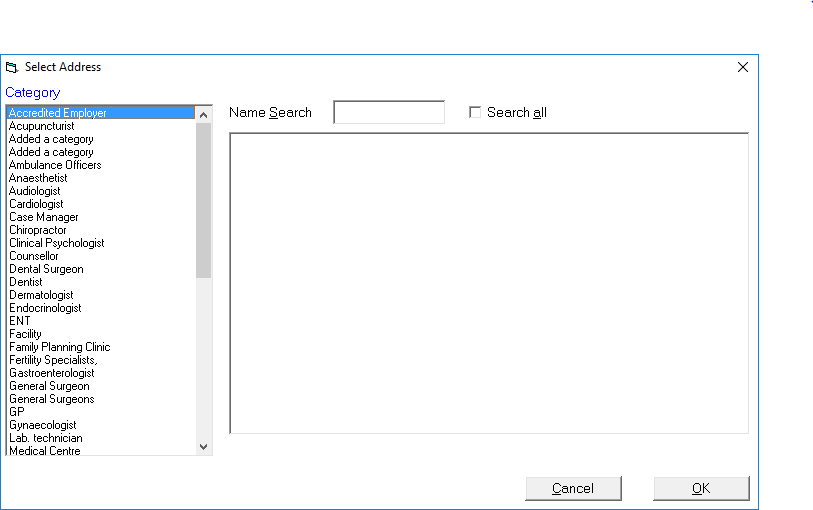
- Select the Address Code Category (use the down arrow key to move to the correct category, then press the right arrow to move over to the codes.
- Select the address from the list (begin typing the last name of the intended recipient and once it is highlighted press 'Enter'). The date and address details appear on the screen.
If you want to type to someone who is not in your address file, merely select Cancel on the 'Select Address' screen and type the details on screen as you would if you were typing an ordinary letter.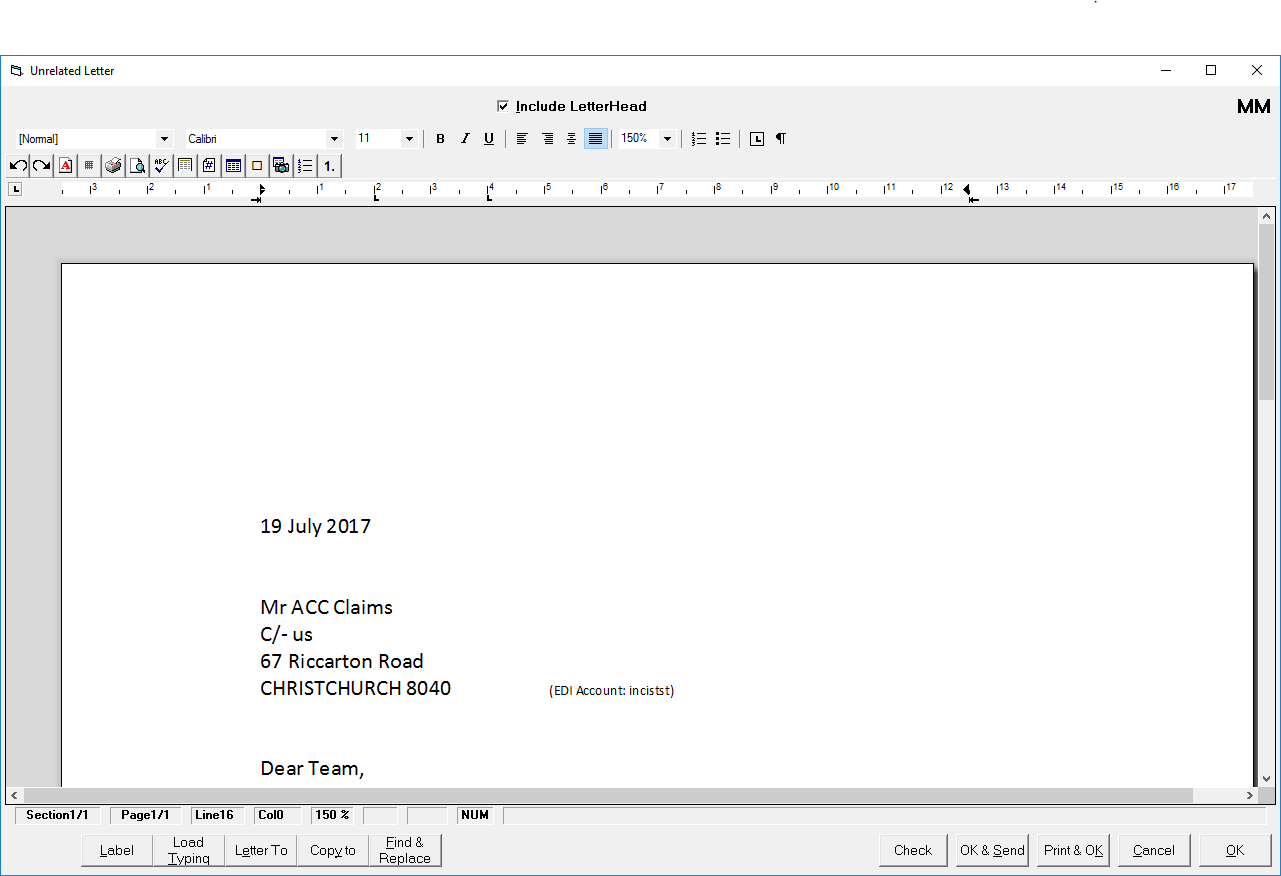
- Type the letter.
To complete your work more quickly and efficiently, remember to use Quick Codes (F8). These are ideal for any frequently typed text.
When you are happy with the text of the letter and the layout (do a Spell Check and Print Preview if necessary) either:
- Select 'Print' & 'OK' to print and save the letter ; or
- Select 'OK' to save the letter to the patient's file (to edit or print at a later stage).
- Select 'OK' to save the letter to the patient's file (to edit or print at a later stage).
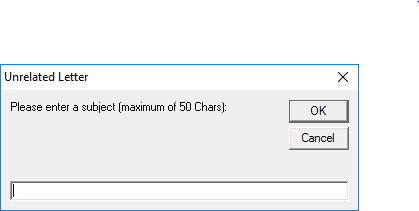
- Type a subject for the letter (up to 50 characters). This will identify it on the Unrelated Letters Tab for future reference.
- Select 'OK'.
The date of the letter, recipient and subject appear on the Unrelated Letters Tab.