File locations are system wide. Changes made here will impact on ALL staff and doctors that use the Incisive application. This area would normally be setup by Incisive personnel or a suitably qualified hardware technician. For this reason, most Roles will not have access to this area.
If you are changing the location of the Scanned Documents - Allocated or the Images - Allocated files you should contact Incisive staff so that they can run a utility application over the database to make changes to the relevant records in the database. The images will still appear without the utility being actioned.
These folders would normally be on a server in a shared location. It is not necessary to have all the folders on the same computer.
The UNC format is preferred rather than Drive Mapping.
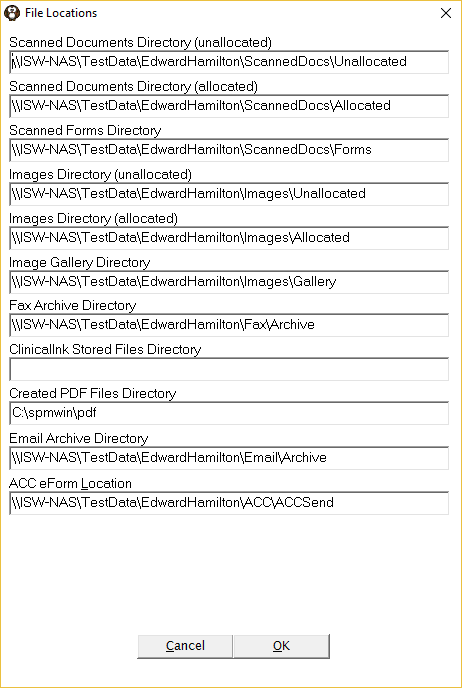
Scanned Documents Directory (unallocated) | A folder is required for unallocated scanned documents (documents that are either scanned outside of the Incisive application and are yet to be allocated or deleted scanned documents) if sites are scanning. When a scanned document is 'Deleted' from a patient's record, the actual file is moved back into the Unallocated folder. This allows you to reassign them to the patient again if the documents were deleted by mistake. When the files are assigned to a patient they are moved from the Provider's Unallocated directory to the relevant Allocated directory. |
Scanned Documents Directory (allocated) | A folder is required for scanned documents if the site is scanning. The program will then make a folder for each Provider under this folder for each Provider based on their counter number in the database. The External Documents, inFORM attachments, email attachments, Clinical Ink, Worksheet and FileNote functions will also save their image files into this directory |
Scanned Forms Directory | A folder is required for Scanned Forms if these are in use (now obsolete). |
Images Directory (unallocated) | A folder is required for unallocated Images which are either images awaiting allocation to a patient file, or images that have been deleted. The program will default to this directory when you choose the Unallocated option in Patient > Images. |
Images Directory (allocated) | A folder is required for allocated images. The program will then make a folder for each Provider based on on their counter number in the database. Images allocated for a patient (and Provider) will be moved from either the Unallocated Images directory into this folder, or another location that the operator has browsed to. As the Image directory is often used for photos and videos the storage requirements can be quite significant and can be located on separate storage devices or environments. |
Images Gallery | Images can be allocated to folders and used to educate the patient about the proposed procedure. The same images will be visible for every patient. The images are viewed in Patient > Images > Gallery |
Fax Archive Directory | If the practice is faxing from within the Incisive application, a folder is required to place a copy of the fax file for archiving once it has been sent. This does not set the directory where the newly created fax file is stored prior to sending. See |
ClinicalInk Stored Files Directory | (obsolete) |
Created PDF Files Directory | A folder is required to store the pdf files that are created when attaching records to emails or ARTP reports. |
Email Archive Directory | If the practice is emailing out of the Incisive application, this should point to a folder in a shared location accessible by all network logins. |
ACC eForm Location | If the practice is eBilling ACC, this path needs to be set. Normally an ACC folder would be created at a level below the shared SPMWIN folder on the server. An ACCSend folder is also required below the ACC folder. The path would look something like this: \\Server\Spmwin\ACC\ACCSend
|